


Change Store Email Addresses - Mageplaza
3 mins read
|
04-02-2016

Vinh Jacker | 06-29-2016
Setting up the Tax Rules for Magento 2 stores is an essential configuration so that you apply them to each order on a specific website. The tax rule is the perfect association of customer tax class, product tax class, and tax rates. Depending on the customer assigned to the customer tax class, the product belonging to orthe product tax class as well as the offered tax rate, Magento 2 system will auto-calculate the tax exactly for each order on your store. This will reduce your workload, improve customer experience, and help you comply with the tax requirements perfectly.
All of the settings are given in detail in the instruction below to make sure that configuring the tax rule will become clearer and easier with our topic.
First, you need to create the tax rule, by which the tax will be calculated in the future:
Stores > Taxes > Tax Rules.Add New Tax Rule.Tax Rule Information section, set Name for the new rule.Edit icon on the row.Save.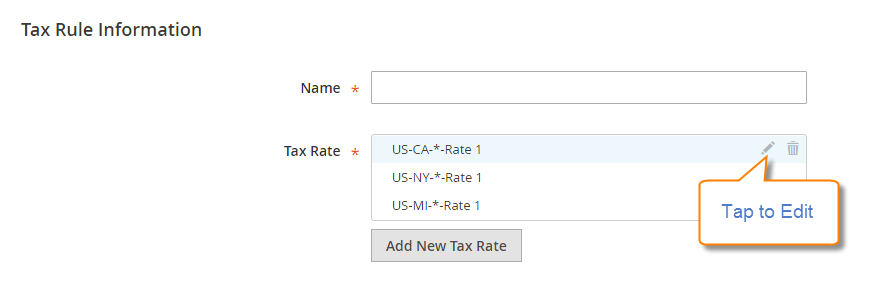
To enter the tax rate, follow one of the methods:
Add New Tax Rate.Save to complete.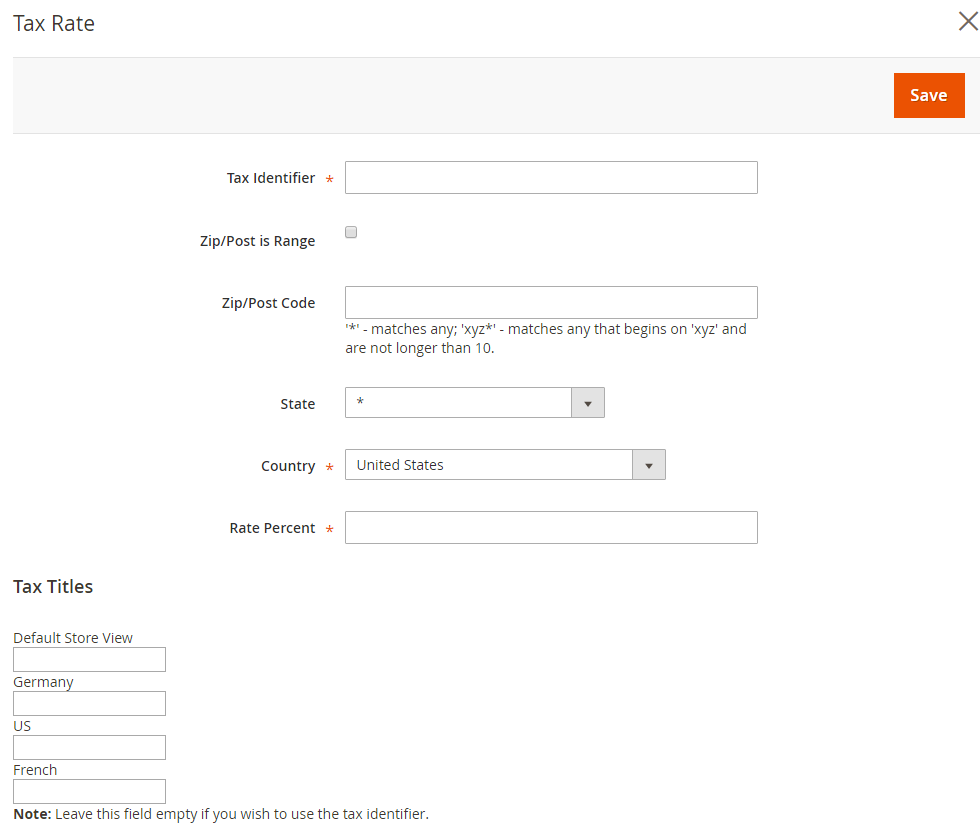
With this method, it is quicker and easier to set new tax rates, in case you have the CSV file ready:
Adding Settings section,
Choose File to upload the CSV file from your browser.Export Tax Rates to export the file.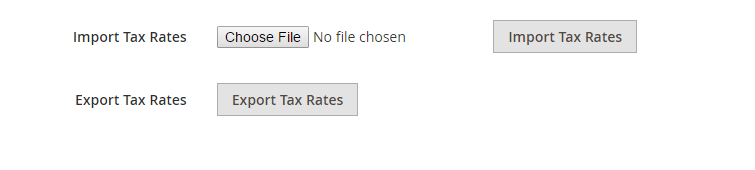
After creating the rule, you will set up additional requirements, such as which customer groups and which products to apply the rule, the priority and order of the rule, or how to calculate it based on subtotal.
Additional Settings section,
Customer Tax Class area to which the rule applies.
Edit icon to modify the form and then Save it.Add New Tax Class to fill the necessary information and then Save it.Product Tax Class to which the rule applies.
Edit icon to modify the form and then Save it.Add New Tax Class to fill the necessary.Priority to determine this tax to be applied first when more than one tax are enabledCalculate off Subtotal Only
checkbox.Sort Order to arrange them in the list of the tax rules.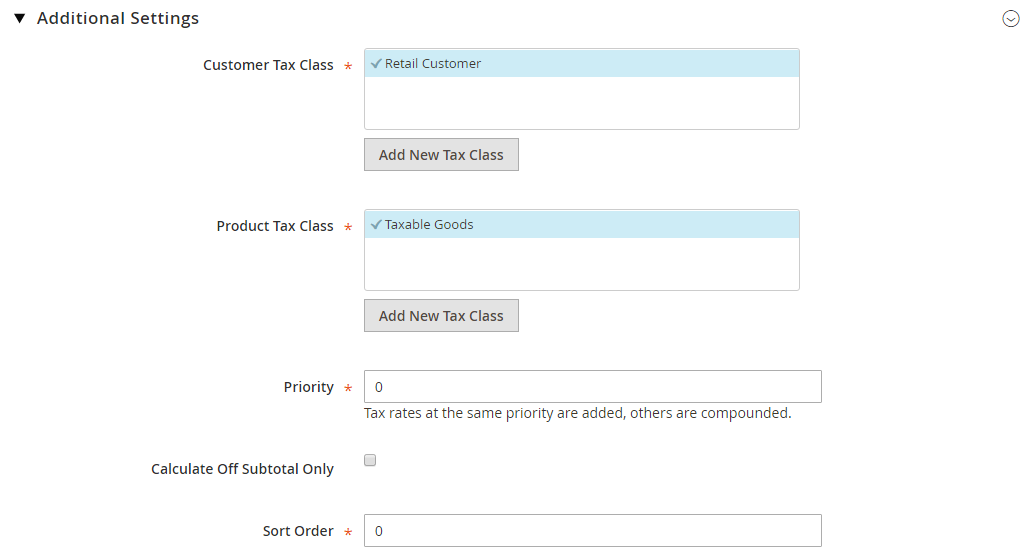
Save Rule to complete.Explore Mageplaza Extra Fee extension
Besides products’ price, tax is also one of customers’ top concerns to make purchase decisions. Tax changes depending on the roduct attributes and the country’s policy. That is why being clear in this area ensures that you follow the rules and also have a professional image. Tax rules configuration in Magento 2 guidelines hopefully gives you essential knowledge to handle the problem. Also, you can read the below tax topics for further help. Leave comments if you want us to discuss any concerns you have!
Related Topics

Jacker is the Chief Technology Officer (CTO) at Mageplaza, bringing over 10 years of experience in Magento, Shopify, and other eCommerce platforms. With deep technical expertise, he has led numerous successful projects, optimizing and scaling online stores for global brands. Beyond his work in eCommerce development, he is passionate about running and swimming.
Related Post
Change Store Email Addresses - Mageplaza

Change Welcome Message - Mageplaza
Customize the welcome message on your store's homepage to provide a personalized touch for your customers. Improve the user experience with our step-by-step guide.

Configure Magento 2 Contact Form & Email: Detailed Guides - Mageplaza
Configure the email address for your Magento 2 store's contact form and ensure that your customers can easily get in touch with you with this informative guide
How to Install Magento 2 with Sample Data - Mageplaza
How to install Magento 2 with Sample Data. In this topic we will discuss about How to Install Magento 2 Step by Step in Manage Store topic

6 Steps To Stop Brute Force Attacks - Mageplaza
How To Stop Brute Force Attacks in Magento 1, 2. In this topic we will discuss about How To Stop Brute Force Attacks in Manage Store topic

How to set Locale, Language, and Country in Magento 2 - Mageplaza
Setup Locale State Country in Magento 2 provides setup your store information on Locale Options that determines the timezone, language, country and the days.
Change Store Email Addresses - Mageplaza
Change Welcome Message - Mageplaza
Customize the welcome message on your store's homepage to provide a personalized touch for your customers. Improve the user experience with our step-by-step guide.
Configure Magento 2 Contact Form & Email: Detailed Guides - Mageplaza
Configure the email address for your Magento 2 store's contact form and ensure that your customers can easily get in touch with you with this informative guide
How to Install Magento 2 with Sample Data - Mageplaza
How to install Magento 2 with Sample Data. In this topic we will discuss about How to Install Magento 2 Step by Step in Manage Store topic
6 Steps To Stop Brute Force Attacks - Mageplaza
How To Stop Brute Force Attacks in Magento 1, 2. In this topic we will discuss about How To Stop Brute Force Attacks in Manage Store topic
How to set Locale, Language, and Country in Magento 2 - Mageplaza
Setup Locale State Country in Magento 2 provides setup your store information on Locale Options that determines the timezone, language, country and the days.