
Change Store Email Addresses - Mageplaza
3 mins read
|
04-02-2016

Vinh Jacker | 06-29-2016
Setting up fixed product taxes in Magento 2 can seem daunting, but it’s a crucial step for businesses that need to comply with specific tax regulations. This guide will break down the process step-by-step, making it easy to understand and implement fixed product taxes in your Magento 2 store.
Applying the Fixed Product Tax (FPT) is one of the tax options that is supported well by Magento 2. Unlike other taxes such as VAT or sale taxes that are calculated with a percentage of the order price, the FPT gives customers a fixed number for the tax. For instance, there are certain tax types that require fixed charges regardless of the product price, such as the WEEE tax (Waste Electrical and Electronic Equipment Directive), or commonly known as the eco-tax. Therefore, instead of configuring the tax rates and the tax rules, from Magento 2 configuration, you need to set the conditions of the product attributes. With the help of attributes, the FPT is auto-added to the payment process.
Magento Fixed Product Taxes (FPT) offer several advantages for managing your store’s taxes:
Stores > Settings > Configurations.Sales, select the Tax tab.Fixed Product Taxes section,
Enable FPT.Product List, Product View Page, Sales Modules, and Emails.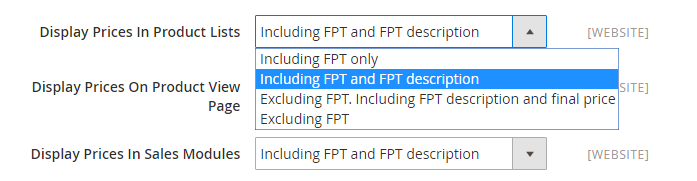
Apply Tax to FPT to “Yes” if you need.Include FPT in Subtotal to “Yes” to add tax when calculating the subtotal for any order.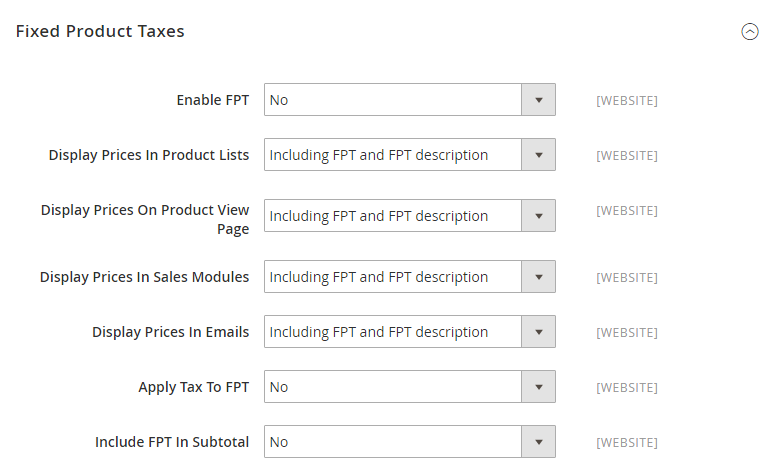
Stores > Attributes > Products.Add New Attribute, and do as the following:
Default Label for the attribute.Catalog Input Type for Store Owner field, select Fixed Product Tax option.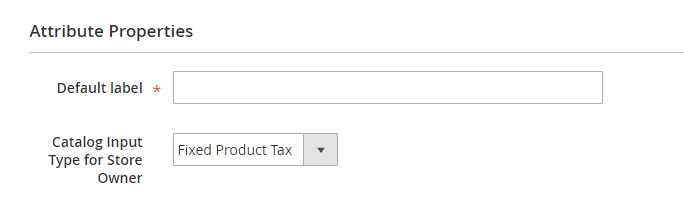
Advanced Attribute Properties section,
Attribute Code field.Add to Column Options to “Yes”.Use in Filter Options field, choose “Yes” to enable the product filters in the grid based on the value of the FPT field.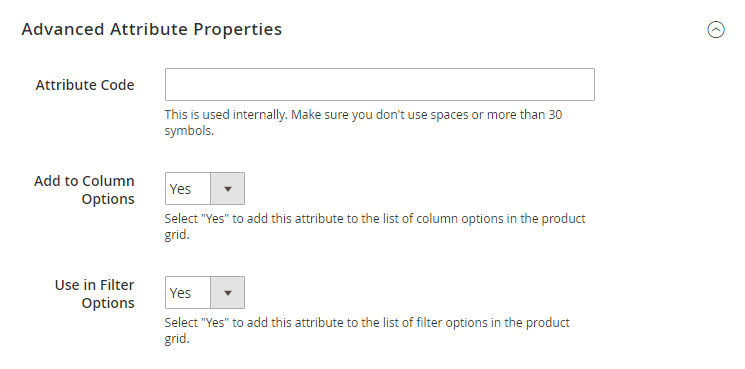
Manage Labels tab to do that.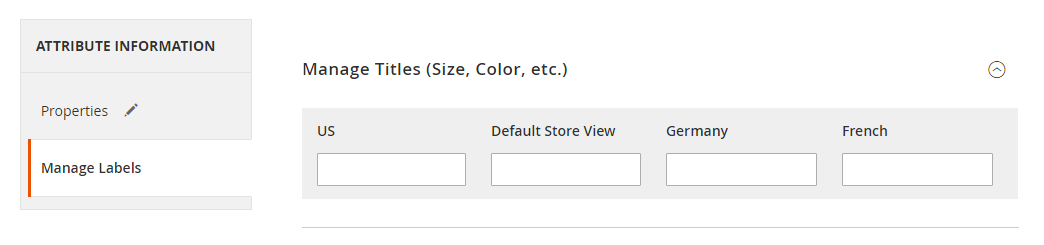
Save Attribute to complete, then access Cache Management link to flush the cache and ensure that the configurations are active.Make sure your store is not only in good shape but also thriving with a professional team yet at an affordable price.
Get Started
Stores > Attributes > Attribute Set.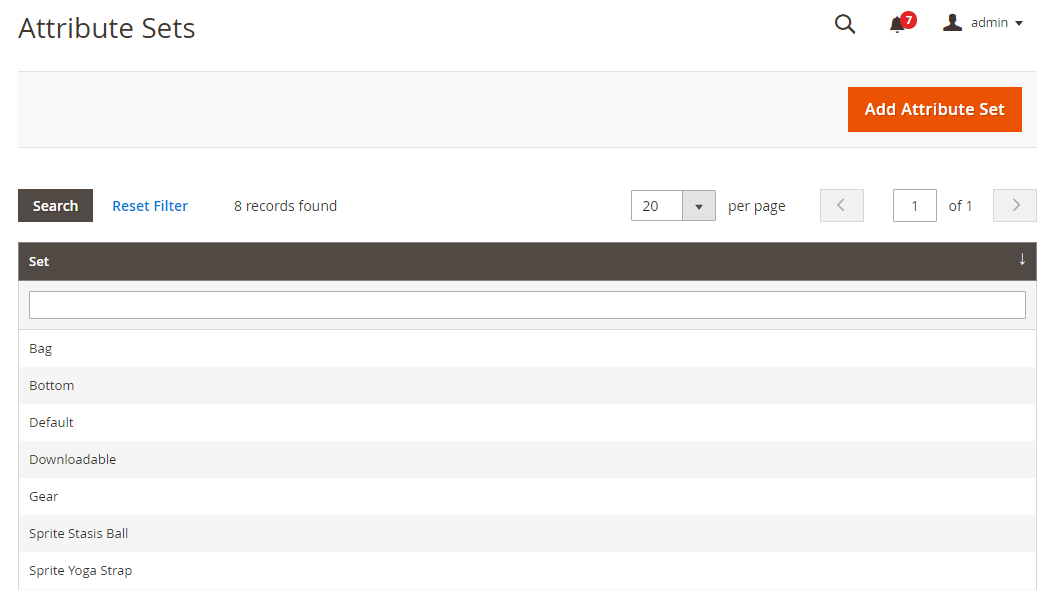
Unassigned Attributes list and drag it to the Group list.Each group folder is set respectively to a section of product information. Thus, it is comfortable to place the attribute wherever you want it to appear when the product is open in the edit mode.
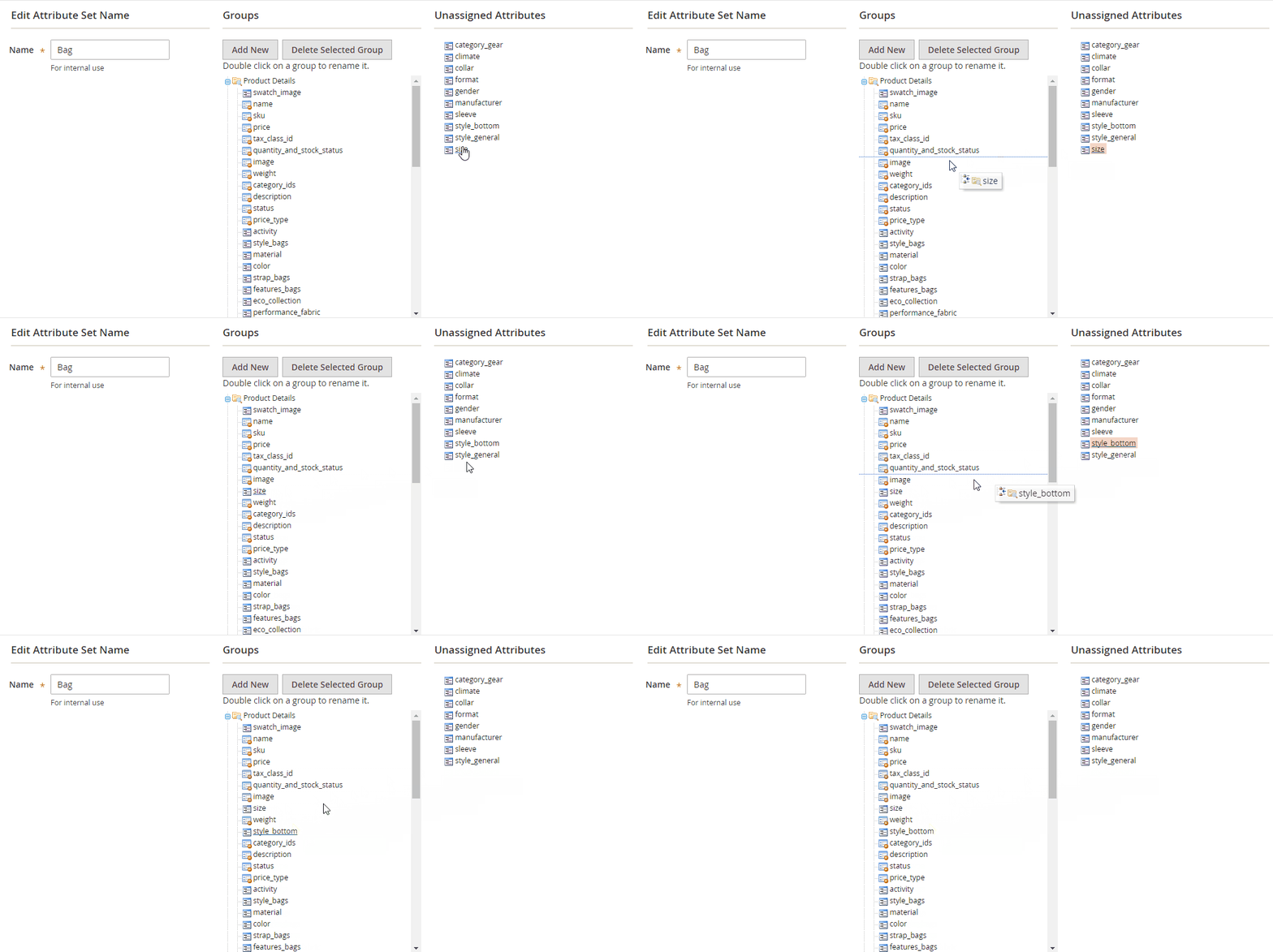
Save to complete.Product > Inventory > Catalog.Add Tax, and do the following:
Website and base currency to apply.Country/State for the fixed product tax.Add Tax button and repeat the guide above.Save to completeThis section highlights common issues with Magento Fixed Product Taxes (FPT) and provides practical solutions to ensure accurate tax calculations and a seamless checkout experience.
| Issues | Solutions |
|---|---|
| The FPT is not being correctly applied to the designated products. | - Make sure the FPT attribute is set up correctly in the product settings - Confirm that the attribute is assigned to the correct product types - Check that the tax class settings in Magento are properly configured - Reindex and clear the cache to apply any changes - Ensure the FPT module is enabled in your Magento settings |
| The displayed Fixed Product Tax amount is incorrect. | - Verify the FPT value in the product's attributes - Ensure no conflicting tax rules interfere with FPT calculations - Check that the currency settings are correctly configured - Reindex and clear the cache to update the FPT amount - If the issue persists, test on a clean Magento installation |
| The FPT is not displayed on the checkout page. | - Make sure the FPT attribute is enabled and correctly configured. - Check the store view and website settings to confirm FPT is active. - Ensure there are no conflicting tax settings. Test the checkout process to identify any issues. |
| There are errors in the FPT calculations. | - Make sure the FPT amount is correctly entered in the product attribute - Check for overlapping tax rules that might affect FPT calculations - Verify the currency and locale settings - Reindex and clear the cache to fix any errors - Test with different products to spot any patterns |
| The Fixed Product Tax is not updating after changes are made. | - Reindex and clear the cache to apply changes - Confirm that the FPT attribute has been correctly updated - Check for system overrides that might affect FPT - Ensure all product types reflect the updated FPT settings - If issues persist, test on a clean Magento installation |
Magento 2 applies tax rules based on your configured settings. You can choose to display prices with or without tax. By default, the system follows predefined tax settings unless customized. Proper configuration ensures accurate tax calculations.
If your Fixed Product Tax (FPT) is missing from the product price, check your tax settings. Ensure the FPT attribute is correctly assigned to the product and that the option to include tax in the price is enabled. Reindex and clear the cache to apply changes.
Yes, Magento 2 allows you to show product prices without tax. Adjust the tax settings in the admin panel to exclude tax from displayed prices. This is useful if you prefer to show the base price and apply tax at checkout. Ensure your settings align with your business needs.
To troubleshoot tax issues, verify your tax rules and settings. Ensure default tax rates are accurate and that the FPT attribute is correctly configured. Reindex and clear the cache. Test with different products to identify patterns. Using a reliable Magento hosting service can also help prevent tax-related issues.
Fixed Product Tax in Magento 2 can be created with the view to setting up a fixed rate of tax based on product attributes. It enables stores to comply with tax rules, but stores should consider the FPT quoting in email, as only the total price will be displayed, and the price difference will make customers hesitate in purchase decisions.
Read the below posts if you are wondering about other tax issues.
Related Post

Jacker is the Chief Technology Officer (CTO) at Mageplaza, bringing over 10 years of experience in Magento, Shopify, and other eCommerce platforms. With deep technical expertise, he has led numerous successful projects, optimizing and scaling online stores for global brands. Beyond his work in eCommerce development, he is passionate about running and swimming.
Related Post
Change Store Email Addresses - Mageplaza

Change Welcome Message - Mageplaza
Customize the welcome message on your store's homepage to provide a personalized touch for your customers. Improve the user experience with our step-by-step guide.
Configure Magento 2 Contact Form & Email: Detailed Guides - Mageplaza
Configure the email address for your Magento 2 store's contact form and ensure that your customers can easily get in touch with you with this informative guide
How to Install Magento 2 with Sample Data - Mageplaza
How to install Magento 2 with Sample Data. In this topic we will discuss about How to Install Magento 2 Step by Step in Manage Store topic

6 Steps To Stop Brute Force Attacks - Mageplaza
How To Stop Brute Force Attacks in Magento 1, 2. In this topic we will discuss about How To Stop Brute Force Attacks in Manage Store topic

How to set Locale, Language, and Country in Magento 2 - Mageplaza
Setup Locale State Country in Magento 2 provides setup your store information on Locale Options that determines the timezone, language, country and the days.
Change Store Email Addresses - Mageplaza
Change Welcome Message - Mageplaza
Customize the welcome message on your store's homepage to provide a personalized touch for your customers. Improve the user experience with our step-by-step guide.
Configure Magento 2 Contact Form & Email: Detailed Guides - Mageplaza
Configure the email address for your Magento 2 store's contact form and ensure that your customers can easily get in touch with you with this informative guide
How to Install Magento 2 with Sample Data - Mageplaza
How to install Magento 2 with Sample Data. In this topic we will discuss about How to Install Magento 2 Step by Step in Manage Store topic
6 Steps To Stop Brute Force Attacks - Mageplaza
How To Stop Brute Force Attacks in Magento 1, 2. In this topic we will discuss about How To Stop Brute Force Attacks in Manage Store topic
How to set Locale, Language, and Country in Magento 2 - Mageplaza
Setup Locale State Country in Magento 2 provides setup your store information on Locale Options that determines the timezone, language, country and the days.