


Change Store Email Addresses - Mageplaza
3 mins read
|
04-02-2016

Vinh Jacker | 05-19-2016
In Magento 2, the email template contains your logo and store information, so there is nothing more for you to edit or design. It is easy to customize by inserting variables and saving them in the backend, and then your email template will be available to use, or you can create a new transactional email or follow-up email.
As a result, you won’t need to worry about wasting too much time every time you send an email while still ensuring effective personalization of the emails sent to your customers. This will prompt them to pay attention to your sales or promotional content and then take action.
Discover Follow Up Email extension for Magento 2
Discover Follow Up Email extension for Magento 2
The email template in Magento 2 is divided into three main parts: Header, Body, and Footer.
Header: The header is at the top of the email that is sent to customers. Simultaneously, it attracts the viewer’s attention very well, so your logo is placed there and linked directly to your store. This is a great idea to drive more traffic to your site.
Footer: The footer template includes the sender’s conclusion and signature. You can freely edit the content of the footer and add more information, such as company email, number, or address.
Message: The message template is referred to as the body of the email, and the customization is similar to what you do with the header and footer templates. However, with the message template, it is different when you apply different activities or events. Magento provides you with the corresponding templates to use or modify to be suitable for your brand. For example, you can start with the main information related to the recipients.
When creating or editing Magento 2 email templates, consider these rules for proper email display:
First, you have to select and load the templates:
Marketing > Communications > Email Templates.Add New Template,
Load Template, the corresponding format will appear.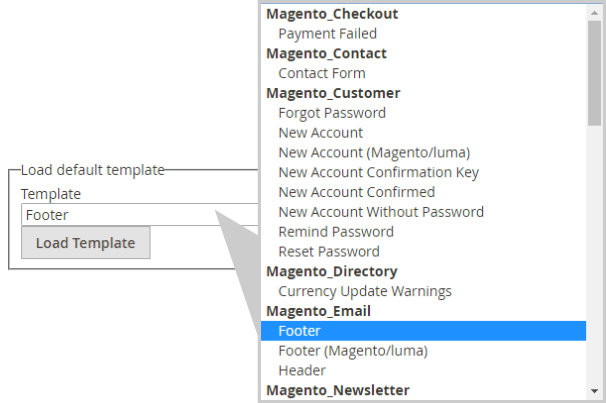
In this step, you can add information for the Template, such as Name, Subject, Content, Variables, and Styles.
Template Name field.Template Subject to organize the templates. The list of templates can be sorted and filtered by the Subject column.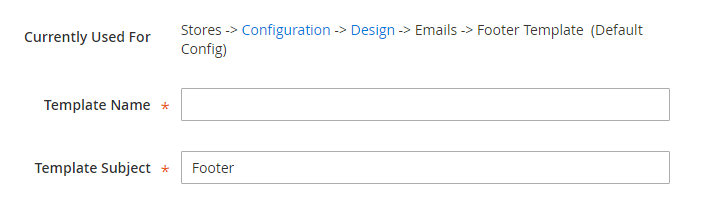
Template Content box.Insert Variable to insert a variable in the Template Content box.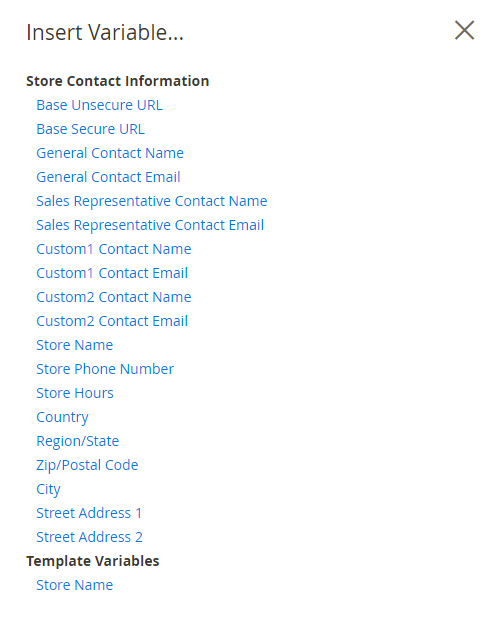
With the inserted variable, you can customize it directly into the template.
Template Styles box.After making changes, let’s take a look at how the changes look like in reality via the Template Preview:
Preview Template to adjust if needed.Save Template to complete.Each completed new template is auto-updated in the list of available Email templates.
This is the last step in launching the new email template. Complete these settings, and you will be ready to go:
Footer/ Header Template
Store > Configurations > General > Design, open Email section.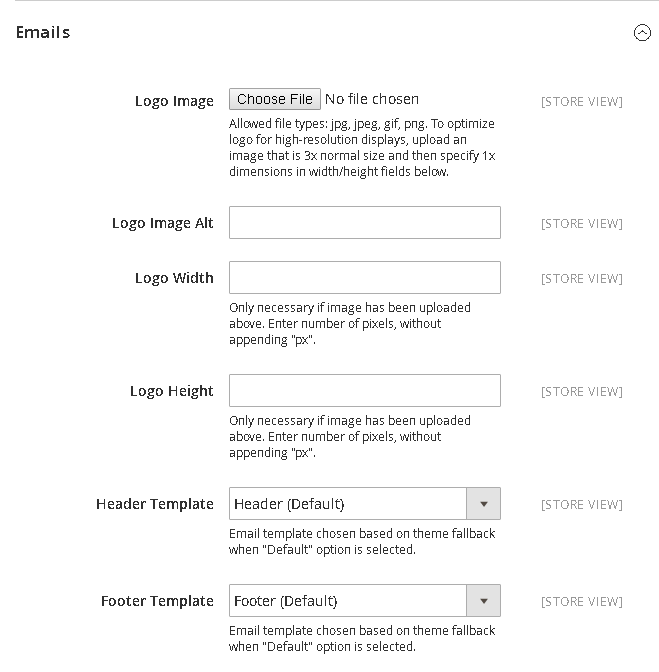
Save Config to complete.Message Template
Store > Configuration > Customers > Customer ConfigurationBased on where the template is placed to open the relevant option, for example, the template belongs to Create New Account Options:
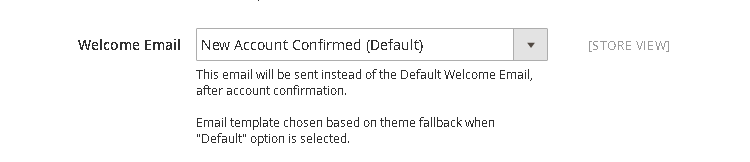
Welcome Email.Save Config to complete## How to Edit Magento 2 Email Templates in the Magento Admin Panel?
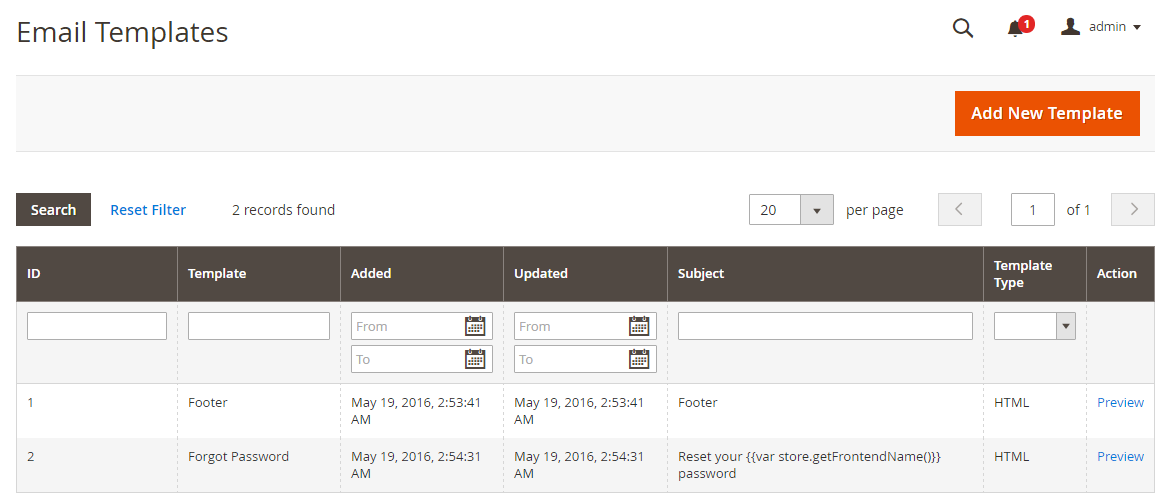
Go to Marketing in the left sidebar, then select Communications, and click on Email Templates.
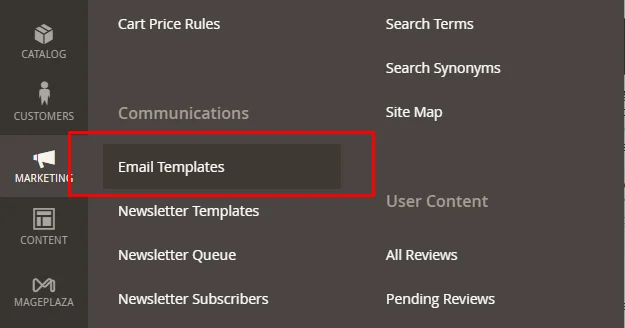
On the Email Templates page, you can see all your existing Magento 2 email templates.
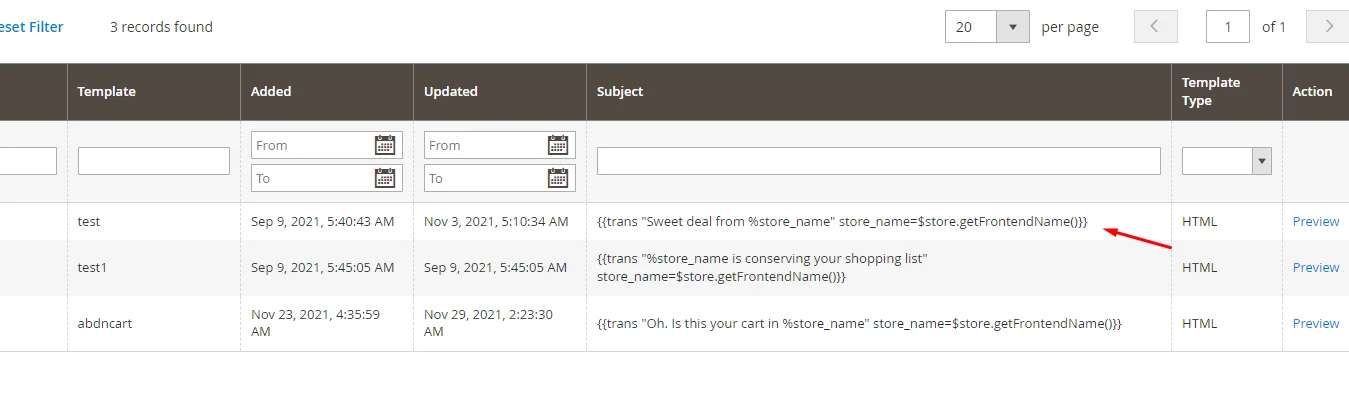
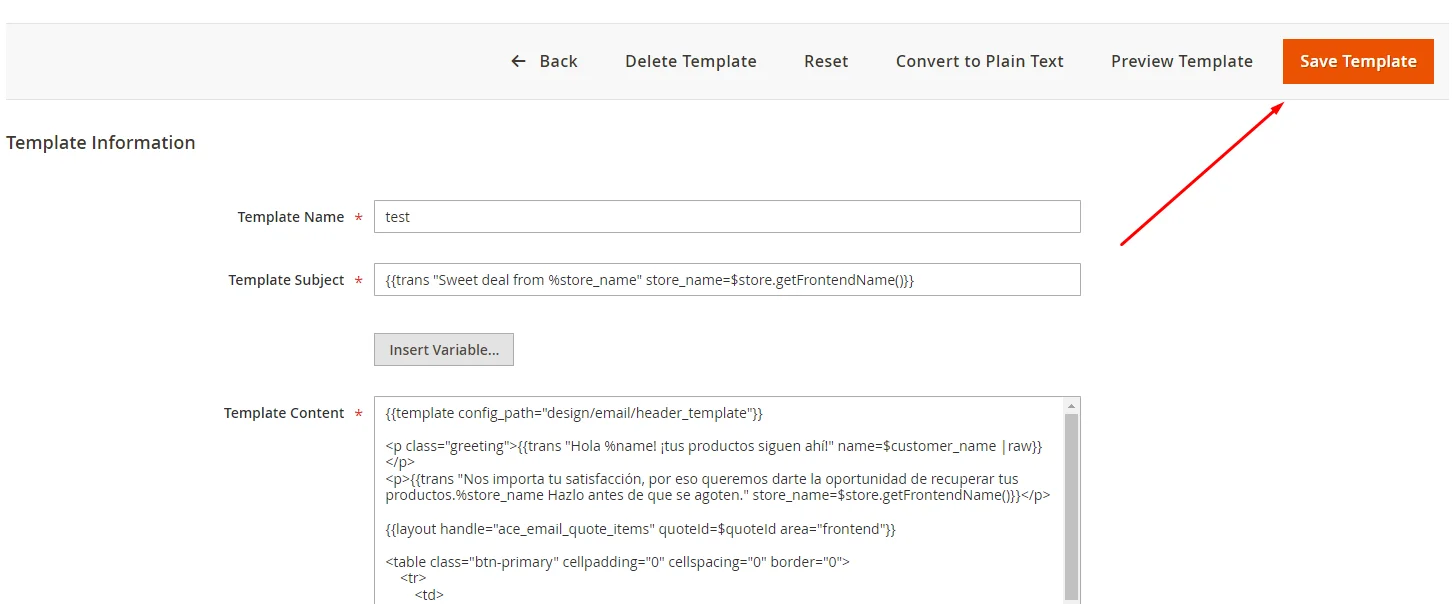
To edit Magento 2 email template files:
For example, to edit the account_new.html file in the Magento customer module, go to:
<Magento-root-directory>/vendor/<Extension-name>/module-customer/view/frontend/email
Open the file account_new.html using the vi or nano command
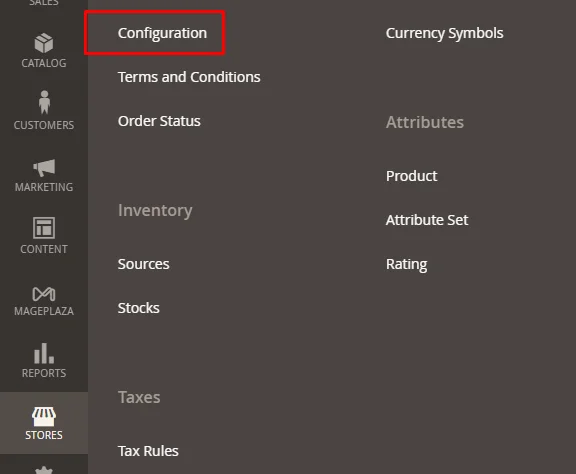
Step 1: From your Magento Admin Panel, click Stores > Settings > Configuration.
Step 2: Under General, click Store Email Addresses.
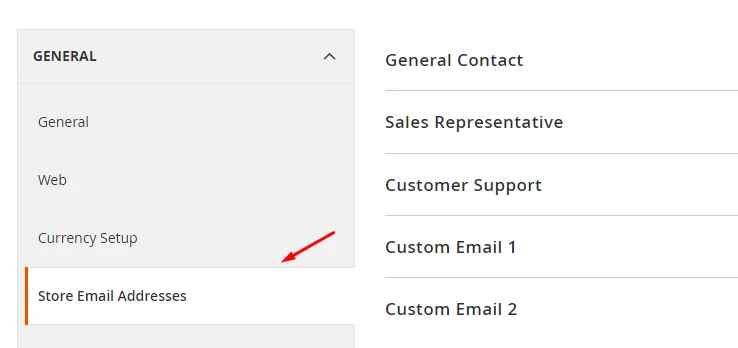
Step 3: Add Sender Name and Sender Email values for General Contact, Sales Representative, and Customer Support as needed.
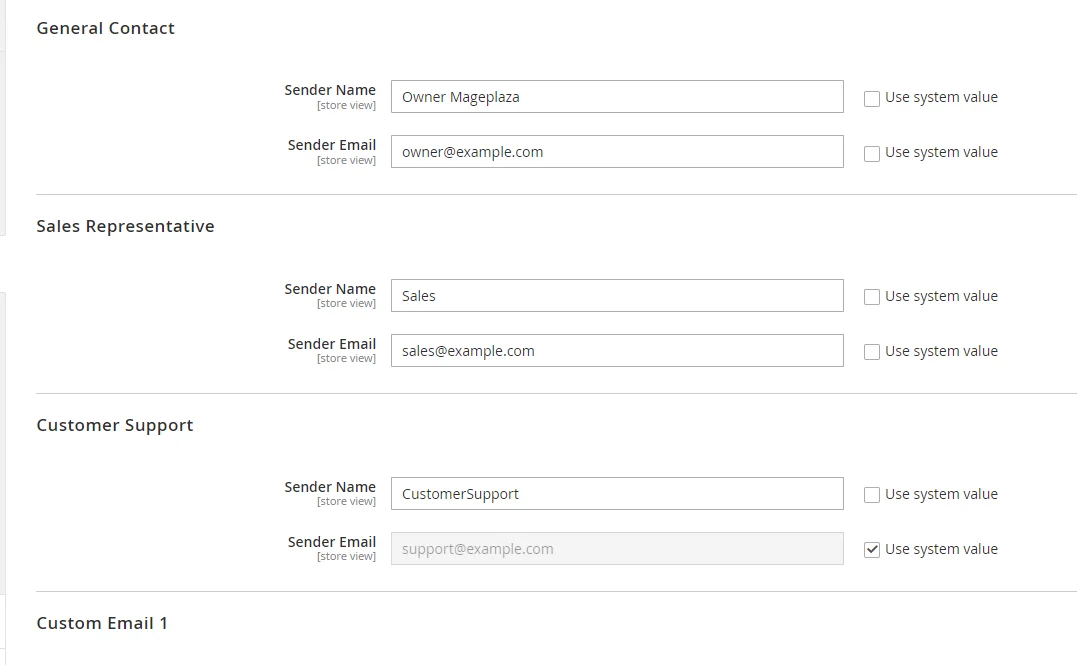
Step 4: If you use Custom Email, add Sender Name and Sender Email values in the Custom Email fields.
Step 5: Click Save Config to save the changes.

To create a new email template for a module, follow these steps:
This email_templates.xml file will contain the configurations for your email templates.
Here is a sample of what the contents of the email_templates.xml file should look like:
<?xml version="1.0"?>
<config xmlns:xsi="http://www.w3.org/2001/XMLSchema-instance" xsi:noNamespaceSchemaLocation="urn:magento:module:Magento_Email:etc/email_templates.xsd">
      <template id="noufal_custom_email_template" label="Noufal Custom Email Template" file="noufal_custom_email_template.html" type="html" module="Noufal_email_template" area="frontend"/>
</config>
Note:
<?xml version="1.0"?>
<config xmlns:xsi="http://www.w3.org/2001/XMLSchema-instance" xsi:noNamespaceSchemaLocation="urn:magento:module:Magento_Email:etc/email_templates.xsd">
   <template id="noufal_first_custom_email_template" label="Noufal Custom Email Template" file="noufal_first_custom_email_template.html" type="html" module="Noufal_email_template" area="frontend"/>
</config>
Creating personalized emails in Magento 2 may seem confusing to you, or do you need more than what the platform offers? Don’t worry, we’ve got everything handled for you by the Marketing Automation solution by AVADA. Let’s check out what you can gain using it:
Reduce time spent to customize emails and optimize transactional email usage; what a deal, isn’t it?
Read More: Configure Magento 2 Contact Form & Email: Detailed Guides
In business, sending emails alone isn’t enough. It’s crucial to analyze results to understand customer needs and improve future emails. Some questions to consider: Is the content well-received? Are there campaign errors? Can objectives be met? Email analysis also helps tailor messages for different customer groups.
The number of metrics used to evaluate the effectiveness of each email sent is, of course, not limited to just 6. However, these 6 metrics are the most basic that every business should pay attention to and invest time in optimizing, including:
These metrics provide insights into how your email campaigns are performing and can help you adjust your email marketing strategy accordingly. Other metrics, such as conversion rate, list growth rate, and ROI, are also important for a comprehensive understanding of your email marketing efforts.
Remember, email is one of the most effective sales channels for businesses. HubSpot stated that the average ROI through email marketing is $36 for every $1 spent. Simply put, if you spend $1 on sending special marketing emails, on average, you get $36 back.
To achieve effectiveness with each sale email you send to your customers, it’s essential to break down each step specifically. Below are 5 fundamental steps you should take if you don’t want to waste time and money on your email campaigns.
First, review the results of emails sent in the past 3 to 12 months. Then, the data will be analyzed for metrics such as open rate, click-through rate, unsubscribe rate, complaint rate, and forward rate.
Next, calculate the average for each metric you analyzed in Step 1 by summing up each value for each metric and then dividing it by the total number of emails sent during that period.
Once you know your average open rate, check if there are any emails with unusually high or low open rates, and mark these standout metrics.
Can setting a specific subject achieve better results? Or sending emails at a specific time of day? Pay attention to existing patterns and use them to enhance your future campaigns.
Finally, you can set specific targets to achieve in your email marketing. This way, you’ll be able to evaluate whether your emails are performing better or worse.
You can also replicate what worked or discard what didn’t.
For example, suppose one of your emails has a higher open rate than the set standard. Try to deduce the reasons behind its success and test whether those assumptions are correct by focusing on the factors (believed to enhance email effectiveness) in your subsequent emails. This is how you can optimize each email sent in the future based on previous emails.
8 out of 10 people prefer email for contact, which is 40 times more effective for sales than Facebook and Twitter combined. To boost your email effectiveness, invest wisely in tracking and analysis tools. Look for tools with: Timely follow-up emails (within 1 hour, increasing success by 700%). Email delivery scheduling to maximize customer contact. Visual email design for multiple devices.
Below is a list of some extensions that can help improve the effectiveness of sending sales emails, which you can consider:
Follow Up Email for Magento 2 (Mageplaza): Stands out with its ability to automate, personalize emails, analyze insight, and conduct effective A/B testing for improved customer engagement
Magento 2 Abandoned Cart Email (Mageplaza): Automated reminders, personalized coupons, Google Analytics integration, and comprehensive email tracking.
Magento 2 Admin Email Notification (MageNest): Instant alerts for key events, customizable email templates, and group notifications for efficient team communication and rapid response to customer actions.
Magento 2 We Miss You Email Extension (Land of Coder): Automated ‘We Miss You’ alerts, customizable delivery schedules, multiple template options, and efficient email management for enhanced customer retention and loyalty.
You can look for the email template files in the app/design/frontend/{Vendor}/{Theme}/Magento_Email/email directory. Here “{Vendor}” and “{Theme}” will be replaced with the actual names of the vendor and theme you are using.
Use the Magento\\Email\\Model\\ResourceModel\\Template\\CollectionFactory.php class to access the collection of email templates stored in the database, which includes all the templates you’ve added or modified through the Magento backend.
To change a handle name in a Magento 2 email template, locate the XML file linked to the template (typically found at app/code/[Vendor]/[Module]/view/frontend/layout/[Email_Template_Handle].xml).
Inside this file, find the <update> tag containing the current handle name, and modify the handle attribute to your preferred name.
Yes, you can add another option to an email template dropdown by going to the Marketing Menu > Email Templates > Add New Template to create a new one or choose an existing template to modify. After making your changes, save the template.
Finally, go to configuration settings and select the new or changed template from the dropdown box.
Yes, you can add custom fields to the Email Template in Magento 2. This allows you to include additional order or customer information that’s collected during the checkout process.
You can follow these steps:
I think sending emails to customers is necessary to maintain communication and show a professional image. This tutorial will hopefully give you knowledge of how to customize email templates in Magento 2. However, we understand that it may be troublesome to customize it on your own. Hence, why don’t you try this Email Marketing solution, where the templates are ready-made and customization is easy and quick? You can contact us for more details or comment in the box below for further discussions.
Explore Marketing Automation tool for your store now
Related topics

Jacker is the Chief Technology Officer (CTO) at Mageplaza, bringing over 10 years of experience in Magento, Shopify, and other eCommerce platforms. With deep technical expertise, he has led numerous successful projects, optimizing and scaling online stores for global brands. Beyond his work in eCommerce development, he is passionate about running and swimming.
Related Post
Change Store Email Addresses - Mageplaza

Change Welcome Message - Mageplaza
Customize the welcome message on your store's homepage to provide a personalized touch for your customers. Improve the user experience with our step-by-step guide.
Configure Magento 2 Contact Form & Email: Detailed Guides - Mageplaza
Configure the email address for your Magento 2 store's contact form and ensure that your customers can easily get in touch with you with this informative guide
How to Install Magento 2 with Sample Data - Mageplaza
How to install Magento 2 with Sample Data. In this topic we will discuss about How to Install Magento 2 Step by Step in Manage Store topic

6 Steps To Stop Brute Force Attacks - Mageplaza
How To Stop Brute Force Attacks in Magento 1, 2. In this topic we will discuss about How To Stop Brute Force Attacks in Manage Store topic

How to set Locale, Language, and Country in Magento 2 - Mageplaza
Setup Locale State Country in Magento 2 provides setup your store information on Locale Options that determines the timezone, language, country and the days.
Change Store Email Addresses - Mageplaza
Change Welcome Message - Mageplaza
Customize the welcome message on your store's homepage to provide a personalized touch for your customers. Improve the user experience with our step-by-step guide.
Configure Magento 2 Contact Form & Email: Detailed Guides - Mageplaza
Configure the email address for your Magento 2 store's contact form and ensure that your customers can easily get in touch with you with this informative guide
How to Install Magento 2 with Sample Data - Mageplaza
How to install Magento 2 with Sample Data. In this topic we will discuss about How to Install Magento 2 Step by Step in Manage Store topic
6 Steps To Stop Brute Force Attacks - Mageplaza
How To Stop Brute Force Attacks in Magento 1, 2. In this topic we will discuss about How To Stop Brute Force Attacks in Manage Store topic
How to set Locale, Language, and Country in Magento 2 - Mageplaza
Setup Locale State Country in Magento 2 provides setup your store information on Locale Options that determines the timezone, language, country and the days.