

Change Store Email Addresses - Mageplaza
3 mins read
|
04-02-2016

Vinh Jacker | 04-23-2016

Creating a new category is the essential way to establish the logic flow for your management in the settings. Besides, customers will find the searching on your website professional instead of making the appearances of all items chaos.
The category is shown as a big tree with branches in the lower areas. The first levels are likely to be options displayed in the main menu. It is possible for you to create as many additional subcategories as you wish, as long as it follows the menu depth configuration. Each new category created by store owners will be assigned to a relevant parent category. Any unavailable category is hidden with gray. The position of category can be reordered when you drag, hold and drop it to the new location. Moreover, at the top of each category page, the category is marked by an ID number that is next to the category name.
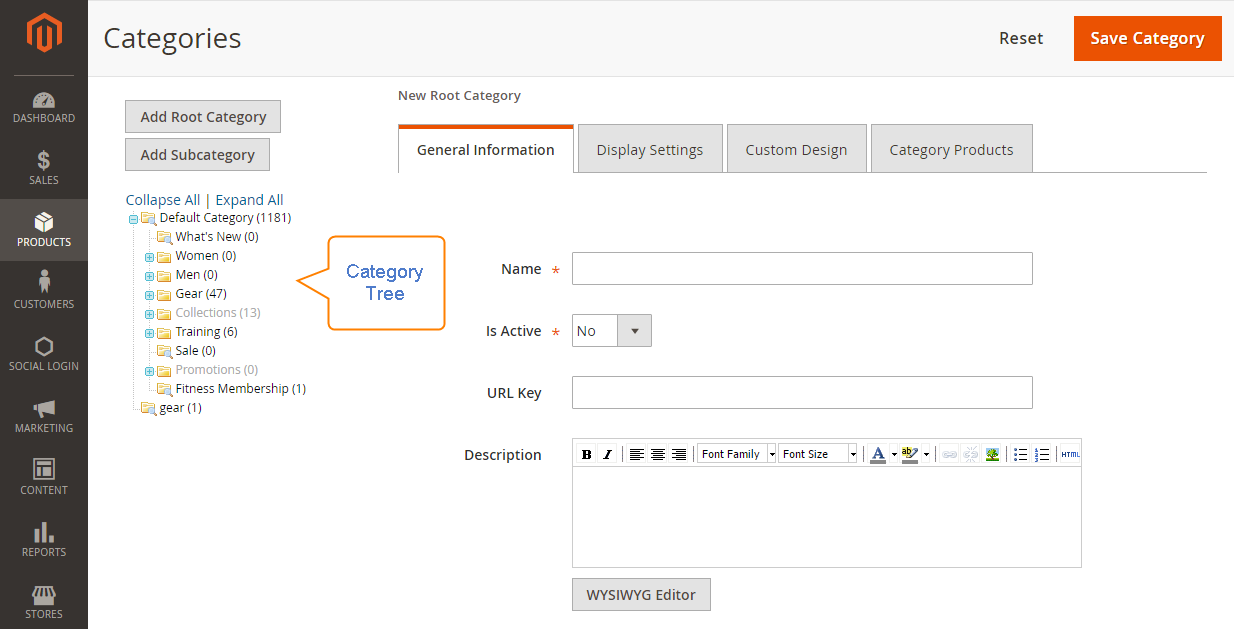
In Magento 2, it is simple to create a new category as well as customize it as you expect.
Looking for a Trusted Magento Development Company?
137,000 clients can’t be wrong! Ready to become our next success story?
Our Magento experts are willing to help you with any tasks!
Get FREE 1:1 Consultation
Product > Inventory > CategoriesIn the category chart, assign to the relevant category that is right above the new category.
If there is any data which fits with the new category, you can assign to the Default Category.
Add Subcategory.General Information section,
Is Active field.URL Key for yourself or it will be auto-created by the system.Desscription box.Image for the category if needed.Page Title, Meta Keywords, Meta Decription for your SEO.Include in Navigation Menu field, choose Yes to show it on the Navigation Menu.Save Category button.Display Mode from these options: Products Only, Static Block Only or Static Block and Products.CMS Block to show on the category page.Anchor is your agreement to show the “Filter by Attributes” of the Magento 2 layered navigation. If accepted, choose Yes.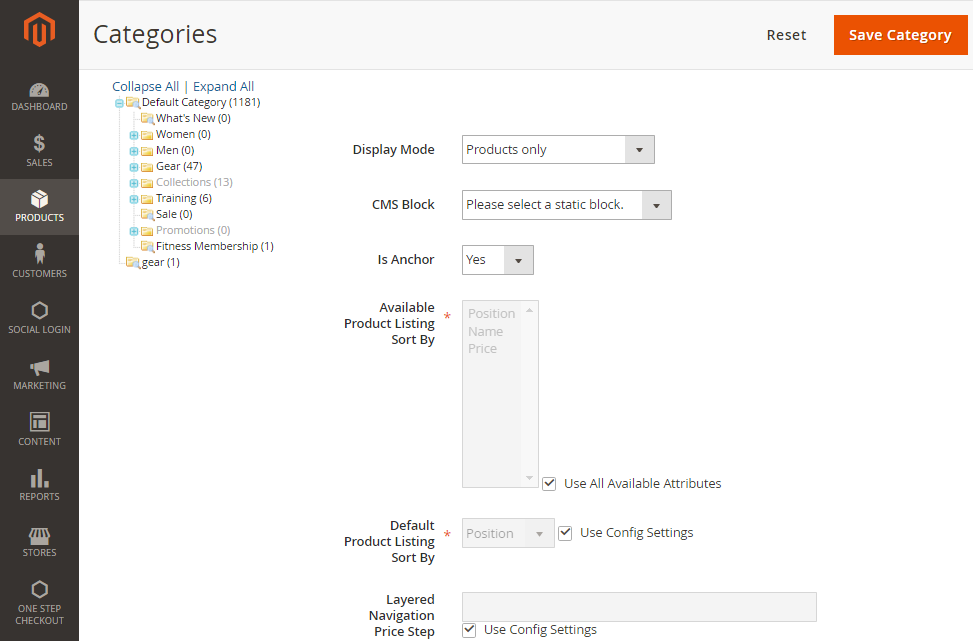
Save Category to complete.A category configuration is customizable, so you can change its position in the category chart, edit, or even delete it quickly. However, it is important to examine how your modification will affect other parts. For instance, if there are some products in the category that you rename, the current product links are unavailable to access. Therefore, you should set your catalog to auto-generate a permanent redirect if there is any change as above. Or you can apply the URL Rewrite tool to navigate the visitors to a new link.
Product > Inventory > CategoriesA eliminated category never comeback, so be careful to select the right category.
Delete Category, then Ok to verify.Creating new categories is necessary to guide customers better when it comes to searching for particular items. Hence, a clear layered navigation can enhance customers’ experience and increase conversions greatly. You can use Mageplaza Layered Navigation to create filtering options in Magento 2 logically for your store. If you need more assistance, please comment below or contact us.
Related Post

Jacker is the Chief Technology Officer (CTO) at Mageplaza, bringing over 10 years of experience in Magento, Shopify, and other eCommerce platforms. With deep technical expertise, he has led numerous successful projects, optimizing and scaling online stores for global brands. Beyond his work in eCommerce development, he is passionate about running and swimming.
Related Post
Change Store Email Addresses - Mageplaza

Change Welcome Message - Mageplaza
Customize the welcome message on your store's homepage to provide a personalized touch for your customers. Improve the user experience with our step-by-step guide.

Configure Magento 2 Contact Form & Email: Detailed Guides - Mageplaza
Configure the email address for your Magento 2 store's contact form and ensure that your customers can easily get in touch with you with this informative guide
How to Install Magento 2 with Sample Data - Mageplaza
How to install Magento 2 with Sample Data. In this topic we will discuss about How to Install Magento 2 Step by Step in Manage Store topic

6 Steps To Stop Brute Force Attacks - Mageplaza
How To Stop Brute Force Attacks in Magento 1, 2. In this topic we will discuss about How To Stop Brute Force Attacks in Manage Store topic

How to set Locale, Language, and Country in Magento 2 - Mageplaza
Setup Locale State Country in Magento 2 provides setup your store information on Locale Options that determines the timezone, language, country and the days.
Change Store Email Addresses - Mageplaza
Change Welcome Message - Mageplaza
Customize the welcome message on your store's homepage to provide a personalized touch for your customers. Improve the user experience with our step-by-step guide.
Configure Magento 2 Contact Form & Email: Detailed Guides - Mageplaza
Configure the email address for your Magento 2 store's contact form and ensure that your customers can easily get in touch with you with this informative guide
How to Install Magento 2 with Sample Data - Mageplaza
How to install Magento 2 with Sample Data. In this topic we will discuss about How to Install Magento 2 Step by Step in Manage Store topic
6 Steps To Stop Brute Force Attacks - Mageplaza
How To Stop Brute Force Attacks in Magento 1, 2. In this topic we will discuss about How To Stop Brute Force Attacks in Manage Store topic
How to set Locale, Language, and Country in Magento 2 - Mageplaza
Setup Locale State Country in Magento 2 provides setup your store information on Locale Options that determines the timezone, language, country and the days.