
Change Store Email Addresses - Mageplaza
3 mins read
|
04-02-2016

Vinh Jacker | 06-22-2016
Installing a new theme for Magento 2 store is necessary and should be one of the tasks in priority. It is easy to find many beautiful themes in Magento Marketplaces or through searching tools. You can assign installation tasks to the theme vendor or install a new theme by yourself by following their installation guide and user guide.
The theme will help you make your store become user-friendly, professional, and attractive to visitors. Choosing a suitable theme also enhances the appearance of your store and builds your own brand name. Therefore, followsome simple steps which are given below to install a new theme for your Magento store right now.
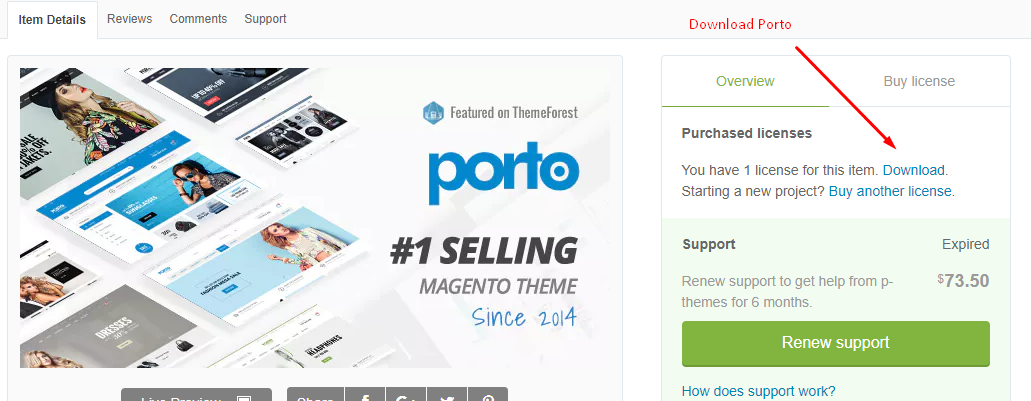
To upload the Porto theme to your server, we use WinSCP (You can use FileZilla or any SFTP client).
Upload the app and pubto your Magento root folder, see this screencast.
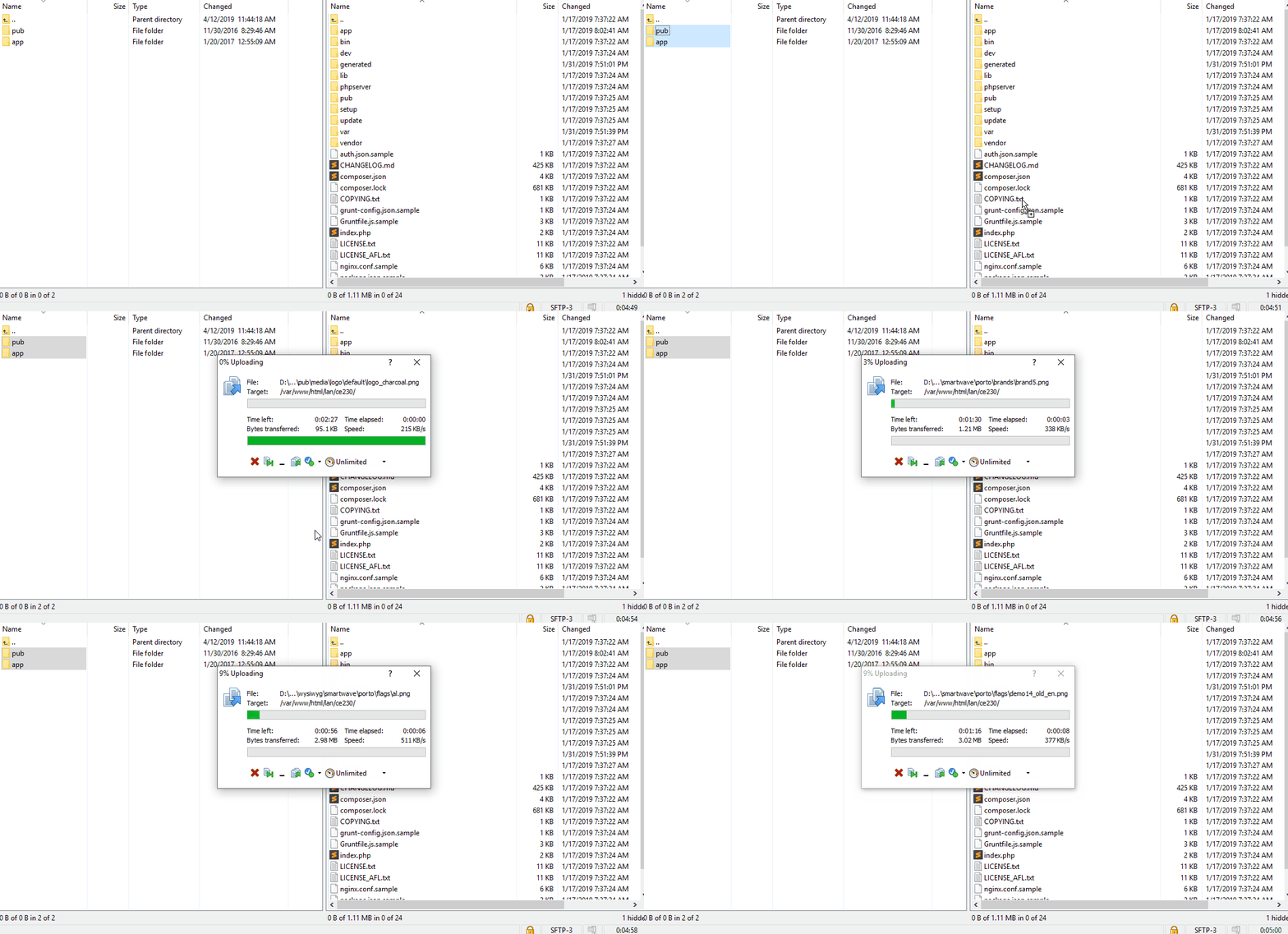
It’s time to upgrade and install the Porto theme on your Magento 2 store. First of all, you have to connect to your server via SSH Then Run Upgrade and deploy static content command lines:
php bin/magento setup:upgrade
php bin/magento setup:static-content:deploy
Option 2: Find the Magento 2 theme under Magento Marketplace
Find Partners & Extensions.Visit Magento Marketplaces.Depending on which version of Magento 2 you are using, take the suitable next steps:
Stores > Settings > Configuration.On the Admin sidebar, Content > Design > Configuration > Select your current theme > .
Open the Theme section
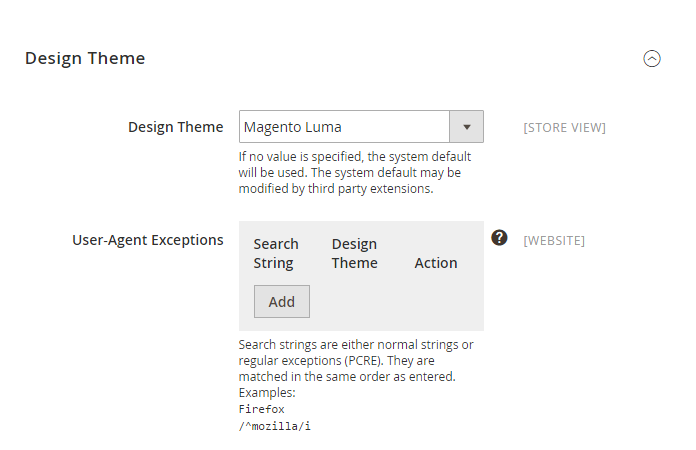
Design Theme field, select the new Theme as you wantSave Config.Hire Magento Developers
What you need to do is only describing desired features of the Magento website, we will help you to build the store that ticks all the boxes!
Get Started
Installing a theme through Composer follows the same process as installing any other extension with Composer. Refer to the “Install, manage, and upgrade modules” section for comprehensive details.
To install a theme using Composer, follow these steps:
composer require <vendor>/<name>:<version>
For instance:
composer require zero1/theme-fashionista-theme:1.0.0
git add -A && git commit -m "Add theme"
git push origin <branch name>
Content > Design > Themes. The installed theme will be visible in the right pane.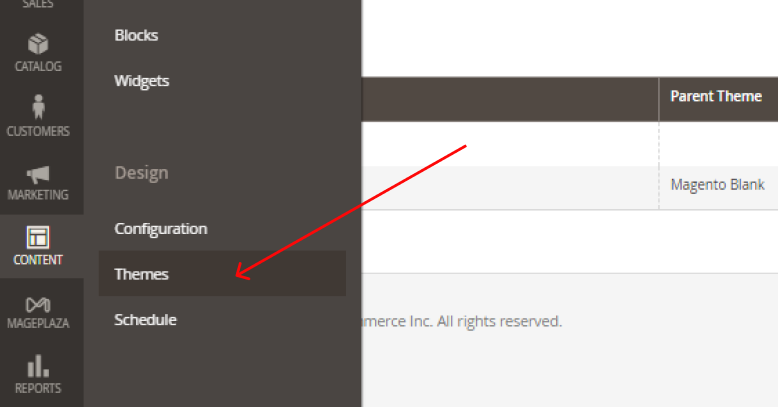
To install a new theme distributed as an extension in Magento 2 Admin, use the Web Setup Wizard. Before proceeding, ensure your system meets requirements and create a website backup.
System > Tools > Web Setup Wizard.Component Manager, sign in with Marketplace Public Access and Private Access keys, and sync.New Purchases, click Install.Install.Store > Settings > Configuration.After installation, check for developer instructions on additional settings based on plugins and applets.
Installing a new theme in Magento 2 plays a crucial role in enhancing your online store’s visual appeal, functionality, and user-friendly experience. Here are some key points:
Improve User Experience: Because Themes in Magento 2 are designed with usability and user experience in mind, installing a new theme can help store owners create a user-friendly interface, making it easier for customers to browse and purchase products.
Unique Store Appearance: You can choose a theme that aligns with your brand identity and customize it further to create a visually appealing and cohesive design that resonates with your target audience.
Performance Optimization: Many new themes in Magento 2 are optimized for performance and speed. They are built with clean code, optimized images, and caching techniques, which can contribute to faster page load times.
SEO Friendliness: Installing a well-designed Magento theme contributes an essential page in SEO best practices that create better search engine visibility, helping you attract more organic traffic and improve your store’s rankings in search engine results.
More Functionality: Often, a new theme will come with additional features and extensions that can enhance the functionality of your Magento 2 store. These may include advanced search options, product image zoom, social media integration, and so on.
By considering these suggestions, you can choose a Magento 2 theme that fits your store’s requirements:
Consider compatibility: Ensure that the theme is compatible with the version of Magento 2 you are using. Themes designed for older versions may not work properly or may require additional customization to be compatible. Please check the documentation or contact the theme providers to confirm compatibility.
Prioritize themes that suit your store’s brand identity: Let’s analyze your brand identity and target audience first. Then select themes that have layouts, colors, text fonts, and other visual aspects matching your branding.
Focus on appearance: An unappealing theme can increase the bounce rate. In contrast, a well-designed store with a classy appearance can do wonders. As a result, you should select a professional and elegant-looking theme to represent your online stores.
Compare features and functionality: Make sure that your chosen theme provides the necessary features to support your business needs, such as social media integration, advanced search options, and so on.
Check reviews and ratings carefully: Feedback from other users about the theme’s quality, performance, and support can give you an idea of the theme’s strengths and weaknesses. That will help you make a wiser decision.
That’s all it takes to install a new theme for your Magento 2 store. Themes support you in attracting customers and building a professional image. Besides, the store’s visual presentation will be optimized and therefore can increase conversion rates and boost sales. If you want to know more about available themes for Magento 2 or other configuration guides, please read more in the below recommended posts.
Related Post
Recommended theme collections:

Jacker is the Chief Technology Officer (CTO) at Mageplaza, bringing over 10 years of experience in Magento, Shopify, and other eCommerce platforms. With deep technical expertise, he has led numerous successful projects, optimizing and scaling online stores for global brands. Beyond his work in eCommerce development, he is passionate about running and swimming.
Related Post
Change Store Email Addresses - Mageplaza

Change Welcome Message - Mageplaza
Customize the welcome message on your store's homepage to provide a personalized touch for your customers. Improve the user experience with our step-by-step guide.
Configure Magento 2 Contact Form & Email: Detailed Guides - Mageplaza
Configure the email address for your Magento 2 store's contact form and ensure that your customers can easily get in touch with you with this informative guide
How to Install Magento 2 with Sample Data - Mageplaza
How to install Magento 2 with Sample Data. In this topic we will discuss about How to Install Magento 2 Step by Step in Manage Store topic

6 Steps To Stop Brute Force Attacks - Mageplaza
How To Stop Brute Force Attacks in Magento 1, 2. In this topic we will discuss about How To Stop Brute Force Attacks in Manage Store topic
How to set Locale, Language, and Country in Magento 2 - Mageplaza
Setup Locale State Country in Magento 2 provides setup your store information on Locale Options that determines the timezone, language, country and the days.
Change Store Email Addresses - Mageplaza
Change Welcome Message - Mageplaza
Customize the welcome message on your store's homepage to provide a personalized touch for your customers. Improve the user experience with our step-by-step guide.
Configure Magento 2 Contact Form & Email: Detailed Guides - Mageplaza
Configure the email address for your Magento 2 store's contact form and ensure that your customers can easily get in touch with you with this informative guide
How to Install Magento 2 with Sample Data - Mageplaza
How to install Magento 2 with Sample Data. In this topic we will discuss about How to Install Magento 2 Step by Step in Manage Store topic
6 Steps To Stop Brute Force Attacks - Mageplaza
How To Stop Brute Force Attacks in Magento 1, 2. In this topic we will discuss about How To Stop Brute Force Attacks in Manage Store topic
How to set Locale, Language, and Country in Magento 2 - Mageplaza
Setup Locale State Country in Magento 2 provides setup your store information on Locale Options that determines the timezone, language, country and the days.