



9 mins read
|
10-30-2026
15 Simple Steps for Magento 2 Performance Optimization (2026)
Vinh Jacker
|
08-09-2026
 Get Website Audit


Your PageSpeed score will not tell you why your server is slow. Time to First Byte will.
This guide covers the 15 backend changes that move that number: hosting, caching, indexing, database and search. Most take under an hour, and none require a rebuild.
Say Goodbye to Slow Page Loading
Get Website Performance Audit. Speed it up - earn more sales & customer satisfaction.
What backend performance actually means (TTFB, not PageSpeed score)
Between the click and the page, two separate things happen. Your server thinks — PHP, MySQL, Redis, OpenSearch — then sends the first byte. Then the browser works: images, JavaScript, fonts, layout. This guide covers the first half. Time to First Byte is how you measure it, and your PageSpeed score will barely move — that is not a failure, it is measuring the other half. The mismatch is real. One store scores 90 with a sluggish 1.2s TTFB because its frontend is lean. Another scores 40 with a 150ms TTFB because someone added eleven tracking scripts. Fixing the wrong half is the most common way to spend a month on performance and change nothing.
Which half is yours? The symptoms are distinctive:
| What you are seeing | Where the problem is |
|---|---|
| The admin panel is slow | Backend — full page cache never serves the admin |
| Homepage is fast, category pages are not | Backend — indexers or search engine |
| First visit is slow, reload is instant | Backend — cache misses, cold cache |
| Everything is slow, including the admin | Backend — server or database |
| Page appears quickly but ignores taps for a second | Frontend — JavaScript |
| Content shifts around while loading | Frontend — layout stability |
| PageSpeed flags images and unused JavaScript | Frontend — assets |
If your symptoms are in the bottom three rows, you are in the wrong guide — Magento 2 page speed: fixing LCP, INP and CLS covers those. Everything below is the backend.
How to measure before you change anything
No checklist can tell you which layer is holding your store back. Ten minutes of measurement now beats a weekend on Redis when the real problem was developer mode.
Get a TTFB baseline
Time to First Byte is how long your server takes to start answering. Nothing the browser does can change it, which makes it the cleanest number for backend work. Run this from outside your own network, five times, and take the median:
curl -o /dev/null -s -w "ttfb: %{time_starttransfer}s total: %{time_total}s\n" https://yourstore.com/your-busiest-category.html
Use a real category page, not the homepage — homepages are cached hardest and will flatter you. Measure twice: once warm, once after bin/magento cache:flush. The cold number is where backend problems live.
| TTFB (warm) | Verdict |
|---|---|
| Under 200ms | Excellent — your remaining problems are in the browser |
| 200–600ms | Acceptable. Worth improving, not urgent |
| Over 600ms | The backend is your bottleneck. Keep reading |
| Over 1.5s | Misconfigured, not merely unoptimised |
Write the numbers down. You will want them for the before-and-after at the end.
Find out where the time goes
A baseline tells you the server is slow. A profile tells you why. On staging, enable Magento’s own profiler — crude, free, already installed:
bin/magento dev:profiler:enable
It breaks down block rendering, observers and total query count. Query count is the clearest signal there is: a healthy category page runs in the low hundreds. Thousands means a module is querying inside a loop, and you have found your afternoon’s work. On production, use an APM — Blackfire, New Relic or Tideways. They profile real requests without the overhead and rank your slowest transactions, which is how you catch an extension that only misbehaves on real data. Either way, turn on MySQL’s slow query log for a day at a one-second threshold. A single unindexed join can outweigh every caching change in this guide.
When a load test is worth running
Most stores never need one. If your store is slow with a single visitor, you already know enough to start. Run one if you are heading into Black Friday and need to know your ceiling, performance is fine at low traffic and collapses under load, or you are migrating hosting and need to prove the new environment holds up. Skip it if you have not done the basics. Load testing a store still in developer mode produces a very detailed report about a problem you could have found in thirty seconds. Magento ships a Performance Toolkit that generates a test catalogue for Apache jMeter:
bin/magento setup:performance:generate-fixtures setup/performance-toolkit/profiles/ce/medium.xml
Pick the profile closest to your real catalogue. Two rules: never load test production, and ramp up gradually — the number you want is the concurrency where response times start climbing, not where everything falls over.
Layer 1: Server & stack
Enhance your Hosting Setup
Magento 2 is a platform with a wide range of features that requires significant resources. To ensure optimal performance and a pleasant user experience for your Magento store, you must optimize your hosting environment.
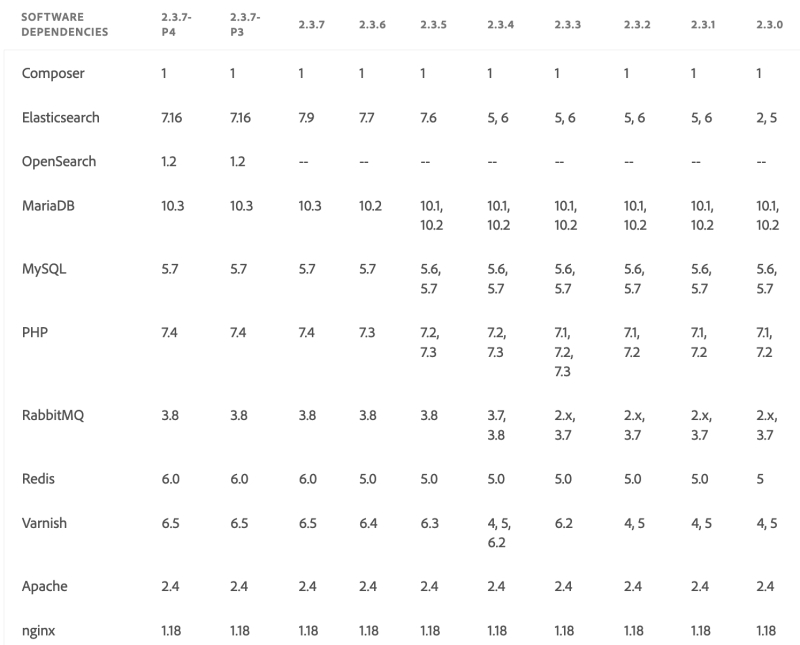
A checklist you can refer to when choosing a Magento hosting provider:
- Make sure the hosting provider is compatible with your Magento version/edition, including different criteria like PCI Compliance, MySQL 8.0 / MariaDB 10.6, Apache 2.x/ NGINX/ Litespeed, and PHP 8.2-8.5.
- Make sure the server is up to date with the latest software, complies with PCI standards and guarantees a secure shopping experience for your customers.
- Choose a server location nearest your target audience for faster response times and improved user experience.
- Consider storage capacity based on your requirements and ensure regular server backups for data security.
- Prioritize robust security features such as firewalls, intrusion detection systems, malware scanning, and protection against DDoS attacks.
- Consider enterprise-grade security measures, including regular debugging, free SSL certificates, and 24/7 support for timely security assistance.
- Make sure the hosting provider has backups and a way to get your data back if something bad happens.
These are the minimum requirements you should demand from your hosting provider for your Magento 2 store. Avoid using free or excessively cheap hosting services, as they cannot guarantee the loading speed, user experience, and security of your eCommerce store.
If you are currently operating a Magento website and experiencing slow performance, the recommended solution is to enhance your hosting. However, use speed test tools like Google PageSpeed Insights or GTmetrix to identify the issues before upgrading. If your hosting is not the root cause of the slow performance on your Magento website, upgrading may be an expensive step that does not address the underlying problem.
Update to the Latest Magento Version
New versions of Magento come with new features, improvements and bug fixes for available capabilities to optimize the user experience.
Therefore, the next step to accelerate and enhance the performance of your Magento website is to upgrade to the latest version of Magento. Especially if you are currently using Magento 1, don’t hesitate to migrate to Magento 2 because it offers many features that help you adapt to market trends and customer demands while also providing significantly better security.
If you feel unsure where to start when upgrading the Magento version for your eCommerce store, consult with our experienced Magento developers. They can provide a more precise migration process based on your specific requirements without taking weeks or even months, even for complex configurations and extensive customizations.
Tune PHP: OPcache and FPM workers
PHP has to turn your code into something the processor understands on every single request — unless you let it cache the result. Magento has tens of thousands of PHP files, which makes this the highest-leverage setting most stores have never touched. Check whether OPcache is even on:
php -i | grep opcache.enable
Then set it properly in php.ini:
opcache.enable=1
opcache.memory_consumption=512
opcache.max_accelerated_files=60000
opcache.validate_timestamps=0
opcache.save_comments=1
realpath_cache_size=10M
realpath_cache_ttl=86400
Two of these will bite you if you get them wrong. save_comments must stay at 1 — Magento reads annotations out of docblocks for dependency injection, and stripping comments breaks the store in ways that are miserable to diagnose. And validate_timestamps=0 means PHP stops checking whether your files changed, which is exactly what you want in production and exactly why you must reset OPcache on every deploy. Add a restart of PHP-FPM to your deploy script and forget about it.
Then check your hit rate. Anything below 99% means memory_consumption or max_accelerated_files is too low and PHP is evicting code it will need again in a moment.
For PHP-FPM, the setting that matters is pm.max_children. Divide the RAM you can spare by the average size of a PHP process — usually 80–150MB on Magento — and set it just under that. Too low and requests queue behind each other under load; too high and the server starts swapping, which is slower than queueing. Keep memory_limit at 756M or more for web requests, and 2G for CLI, or setup:di:compile will fail.
Enable gzip Compression
Text-based files compress extremely well — a 300KB CSS file typically drops below 50KB — and gzip is a few lines of Nginx config. Most stores already have it on for HTML and miss it on CSS and JavaScript. In your nginx.conf, inside the http block:
gzip on;
gzip_disable "msie6";
gzip_comp_level 6;
gzip_min_length 1100;
gzip_buffers 16 8k;
gzip_proxied any;
gzip_vary on;
gzip_types
  text/plain
  text/css
  text/xml
  text/javascript
  application/javascript
  application/x-javascript
  application/json
  application/xml
  application/xml+rss
  image/svg+xml;
Do not add JPEG, PNG, GIF or WebP to that list. Those formats are already compressed; gzipping them burns CPU on every request for no gain, and occasionally makes the file larger. SVG is the exception — it is text, so it belongs there. gzip_comp_level 6 is the right trade. Level 9 costs noticeably more CPU for a fraction of a percent more compression. Verify it is working:
curl -H "Accept-Encoding: gzip" -I https://yourstore.com/static/version.../css/styles-m.css
You want Content-Encoding: gzip in the response headers. Test a CSS file rather than the homepage — HTML is often compressed while static assets are not, which is the exact gap this fixes. If you are behind Cloudflare, another CDN, or Varnish, compression may already happen at the edge. Run the curl command first: if the header is already there, you would only be adding CPU work at origin for a file that gets compressed again downstream. If your Nginx build includes ngx_brotli, Brotli compresses text roughly 15–20% better than gzip and every current browser supports it. Enable both — the browser picks whichever it can handle.
Layer 2: Caching
Enable Varnish Caching
Enabling Varnish Cache is a practical step recommended by Adobe for Magento 2 performance optimization. Here’s a simple guide to configuring Varnish for Magento:
- Go to
Stores > Configuration > Advanced > System > Full Page Cache. From the Caching Application dropdown menu, select Varnish Cache as the preferred caching mechanism.
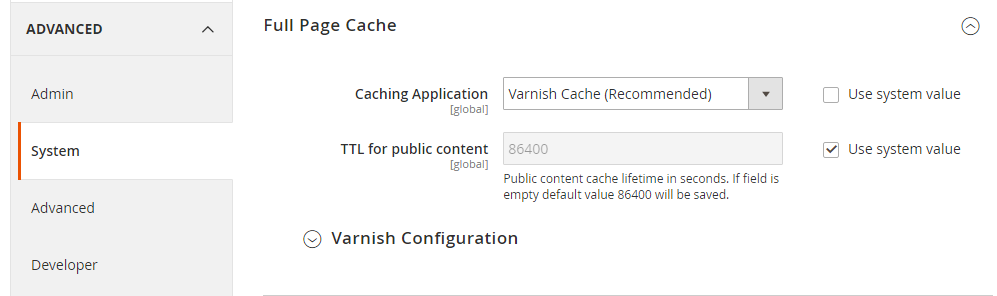
- Open the Varnish Configuration section and provide the required information.
- Next, navigate to the Varnish Configuration section and input the required information:
- Define the IP address or hostname authorized to clear the Varnish Cache in the
Access list. Enter your application’s domain name in this field. - Define the Backend Host. If left blank, the default option will be saved as localhost.
- Backend Port is the port of the Apache server.
- Define the Grace period to determine how long Varnish will serve outdated content in the event of backend unresponsiveness.
- Define the IP address or hostname authorized to clear the Varnish Cache in the
Finally, click the Save Config button if you have completed the necessary configurations.
Alternatively, using SSH, you can enable Magento 2 Varnish through the command line interface. If you prefer this method, please utilize the following commands:
bin/magento
config:set--scope=default--scope-code=0system/full_page_cache/caching_application 2
Switch to In-Memory Data Stores for Caching
In-memory data stores like Redis or Memcached have faster data retrieval than Magento’s default cache.
They also provide data backup capabilities for recovery in case of power outages or server restarts. Utilizing these in-memory data stores instead of storing files on the hard disk will significantly increase the data processing speed through the cache, saving valuable time for data retrieval from RAM.
Customers of eCommerce stores prefer to avoid waiting for page loading times, so optimizing data retrieval is essential to satisfy even the most demanding customers.
Redis is one effective performance caching solution that Adobe recommends for Magento 2 stores. You can configure them by following these steps:
-
Find your Redis configuration in the following files:
/etc/redis/redis.confor/etc/redis/<port>.conf -
Configure Redis default caching with this command:
bin/magento setup:config:set --cache-backend=redis --cache-backend-redis-server=127.0.0.1 --cache-backend-redis-db=0Important: If you use Redis for different types of caching, ensure each database has a unique number. It’s best to use 0 for the default caching database, 1 for the page-caching database, and 2 for the session storage database.
-
Configure Redis page caching with this command:
bin/magento setup:config:set --page-cache=redis --page-cache-redis-server=127.0.0.1 --page-cache-redis-db=1 -
Configure Redis for session storage with this command:
bin/magento setup:config:set --session-save=redis --session-save-redis-host=127.0.0.1 --session-save-redis-log-level=4 --session-save-redis-db=2
Learn more: How to configure Redis cache & sessions
Leverage a Content Delivery Network (CDN)
A content delivery network (CDN) consists of multiple servers worldwide. When visitors access your Magento 2 store, their browser checks nearby CDN servers for content. If available, it improves your store loading speed.
Some eCommerce stores should use CDN:
- Stores with a large customer base
- Stores serving customers from different regions or countries
- Stores with a large number of images, videos, or other media files
- Stores experiencing slow page loading times or inconsistent performance
How to set up CDN in Magento 2:
-
In your Admin Panel, navigate to
Stores > Settings > Configuration > General > Web. -
In the top left section, set the
Store Viewas required. -
Expand the
Base URLssection and follow these steps:
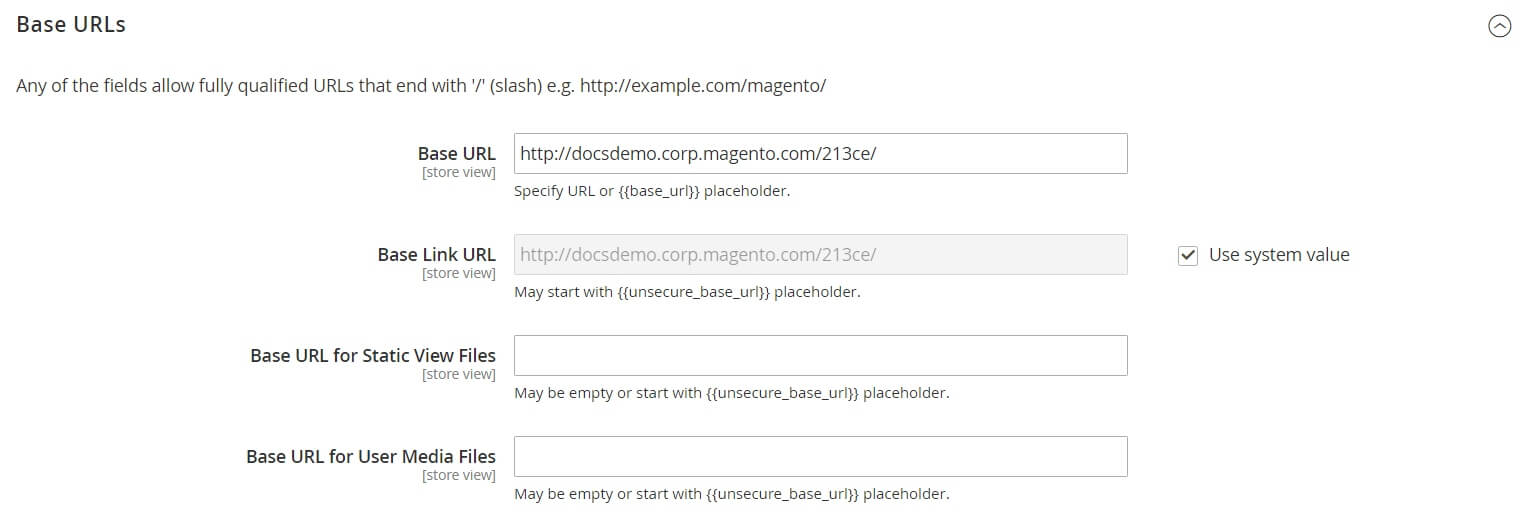
- Update the location URL on the CDN where static view files are stored as the
**Base URL for Static View Files**. - Update the URL of the CDN’s JavaScript files as the
**Base URL for User Media Files**. - You can leave both fields empty or use the placeholder:
{{unsecure_base_url}}
- Expand the
Base URLs (Secure)section and follow these steps:
.jpg)
- Update the location URL on the CDN where static view files are stored as the
**Secure Base URL for Static View Files**. - Update the URL of the JavaScript files on the CDN as the
**Secure Base URL for User Media Files**. - You can leave both fields unfilled or begin them with the placeholder:
{{unsecure_base_url}}
Some hosting providers will offer CDN services as well, but you can also choose your own CDN provider based on your needs and budget. Some highly rated popular options that you can consider are StackPath, Cloudflare, Fastly, and Amazon CloudFront.
Lear more about how to configure a CDN for your Magento 2.
Layer 3: Database & indexing
Clean up log tables and cron_schedule
Magento logs a great deal and deletes very little. On a store that has been running for a few years without maintenance, the biggest tables in the database are usually ones no one has ever looked at — and they are being scanned, backed up and replicated on every operation. Find out what you are actually carrying:
SELECT table_name,
       ROUND((data_length + index_length) / 1024 / 1024) AS size_mb,
       table_rows
FROM information_schema.tables
WHERE table_schema = 'your_database'
ORDER BY (data_length + index_length) DESC
LIMIT 20;
The usual offenders, in the order they tend to appear:
| Table | What it holds | Safe to trim |
|---|---|---|
| cron_schedule | Every scheduled job, forever | Yes — keep a few days |
| report_event | Product view and comparison tracking | Yes, if you do not use Reports |
| customer_visitor, customer_log | Online-visitor tracking | Yes |
| *_cl changelog tables | Pending index updates | No — see below |
| quote, quote_item | Abandoned carts | Careful — business data |
Turn the automatic cleanup on, because most stores never have. Go to Stores > Configuration > Advanced > System > Log Cleaning, set Enable Log Cleaning to Yes and Save Log Days to 30. The default of 180 days is far more history than anyone uses.
Two warnings before you truncate anything. Take a backup first — this is the one section in this guide where a mistake loses data rather than time. And leave the *_cl changelog tables alone. They hold index updates that have not been applied yet; if one is enormous, that is a symptom of a stuck indexer, not a cleanup job. Fix the indexer and the table drains itself.
Change Index Mode to “Update on Schedule”
Magento indexers have 2 modes: Update on Save and Update on Schedule. The Update on Save mode instantly updates your catalog or data when changes are made, but it can cause delays and temporary unavailability of data for your Magento site.
To avoid this issue, change to Update on Schedule mode by using the following general command:
bin/magento indexer:set-mode {realtime|schedule} [indexer]
Choose the schedule option to configure the Update on Schedule indexer mode.
You can provide a list of indexers separated by spaces in indexer, or leave out this option to configure all indexers the same way.
Do not enable flat catalog
Most Magento performance checklists still tell you to turn on a flat catalog. That advice is a decade old and it will now work against you.
Flat catalog was built for a time when every category page meant a long chain of EAV joins and there was no full page cache in front of them. It flattened products and categories into single wide tables so those reads got cheaper. Adobe deprecated the feature in Magento 2.3, and on a 2.4.x store the trade is no longer worth making:
- Reindexing gets slower, not faster. Every attribute change rebuilds the flat tables on top of the normal indexers. On a large catalogue this is where your cron time goes.
- Wide attribute sets break it. Each attribute becomes a column, and stores with large attribute sets run into MySQL row-size limits. The failure shows up as a silently incomplete index, not a clean error.
- Flat and EAV data drift apart. When they disagree, the storefront shows one thing and the admin shows another. These are painful bugs to trace.
- The read saving mostly lands on cached pages anyway. With Varnish serving your category pages, the queries flat catalog was meant to speed up are not the ones your shoppers are waiting on.
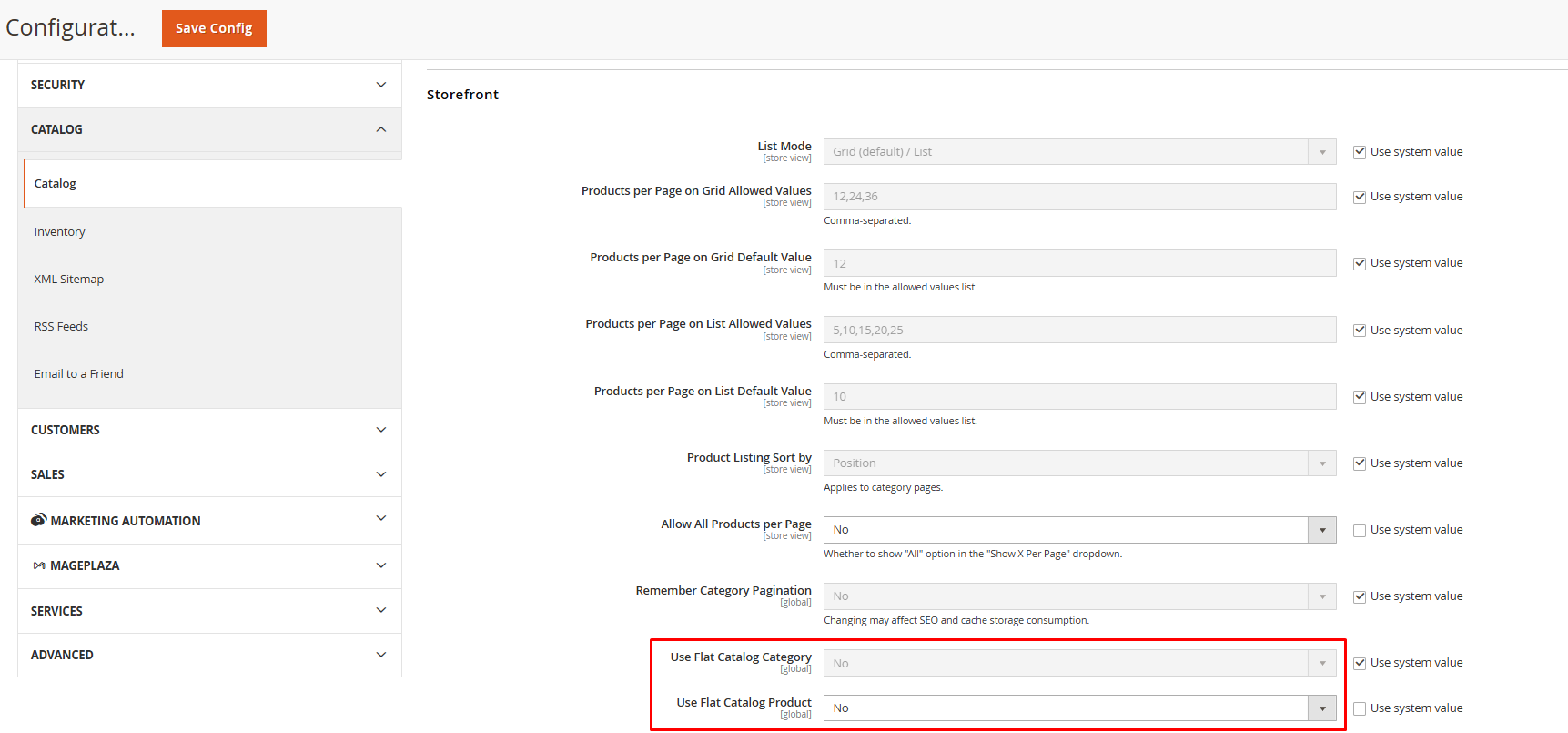
Check where you stand: go to Stores > Configuration > Catalog > Catalog > Storefront and confirm both Use Flat Catalog Category and Use Flat Catalog Product are set to No.
If you are turning them off on a live store, reindex afterwards and clear the cache:
bin/magento indexer:reindex
bin/magento cache:flush
What to do instead: The three changes that actually cut category page response time are Varnish full page cache, setting your indexers to Update on Schedule, and a properly configured search engine — all covered above.
Not everyone who needs to trigger a reindex has SSH access. If your merchandising team is waiting on a developer every time a price rule changes, the Backend Tools extension puts the same commands behind an admin button.
Configure OpenSearch (it replaced Elasticsearch as the default)
If your notes still say “install Elasticsearch”, they are out of date. From Magento 2.4.6, OpenSearch is the default search engine, and Elasticsearch 7.x — the version most 2.4.x stores were built on — has reached end of life. Running an unsupported search engine is both a security problem and a performance one, because you stop getting the query planner improvements that ship with newer releases. This belongs in a backend performance guide for a reason. Your search engine does not just power the search box: it serves category listings, layered navigation and product filtering. A search engine that is undersized, sitting in another data centre, or timing out and falling back will show up directly in your category page response time.
Which version you need:
- Magento version 2.4.0 – 2.4.5: Elasticsearch 7.x
- Magento version 2.4.6 and later: OpenSearch 2.x & Elasticsearch 8.x
Adobe changes this table with patch releases, so check the compatibility matrix in the latest Magento 2 releases for your exact version before you provision anything.
Point Magento at it. In the admin, go to Stores > Configuration > Catalog > Catalog > Catalog Search, set Search Engine to OpenSearch, fill in the hostname and port, then use Test Connection before saving. From the command line:
bin/magento setup:config:set --search-engine=opensearch \
  --opensearch-host="localhost" \
  --opensearch-port=9200 \
  --opensearch-index-prefix=magento2 \
  --opensearch-timeout=15
bin/magento indexer:reindex catalogsearch_fulltext
bin/magento cache:flush
Three things that cost you response time here:
- Distance. Every millisecond of latency between Magento and OpenSearch is paid on every filtered category page. Keep them in the same network, not in different regions.
- Memory. OpenSearch that is swapping is slower than no OpenSearch at all. Give the JVM heap roughly half the available RAM and no more than 32GB.
- A timeout set too high. A 60-second timeout does not make a struggling cluster work — it makes your shoppers wait 60 seconds before they find out. Keep it tight and fix the cluster.
If you are migrating an existing store, how to configure Elasticsearch in Magento 2 still covers the connection settings step by step; the concepts carry over directly.
OpenSearch handles the query. What it returns — relevance, synonyms, misspellings, merchandising rules — is a separate layer, and that is where the Magento 2 Search extension comes in.
Layer 4: Application
Run your store in production mode
Magento has three modes, and only one of them belongs on a live store. In default and developer mode, Magento generates static files on the fly, writes verbose logs and skips the compiled dependency injection cache. Every request pays for work that should have been done once, at deploy time. This sounds like something nobody would get wrong, but it happens constantly — usually after a server migration, an emergency debugging session that never got reverted, or an install that was never switched over at all. Check which mode you are in:
bin/magento deploy:mode:show
If the answer is anything other than production, that is very likely the largest single number in this entire guide. Switch over. Do this during a quiet window and on a staging copy first — the command recompiles dependency injection and regenerates every static asset, which takes minutes rather than seconds on a store with several locales:
bin/magento maintenance:enable
bin/magento deploy:mode:set production
bin/magento cache:flush
bin/magento maintenance:disable
Two things worth knowing. Default mode is not production mode — the naming misleads people, and default mode carries most of developer mode’s overhead. And once you are in production, the Stores > Configuration > Advanced > Developer section disappears from the admin. That is expected; set those values from the CLI instead.
Audit your third-party extensions
The average Magento store runs somewhere between twenty and sixty modules, and it only takes one to undo everything else in this guide. The expensive ones are rarely the ones you notice — they are the modules that add a plugin to a method called on every request, an observer on a catalog event, or a join to the product collection query. Find them by measuring, not by guessing. Start with what is installed:
bin/magento module:status
Then profile a slow page. Magento’s built-in profiler will show you where request time goes; an APM like New Relic or Blackfire will show you the same thing on live traffic without the overhead. What you are looking for is a single module appearing repeatedly in the transaction trace, or a query count that climbs on pages with more products. Then prove it. On a staging copy, disable one suspect module, reindex, clear cache and re-measure the same page:
bin/magento module:disable Vendor_Module
bin/magento setup:upgrade
bin/magento cache:flush
One module at a time. Disable five and you learn nothing about which one mattered. When a module is genuinely dead, remove it rather than disable it. Disabling stops it running, but the code stays in your codebase, gets scanned during compilation and travels with every deploy. Uninstall it through Composer. Finally, a boundary worth being clear about: this section is about extensions running on your server. Scripts running in your shopper’s browser — tag manager, chat widgets, tracking pixels — are a completely different problem with completely different fixes, and they will not show up in any profile you run here.
Keep cron and the message queues healthy
Cron is where Magento quietly does most of its work: reindexing, price rules, emails, sitemaps, currency rates. When it stops, nothing breaks loudly. Your indexes just go stale, your category pages get slower, and your prices drift out of date until someone notices weeks later. Check it is running at all:
bin/magento cron:install
crontab -l
Then look at what it has actually done. In the cron_schedule table, healthy rows move from pending to running to success. A wall of pending rows with old timestamps means cron is not executing. A wall of error rows means it is executing and failing.
Watch the table size. cron_schedule grows without limit unless it is being cleaned, and on a neglected store it reaches millions of rows. At that point the scheduler itself becomes a slow query, which is a memorable way to discover the problem.
Check your consumers. Message queues handle asynchronous work, and on 2.4.x they need to be running:
bin/magento queue:consumers:list
Confirm cron_run is set to true in env.php, or that you are running consumers as supervised processes. A backlog in the queue tables is the usual explanation for “the import finished an hour ago but nothing has changed on the storefront”. And check your indexers are not stuck:
bin/magento indexer:status
Anything reading invalid for longer than your cron interval is a page your shoppers are waiting on.
Learn more: Run cron jobs manually
A note on CSS and JavaScript
Merging, minifying and bundling your frontend assets does not change how fast your server responds — it changes how fast the browser renders what the server sent. That belongs to your LCP and INP scores, and the page speed guide linked at the top of this article covers it. One thing worth saying here, because the old advice is still everywhere: do not turn on Merge CSS Files or Merge JavaScript Files.
FAQ
What is a good TTFB for a Magento store?
Under 200ms is excellent, under 600ms is acceptable, and above 600ms means the backend is your bottleneck regardless of what your frontend looks like. Measure it on a category page rather than the homepage — homepages are cached far more aggressively and will flatter you.
Why is my admin slow when the storefront is fast?
Because Varnish and full page cache only serve the storefront. Admin requests go straight to PHP and MySQL every time, so a slow admin usually points at the database, the indexers, or a bloated cron_schedule table — not at your caching setup.
Does upgrading Magento actually improve performance?
Yes, though indirectly. Newer releases bring newer PHP versions, and the jump from PHP 7.x to 8.x alone is substantial. You also get supported OpenSearch versions and years of query optimisations. Upgrading is rarely the fastest win, but it raises the ceiling on every other change.
Should I enable flat catalog?
No. It was deprecated in Magento 2.3, it slows reindexing on large catalogues, and stores with wide attribute sets hit MySQL row-size limits with it enabled. If it is currently on, turn it off and reindex.
Do I still need Varnish if I have a CDN?
Usually yes. A CDN caches static assets close to your shopper; Varnish caches the assembled HTML page so Magento never has to build it. They solve different halves of the problem and most fast stores run both.
Redis or Memcached?
Redis, for a Magento 2 store. It handles both cache and session storage, supports the tag-based invalidation Magento relies on, and persists across restarts. Memcached still works for sessions but there is little reason to choose it now.
Is OpenSearch mandatory?
From Magento 2.4.6 it is the default, and Elasticsearch 7.x — what most older 2.4.x stores run — has reached end of life. Elasticsearch 8.x remains supported, but new installs should go to OpenSearch.
How often should I reindex?
Not on a schedule. Set your indexers to Update on Schedule and let cron handle it. Manual full reindexes belong to deployments and bulk imports, not to routine operation.
Conclusion
Backend performance is not one change, it is four layers, and the gain always comes from whichever one you have been ignoring. If you do nothing else from this guide, do these three in order:
- Confirm you are in production mode. One command, and it is still the most common finding on a slow store.
- Turn off flat catalog and set your indexers to Update on Schedule. Fifteen minutes, and it undoes the most widely repeated bad advice in the Magento ecosystem.
- Put Varnish in front of your storefront. Nothing else in this guide moves TTFB as far.
Then measure. Not your PageSpeed score — your Time to First Byte, on a real category page, before and after. If it drops below 600ms and your store still feels slow, the problem has moved to the browser, and that is a different guide.
If any of this is beyond what your team has time for, the Mageplaza performance optimization service covers the whole audit — server, caching, database and application — with the before-and-after numbers to show for it.
Table of content

Jacker is the Chief Technology Officer (CTO) at Mageplaza, bringing over 10 years of experience in Magento, Shopify, and other eCommerce platforms. With deep technical expertise, he has led numerous successful projects, optimizing and scaling online stores for global brands. Beyond his work in eCommerce development, he is passionate about running and swimming.
Related Post

15 mins read
|
09-30-2026
16 mins read
|
08-30-2026
5 mins read
|
07-30-2026
7 mins read
|
06-30-2026

How to Enable DebugView in GA4 for your Magento 2 store - Mageplaza
Step-by-step guide to enabling GA4 DebugView for Magento 2 merchants — verify your GA4 events are firing correctly before trusting your data.
8 mins read
|
06-09-2026
9 mins read
|
10-30-2026
15 mins read
|
09-30-2026
16 mins read
|
08-30-2026
5 mins read
|
07-30-2026
7 mins read
|
06-30-2026
How to Enable DebugView in GA4 for your Magento 2 store - Mageplaza
Step-by-step guide to enabling GA4 DebugView for Magento 2 merchants — verify your GA4 events are firing correctly before trusting your data.
8 mins read
|
06-09-2026