




14 mins read
|
10-30-2026
Magento 2 Abandoned Cart Tracking: How to Measure Recovery Performance in 2026
Summer Nguyen
|
03-17-2025

Running an abandoned cart email sequence without tracking its performance is like running paid ads without checking conversions. You’re spending, but you don’t know what’s working.
Most Magento merchants set up their recovery emails, watch a few orders come back in, and assume the campaign is healthy. But without the right metrics, there’s no way to know whether you’re recovering 3% of lost carts or 15%, or which email in your sequence is doing the actual work.
This guide covers everything you need to measure abandoned cart recovery performance on Magento 2: the KPIs that matter, what native Magento reporting can and can’t tell you, and how to use each report inside Mageplaza Magento 2 Abandoned Cart Email to turn raw data into decisions.
What to Measure: Native Magento vs. What You Actually Need
Native Magento includes a basic abandoned cart report at Reports → Marketing → Abandoned Carts — showing cart value, customer email, products in cart, and timestamp.
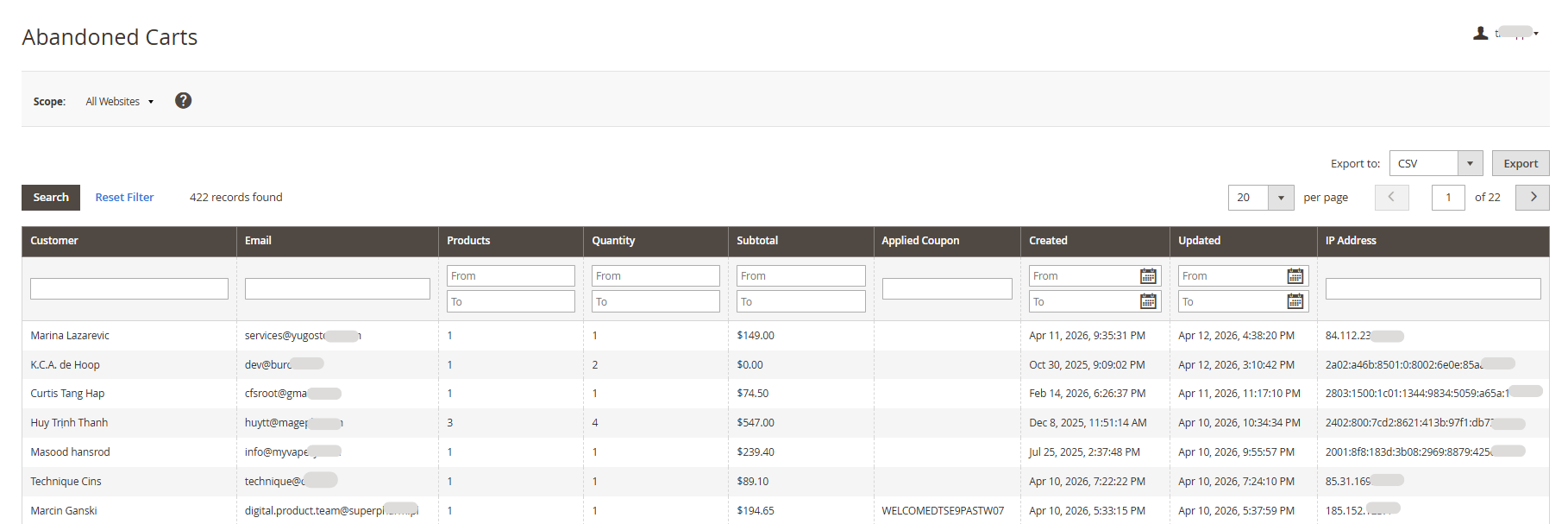
This report is enough to know how many carts were abandoned, but not enough to know why, or whether your recovery campaign is actually working.
Critically, the native report only captures logged-in customers. Guest carts, which still account for a significant portion of abandonments in most stores, are invisible.
Here’s what native tracking cannot tell you:
| Feature | Native Magento | Mageplaza Abandoned Cart Email |
|---|---|---|
| Were recovery emails sent? | ✗ | ✓ |
| Open rate per email | ✗ | ✓ |
| Which email triggered recovery | ✗ | ✓ |
| Revenue recovered per campaign | ✗ | ✓ |
| Recovery rate (%) | ✗ | ✓ |
| Guest cart tracking | ✗ | ✓ |
To evaluate whether your recovery campaign is performing, these are the five metrics that matter:
| Metric | Formula | Benchmark |
|---|---|---|
| Cart Abandonment Rate | (Carts created − Orders completed) / Carts created × 100 | 70–75% is normal across Magento stores |
| Delivery Rate | Emails delivered / Emails sent × 100 | Below 95% — fix deliverability before optimizing anything else |
| Open Rate | Emails opened / Emails delivered × 100 | 40–50% for abandoned cart emails (vs. 20–25% for standard newsletters) |
| Click-through Rate | Clicks / Emails sent × 100 | 8–12% |
| Recovery Rate | Orders recovered / Carts contacted × 100 | 5–10% is solid; above 15% is strong |
💡 Bonus metric:
Revenue per Email Sent (Recovered revenue ÷ Total emails sent) — This metric translates campaign performance into a dollar figure, making it easy to benchmark abandoned cart email against other channels like paid ads or SMS.
Tracking & Reporting using Mageplaza Abandoned Cart Email
Checkout Abandonment Report
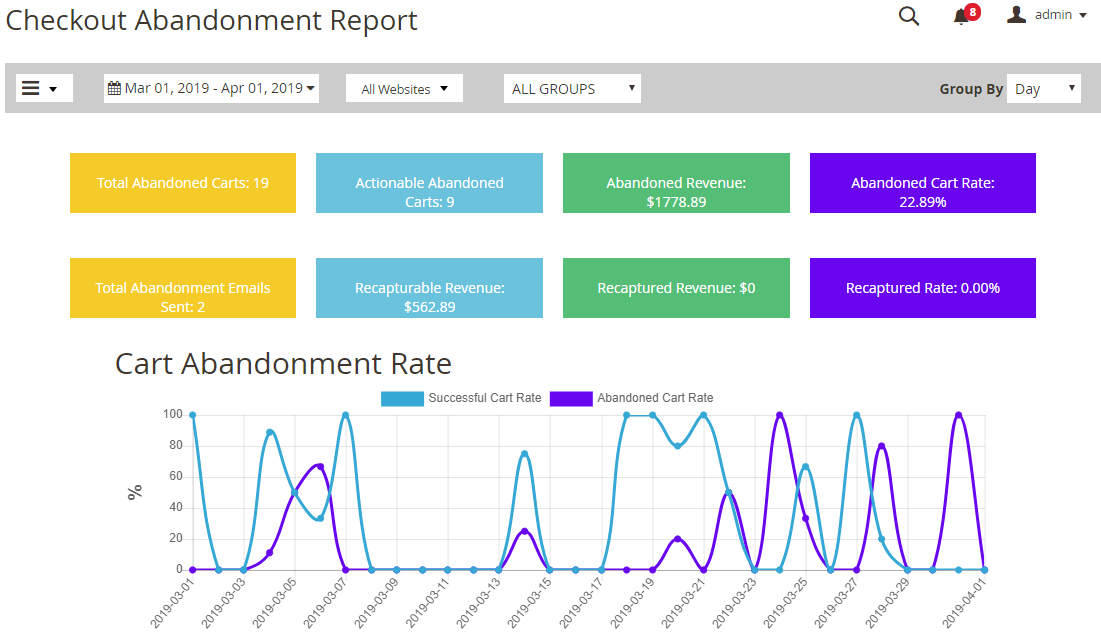
Once your Mageplaza Abandoned Cart Email extension is active, the real measurement begins here. Unlike native Magento’s basic cart list, the Checkout Abandonment Report gives you a live view of how much revenue is being lost — and how much is being recovered.
Where to find it: Magento Admin → Marketing → Abandoned Cart Email → Report
The report surfaces four numbers that native Magento does not provide:
- Actionable carts: carts that meet your configured conditions and are eligible to receive recovery emails
- Abandoned revenue: total value of all unrecovered carts in the selected period
- Abandoned cart rate: percentage of created carts that were not converted to orders
- Recaptured revenue: revenue recovered through the email sequence
How to read the report
Abandoned cart rate spikes suddenly are rarely caused by your email sequence, but typically signals a checkout problem: a broken payment method, a new shipping cost, or a UX regression after a site update. Investigate the checkout flow before adjusting your emails.
Recaptured revenue vs. abandoned revenue: Divide recaptured revenue by abandoned revenue to get the percentage of lost sales your campaign is bringing back. If this number is not moving upward over time, the sequence needs optimization: timing, subject line, or offer.
Match date range to what you’re trying to answer:
-
Weekly view: Spot trends early and catch anomalies before they compound
-
Monthly view: Calculate ROI: compare recaptured revenue against the cost of the extension and any discount codes issued
Shopping Behavior Analysis
Knowing where in the checkout customers dropped off is what makes your recovery campaign actionable.
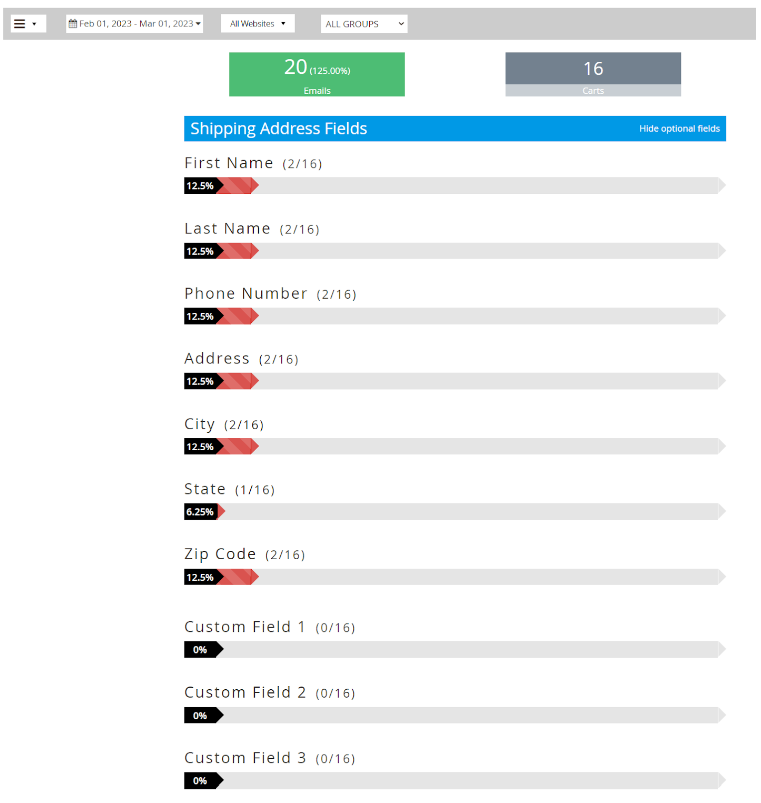
Where to find it: Magento Admin → Marketing → Abandoned Cart Email → Report → Shopping Behavior
This report breaks down abandonment by checkout stage, shown as percentages, so you can see exactly which step is losing the most customers and adjust both your checkout flow and your email sequence accordingly.
How to read the report:
High drop-off at the Shipping step: Customers started filling in their details but stopped at shipping information. This typically means the shipping cost that appeared was higher than expected, or the available shipping options didn’t match their needs. If this step dominates your report, add a free shipping offer or threshold reminder to Email 1 sent within 1–3 hours while intent is still fresh.
High drop-off at the Payment step: Customers completed their shipping details but didn’t finish payment. A missing preferred payment method is the most common cause, but so is a lack of trust signals at that final step (no security badge, unfamiliar logos, no visible return policy). You can highlight your accepted payment methods, include a money-back guarantee, or offer a direct support contact.
Learn more: How to configure Magento 2 payment methods
High drop-off at More Optional Fields: Customers abandoned while filling in additional fields: gift messages, order notes, VAT numbers, or other optional inputs. If this stage shows a high percentage, the form itself may be creating unnecessary friction. Consider whether those custom checkout fields are truly needed, or whether they can be moved post-purchase.
💡 How to use this report in practice:
Check Shopping Behavior before adjusting your email sequence. If most abandonment happens at a specific form step, that's a checkout fix, not an email fix. Solve the right layer first, then let your emails handle the rest.
Abandoned Product Report
Mageplaza Magento 2 Abandoned Cart Email extension tells you what product was abandoned, with the following data per SKU: product name, SKU, price, abandonment time, quantity abandoned, and total abandoned revenue.
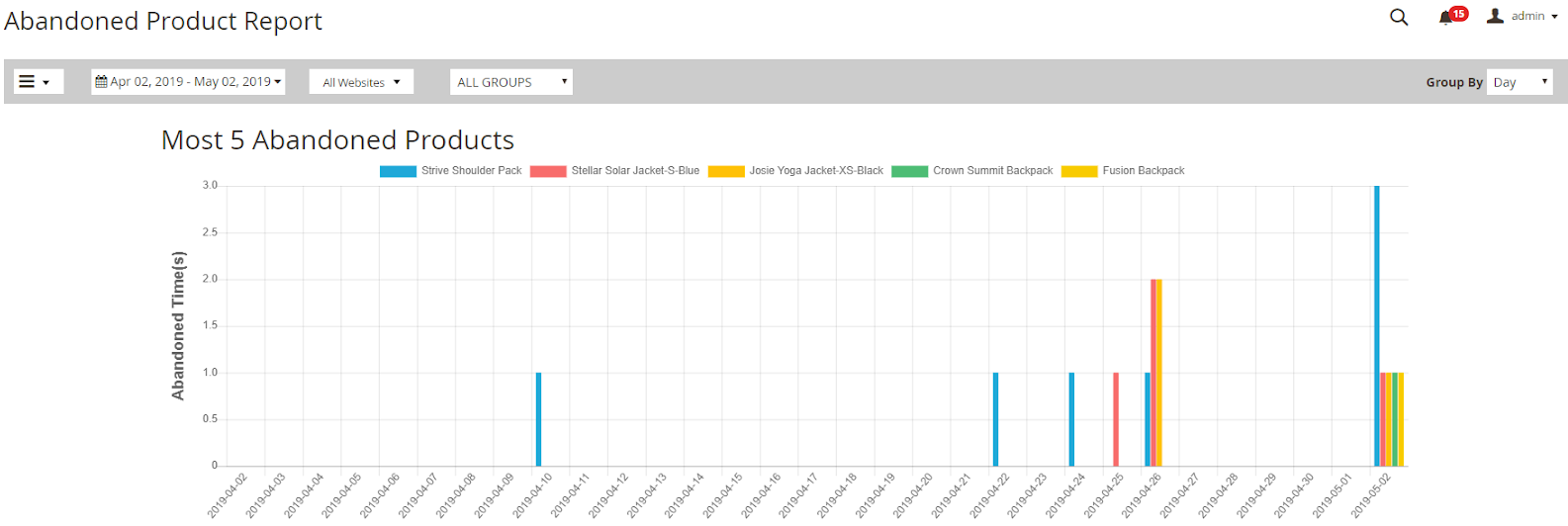
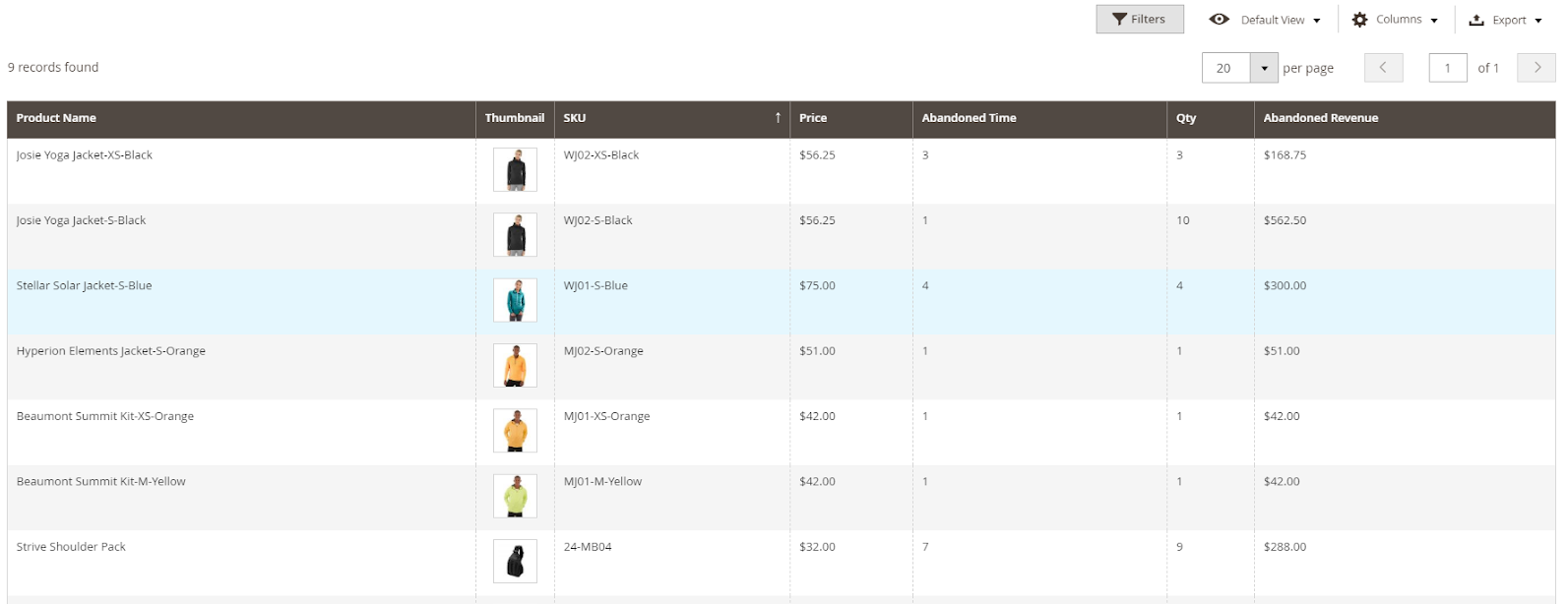
Where to find it: Magento Admin → Marketing → Abandoned Cart Email → Report → Abandoned Products
How to use the report
Products appear most often → prioritize in your email template: If the same SKU shows up repeatedly across abandoned carts, that product deserves prominent placement in your recovery email.
Abandoned revenue by SKU → calculate potential recovery value: Sort by abandoned revenue to find your highest-value problem products. If a single SKU is responsible for a disproportionate share of lost revenue, it’s worth building a dedicated sequence around it, rather than relying on your default template.
Cross-reference with Shopping Behavior → find where each product is being lost: A product with high abandoned revenue and high drop-off at the Shipping step points to a shipping cost problem for that item specifically, while the same product dropped off at Payment section requires a different fix. Use both reports together before deciding how to respond.
Email Performance Log
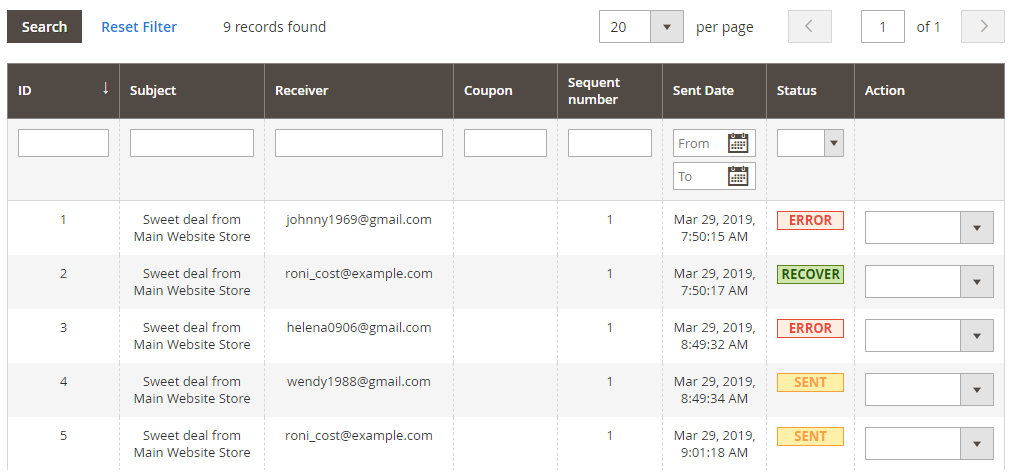
Where to find it: Magento Admin → Marketing → Abandoned Cart Email → Logs
The Logs grid is the most granular view in the extension — a line-by-line record of every recovery email sent by your store. Each entry shows: ID, Subject, Receiver, Coupon, Sequence Number, Sent Date, Status, and available Actions.
The Status field is the fastest diagnostic tool in the entire reporting suite. Three possible values:
- Sent: Email was delivered successfully. No action needed.
- Error: Email failed to send. If Error status appears consistently, check your SMTP configuration first. This is the most common cause. A misconfigured or unauthenticated sending setup will silently fail on a percentage of sends without triggering an obvious alert elsewhere in the system.
- Recover: Customers returned and completed their order after receiving this email. Filter for Recover across your log and look at the Sequence Number column to identify which email performs well. If Email 1 accounts for the majority of recoveries, your later emails may be unnecessary or poorly timed. If Email 3 is driving most recoveries, your early emails may not be compelling enough to close on their own.
Learn more: Email marketing mistakes to avoid
Cart Board
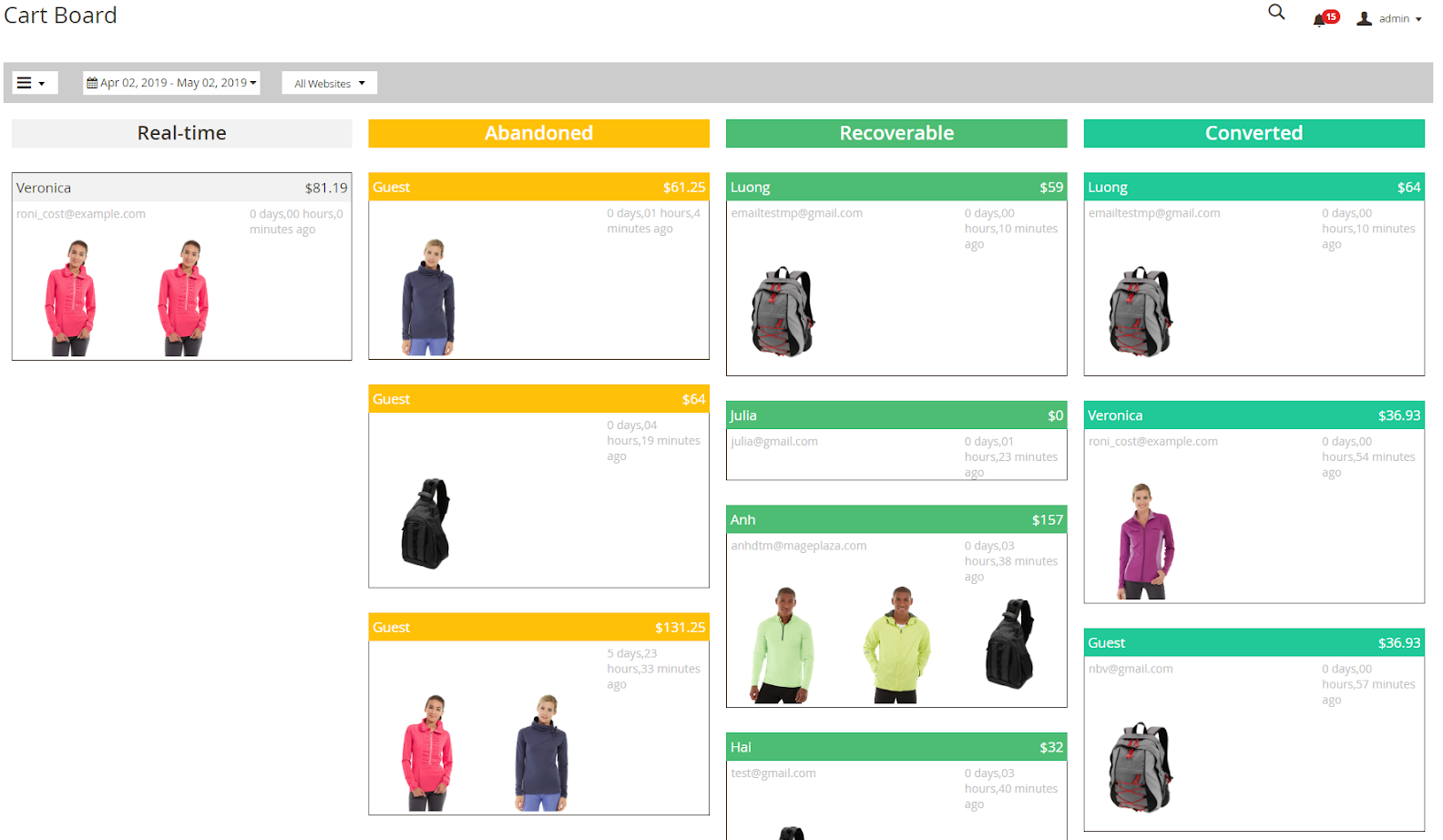
Cart Board tracks the timing of cart abandonment across your store, giving you a pattern view of when customers are most likely to leave. Use this to fine-tune your email sequence timing rather than relying on generic industry benchmarks.
Where to find it: Magento Admin → Marketing → Abandoned Cart Email → Cart Board
The four cart types
Every cart in the board is classified into one of four columns:
- Real-time: Carts abandoned within the threshold set in your “How to Measure Abandoned Cart” configuration. These are fresh abandonment events, still within the window where a recovery email has the highest chance of converting.
- Abandoned Cart: Carts where abandonment time exceeds the configured threshold, but no email address is available. These cannot be contacted directly — use this column to identify patterns in anonymous abandonment (time of day, day of week) and adjust your checkout UX accordingly.
- Recoverable: Same as Abandoned Cart, but the customer has an email address on file. These are your active recovery targets, every cart in this column is eligible for your email sequence.
- Converted: Carts that resulted in a completed order, including those recovered through your email sequence.
How to use Cart Board
The ratio of Recoverable → Converted is your clearest signal of sequence effectiveness at a glance. If Recoverable volume is high but Converted is low, the carts are reachable but the emails aren’t closing — revisit timing, subject lines, or offer structure.
The Real-time column is also worth monitoring directly after any store change — a new shipping rate, a checkout update, or a promotion going live. Spikes in real-time abandonment following a change point to that change as the likely cause.
Google Analytics Integration
Enabling the GA4 integration automatically appends UTM parameters to every cart recovery link in your emails, so GA4 can attribute sessions and transactions back to the abandoned cart campaign without any manual tagging.
Where to find it: Magento Admin → Stores → Configuration → Mageplaza Extensions → Abandoned Cart Email → Analytics
Setup
Navigate to the Analytics section and configure the following fields:
| Field | Recommended value | Notes |
|---|---|---|
| Enable | Yes | Activates UTM appending on all recovery links |
| Campaign Source | mageplaza-ace | Identifies the extension as the traffic source in GA4 |
| Campaign Medium | Standard medium value for email campaigns | |
| Campaign Name | abandoned-cart-3step | Name your sequence — use a consistent convention if running multiple campaigns |
| Campaign Term | Optional | Use to tag specific customer segments if needed |
| Campaign Content | Optional | Use to differentiate individual emails within a sequence (e.g. email-1, email-2) |
What you can do in GA4 after setup
Once UTM parameters are active, GA4 logs every session that arrives via a recovery link under the source/medium mageplaza-ace / email. From there, navigate to Reports → Acquisition → Traffic Acquisition and filter by that source to see:
- Sessions generated by recovery emails
- Conversion rate of those sessions
- Revenue attributed to the campaign
This gives you a revenue figure that is independent of the extension’s own Recaptured Revenue report, useful for cross-checking numbers and for reporting to stakeholders who already work inside GA4.
Learn more about Google Analytics website traffic and GA ecommerce reports to fully understand how Google Analytics 4 works.
A Simple Reporting Cadence for Magento Merchants
You don’t need to check every report every day. Most issues surface quickly if you catch problems early and optimize deliberately, not monitor constantly.
Weekly (5 minutes)
Compare recovery rate against the previous week. A sudden drop with no site changes or seasonal explanation usually points to a list quality or timing issue worth investigating before it compounds.
Monthly (30 minutes)
Two things native reports won’t surface automatically:
-
ROI check: Recaptured revenue vs. Cost of extension + Discount codes issued. A well-configured sequence should cover its own cost within the first month on a store with steady traffic.
-
Sequence weak point: In Logs, sort by Sequence Number and filter Status = Recover. The email contributing least to recoveries is your A/B test candidate for next month: subject line or timing, one variable at a time.
Quarterly
Two questions to answer:
-
Do your A/B test results support a permanent change to the sequence? Three months is the right window to commit to a winner.
-
Are guest carts or high-value carts underperforming relative to your overall recovery rate? If yes, a dedicated sequence for that segment will outperform continued optimization of the shared one.
Conclusion
Cart recovery is not a set-and-forget channel. The sequence you configured on day one will drift out of alignment with your store as your product mix shifts, your customer base changes, and your abandonment patterns evolve.
The stores that consistently recover 10–15% of abandoned carts aren’t running better emails than everyone else. They’re reading their data more regularly and making smaller, more frequent adjustments as a result. Start configuring Abandoned Cart Emails for your Magento 2 store & win back customers now.
Table of content

Summer is the CMO and Digital Commerce Solution Expert with 10+ years of experience. She specializes in Magento, Shopify, ERP, CRM, AI, and Blockchain, delivering strategic solutions that transform businesses. With a deep understanding of digital commerce, she helps brands scale and stay ahead in a competitive market.
Related Post

15 mins read
|
09-30-2026
16 mins read
|
08-30-2026
5 mins read
|
07-30-2026
7 mins read
|
06-30-2026

How to Enable DebugView in GA4 for your Magento 2 store - Mageplaza
Step-by-step guide to enabling GA4 DebugView for Magento 2 merchants — verify your GA4 events are firing correctly before trusting your data.
8 mins read
|
06-09-2026
14 mins read
|
10-30-2026
15 mins read
|
09-30-2026
16 mins read
|
08-30-2026
5 mins read
|
07-30-2026
7 mins read
|
06-30-2026
How to Enable DebugView in GA4 for your Magento 2 store - Mageplaza
Step-by-step guide to enabling GA4 DebugView for Magento 2 merchants — verify your GA4 events are firing correctly before trusting your data.
8 mins read
|
06-09-2026