


13 mins read
|
10-30-2026
GTM Debugging on Magento: A Complete Troubleshooting Guide
Summer Nguyen
|
04-20-2026

Google Tag Manager works beautifully, until you put it on Magento. Tags that fire perfectly on simple sites go missing on product pages. Purchase events vanish at checkout. Variables return undefined for no obvious reason. And what happens is you cannot track website traffic correctly.
It’s not you. Magento’s dynamic rendering, aggressive full-page cache, and complex module ecosystem make Google Tag Manager behave differently than anywhere else. This guide walks you through exactly how to find and fix the most common GTM tracking problems on Magento 2 step-by-step.
How GTM Gets Installed on Magento
Before you open the GTM debugger, you need to know how GTM was installed on your Magento store, because the method determines what data you get, what breaks, and how hard it is to fix.
| Installation Method | How it works | Data layer included | GTM Preview Mode works | Ecommerce tracking | Debugging complexity |
|---|---|---|---|---|---|
| Magento Extension (e.g. Mageplaza Google Tag Manager) | Handles GTM snippet + full data layer. Ecommerce events like view_item, add_to_cart, purchase push automatically at the right page lifecycle moment. Configurable from Magento admin. | ✅ Yes | ✅ Yes | ✅ Automatic | Low |
| Hardcoded in Theme Files | GTM snippet pasted directly into default.xml or a layout template. GTM loads, but no data layer logic attached — events must be manually coded. | ❌ No | ✅ Yes | ⚠️ Manual | High |
| Google Tag (gtag.js) | Skips GTM entirely. Basic GA4 tracking works but no tag management, no preview mode, no data layer. | ❌ No | ❌ No | ⚠️ Limited | Very high |
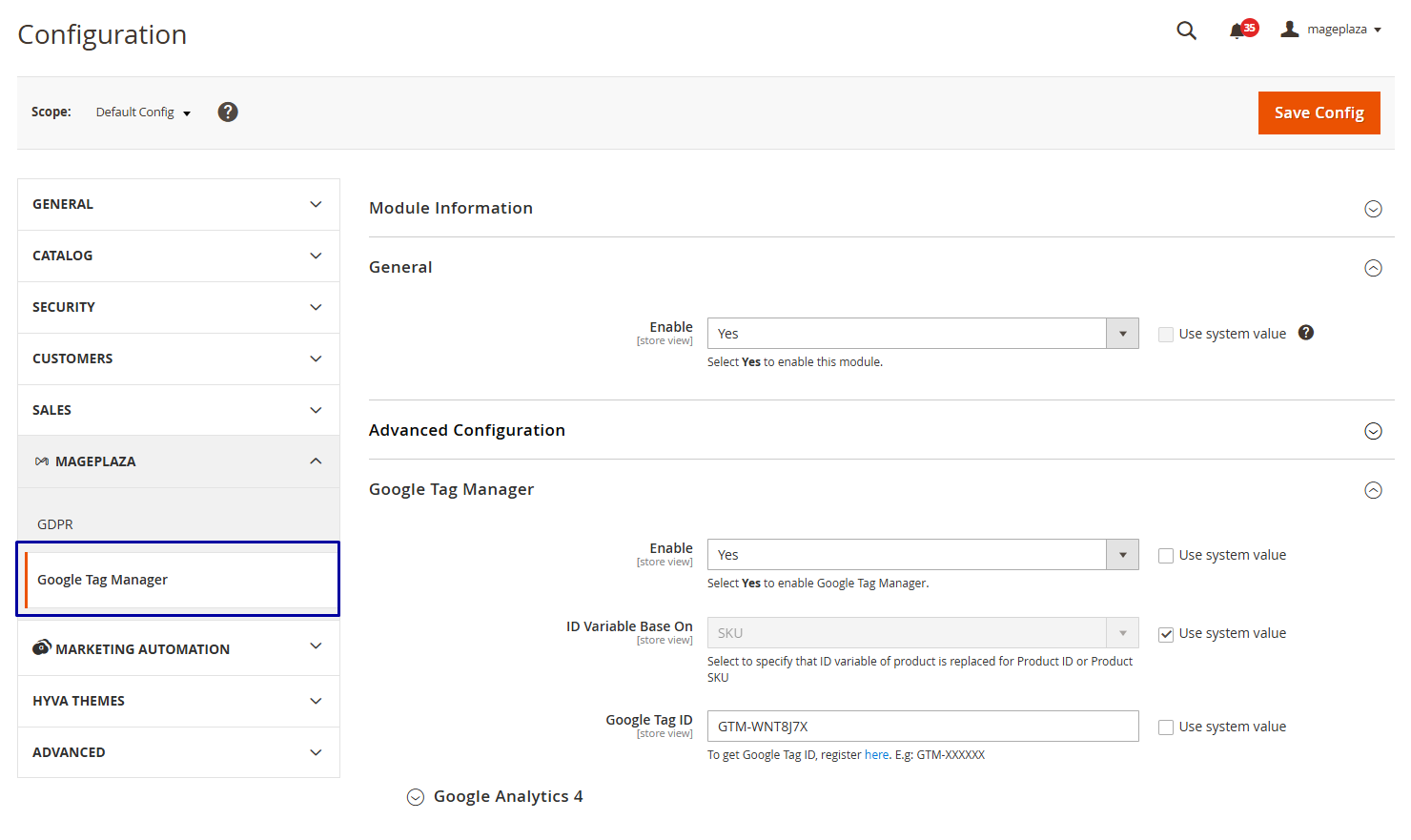
This guide assumes you’re using a Magento extension with a data layer included. If you’re on a hardcoded setup, some steps will still apply, but your debugging experience will be harder and the data layer checks in later sections may return empty.
Before anything else, confirm GTM is present and firing on your store. Two quick checks:
Check 1: Network Tab in DevTools
Open Chrome DevTools (F12), go to the Network tab, and reload the page. Filter by gtm.js.
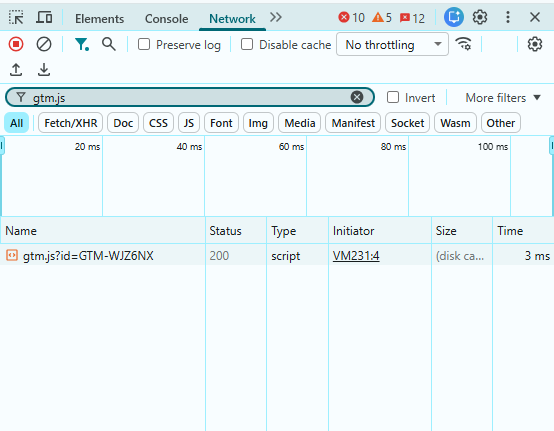
You should see a request like:
https://www.googletagmanager.com/gtm.js?id=GTM-XXXXXX with a 200 OK status.
If it’s missing, GTM isn’t loading. If you see it twice, GTM is installed in two places — a common issue on Magento stores that had a previous developer add the snippet manually before an extension was installed.
Check 2: Console Check
Open the browser console and type:
javascript
window.google_tag_manager
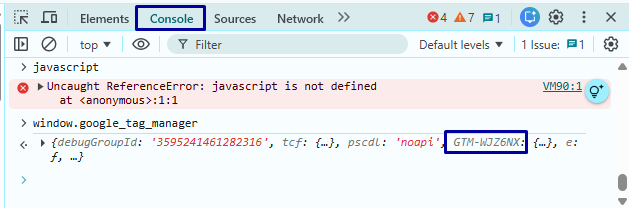
If GTM is loaded, you’ll see an object with your container ID as a key. If it returns undefined, GTM is not on the page.
Understanding the Magento Data Layer
Think of the data layer as a messenger that sits between your Magento store and GTM. Every time a shopper does something, like views a product, adds to cart, completes a purchase, Magento sends a message to the data layer. GTM listens for those messages and uses them to fire the right tags at the right time.
Without a properly working data layer, GTM has nothing to read.
For a deeper look at how the Magento data layer is structured, check out Mageplaza’s full guide.
How to use GTM Preview Mode on Magento
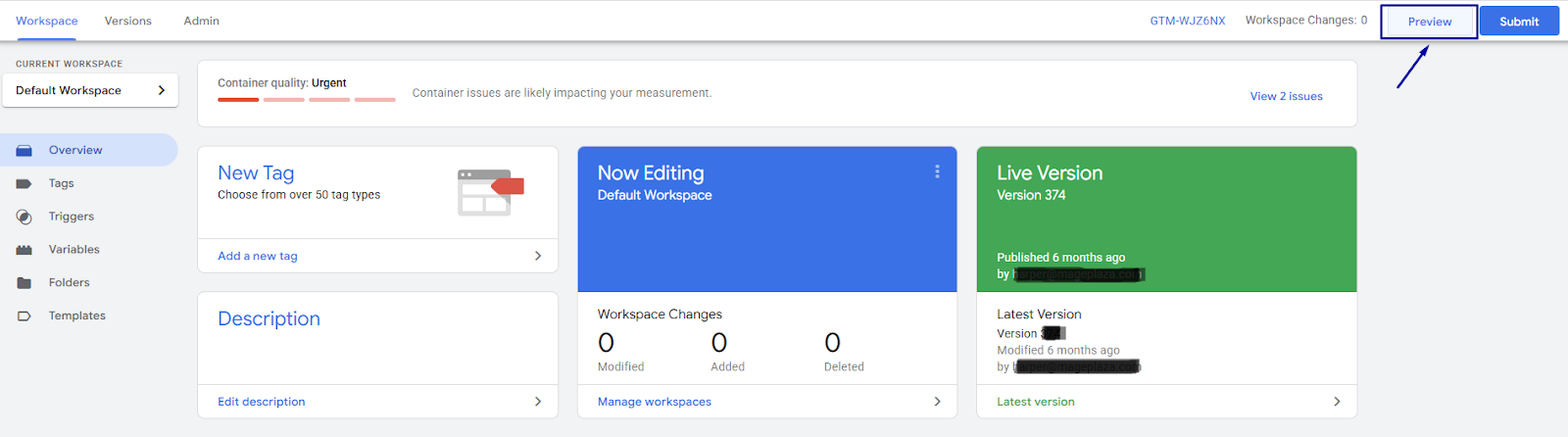
Step 1: Go to tagmanager.google.com, open your container, and click Preview in the top right corner. This launches Google Tag Assistant.
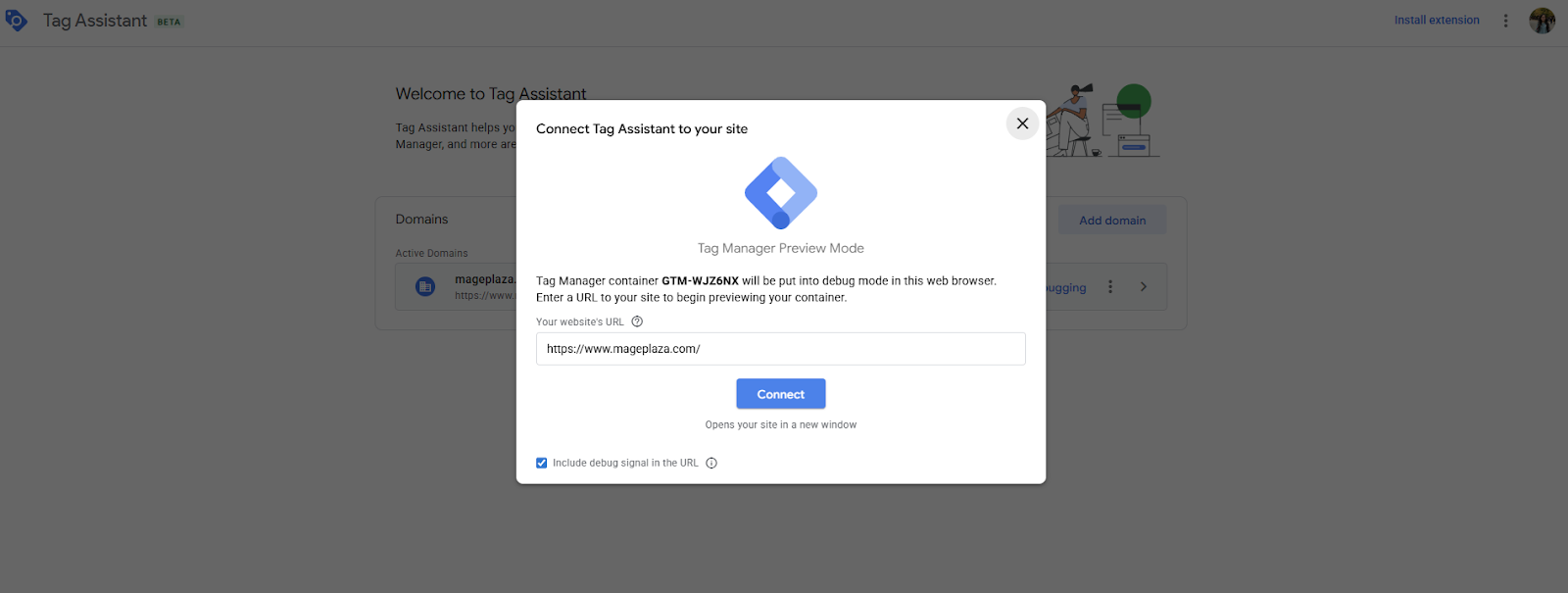
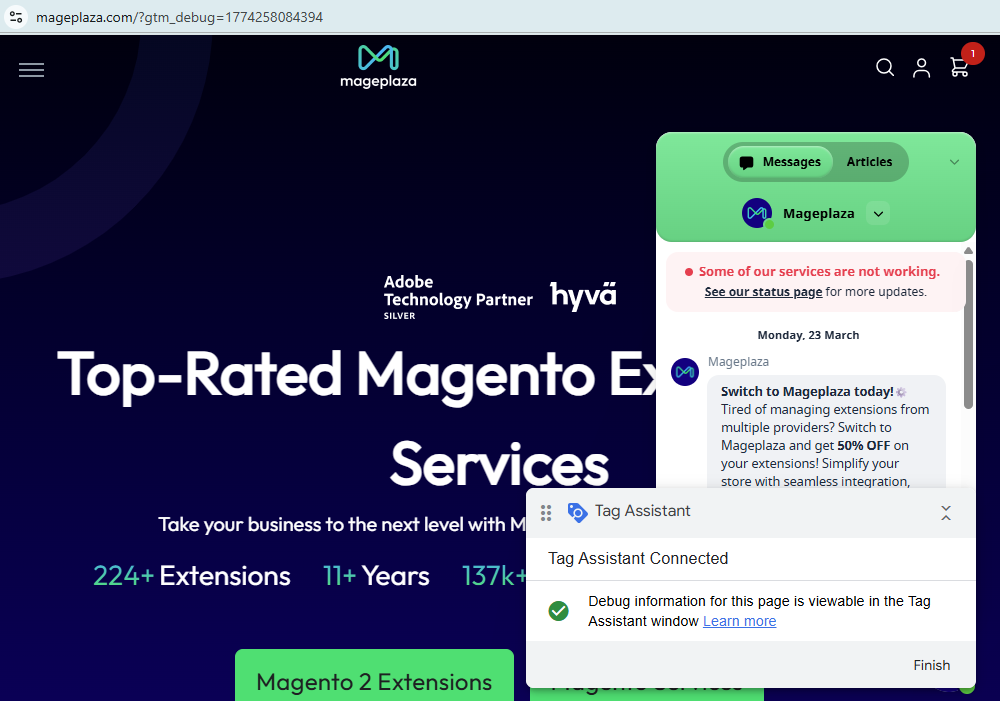
Step 2: Enter your store URL and click Connect. Your store will open in a new tab with the GTM preview badge visible at the bottom of the page.
Step 3: Watch out for these Magento-specific issues
Before you start debugging, check for these three common blockers:
- Wrong URL for staging environments: If you’re testing on a staging site (e.g.
staging.yourstore.com), enter that exact URL — not your live domain. The preview session is tied to the specific URL you connect to and won’t carry over to a different domain. - HTTP instead of HTTPS: GTM Preview Mode requires a secure connection. If your Magento store or staging environment runs on HTTP, the preview badge may not appear or the connection may drop silently. Always test on an HTTPS URL.
- Varnish / Full-Page Cache serving stale pages: This is the most common Magento-specific blocker. Magento’s full-page cache, especially with Varnish enabled, can serve a cached version of the page that doesn’t reflect your latest GTM setup. If the preview badge doesn’t show up, or events aren’t appearing as expected, cached pages are likely the cause. Two ways to fix it:
- Test in Incognito mode (recommended)
- Or go to Magento Admin → System → Cache Management and temporarily flush the cache
Step 4: Confirm the preview badge is visible
Once connected, you should see a small Google Tag Manager badge in the bottom right corner of your Magento store. If it’s not there, go back to Step 3 and work through the blockers above before continuing.
The 6 Panels You Need to Know
Then, when you go back to the Google Tag Manager, there will be a report as follows:
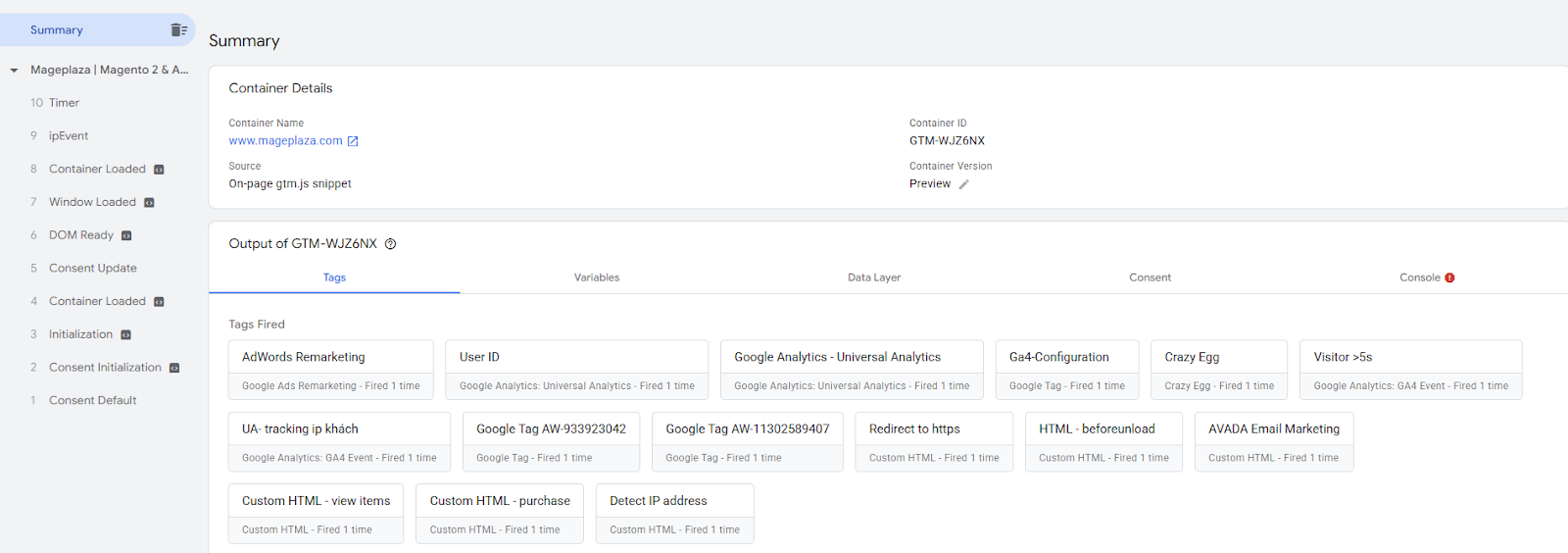
Here’s what each tab shows and what matters most on a Magento store:
| Symptom | Root Cause | Fix |
|---|---|---|
| Purchase tag fires on every page | Trigger too broad | Scope to purchase dataLayer event |
| Transaction ID is undefined | Page caching strips session data | Use server-side order data push |
| Add-to-cart fires 2x | Duplicate dataLayer push from module | Deduplicate in GTM or fix module |
| Variables show undefined | Wrong dataLayer key name (case-sensitive) | Match key exactly in Variable config |
| No events on checkout | Magento SPA navigation not triggering GTM | Add History Change trigger |
|
💡 Magento Tip:
- Start with the Data Layer tab to confirm Magento pushed the right event with the right values, then move to Variables, then Tags. This order stops you from fixing the wrong thing first.
- Always test in Incognito mode. Just copy your Tag Assistant URL and open it fresh in a new Incognito window, it reconnects in seconds.
Debugging the 5 Critical Magento Tracking Points
Most Magento stores have these five tracking points where GTM breaks. Get these right and your GA4 data becomes genuinely reliable.
Note: Several bugs covered in this section are automatically handled by the Magento 2 Google Tag Manager extension by Mageplaza. If you’re on a custom or hardcoded GTM setup, you may need to resolve these manually.
Product Detail Page (view_item)
What a Correct Push Looks Like
Run window.dataLayer in the console on any product page. You should see:
json
{
  "event": "view_item",
  "ecommerce": {
    "currency": "USD",
    "value": 49.99,
    "items": [
      {
        "item_id": "SKU-001",
        "item_name": "Blue Running Shoes",
        "price": 49.99,
        "item_category": "Footwear",
        "quantity": 1
      }
    ]
  }
}
Common Bugs
| Bug | Fix |
|---|---|
| item_id, item_name, or price returns undefined | Event fired before Knockout.js finished rendering. Use Mageplaza's GTM extension — it pushes the event after product data is fully loaded |
| Wrong item_id (entity ID instead of SKU) | Go to Mageplaza GTM settings in Magento Admin and set the identifier to SKU |
Add to Cart
What a Correct Push Looks Like
Run window.dataLayer in the console after adding a product to cart. You should see:
json
{
  "event": "add_to_cart",
  "ecommerce": {
    "currency": "USD",
    "value": 49.99,
    "items": [
      {
        "item_id": "SKU-001",
        "item_name": "Blue Running Shoes",
        "price": 49.99,
        "quantity": 1
      }
    ]
  }
}
Common Bugs
| Bug | Fix |
|---|---|
| add_to_cart never appears in the Events timeline | GTM is using a click trigger instead of listening to the dataLayer push. Switch the trigger to a Custom Event trigger using add_to_cart as the event name |
| Event fires but quantity is wrong | Shopper changed quantity before clicking — make sure the dataLayer push reads the input field value at the moment of the click, not a default value |
| Event fires twice | Duplicate dataLayer push from the extension — then check Mageplaza GTM settings or look for a conflicting custom implementation in the theme |
Checkout Steps
What a Correct Push Looks Like
Run window.dataLayer in the console at each checkout step. You should see a push for each step:
json
{
  "event": "checkout_progress",
  "ecommerce": {
    "checkout": {
      "actionField": {
        "step": 1,
        "option": "Shipping"
      }
    }
  }
}
Common Bugs
| Bug | Fix |
|---|---|
| No checkout events appear in the timeline | Magento's SPA navigation isn't triggering GTM. Make sure your extension pushes a dataLayer event at each step change — not just on page load |
| Only step 1 fires, rest are missing | The trigger is set to fire once per page instead of once per event. Change the trigger firing condition to Once per event |
| Step numbers are wrong or out of order | Check the extension configuration in Magento Admin — step numbering may differ between Magento versions or custom checkout implementations |
| Events fire but GA4 shows no funnel data | Your GA4 funnel configuration may not match the exact event names being pushed. Cross-check event names in GA4 Explore → Funnel report |
Order Confirmation / Purchase Event
What a Correct Push Looks Like
Run window.dataLayer on the order confirmation page. You should see:
json
{
  "event": "purchase",
  "ecommerce": {
    "transaction_id": "000001234",
    "value": 149.99,
    "tax": 12.00,
    "shipping": 9.99,
    "currency": "USD",
    "items": [
      {
        "item_id": "SKU-001",
        "item_name": "Blue Running Shoes",
        "price": 49.99,
        "quantity": 1
      }
    ]
  }
}
Common Bugs
| Bug | Fix |
|---|---|
| purchase event never fires | Magento's FPC cached the confirmation page before GTM loaded. Flush cache and test in Incognito mode |
| transaction_id is undefined | Session data was lost between checkout and confirmation page — common when a payment gateway redirects to an external page. Use Mageplaza GTM extension which reads order data server-side before pushing |
| Purchase event fires on every page reload | No deduplication in place. Add a check in GTM to fire the tag only once — or handle deduplication via GA4's transaction ID matching |
| Revenue value is wrong | Tax or shipping is being included/excluded inconsistently. Confirm with your Magento admin what the value field should contain and align your extension settings accordingly |
| Purchase fires twice | GTM installed in two places (see Section 1). Remove the duplicate snippet first |
Category / Search Pages (view_item_list)
What a Correct Push Looks Like
Run window.dataLayer on any category page. You should see:
json
{
  "event": "view_item_list",
  "ecommerce": {
    "item_list_id": "cat_shoes",
    "item_list_name": "Footwear",
    "items": [
      {
        "item_id": "SKU-001",
        "item_name": "Blue Running Shoes",
        "price": 49.99,
        "index": 1
      },
      {
        "item_id": "SKU-002",
        "item_name": "White Sneakers",
        "price": 59.99,
        "index": 2
      }
    ]
  }
}
Common Bugs
| Bug | Fix |
|---|---|
| Only first 4–5 products appear in the items array | Extension is capped at a default limit. Check Mageplaza GTM settings in Magento Admin and increase the maximum number of items pushed |
| No event fires on paginated pages | Pagination triggers a partial page reload that bypasses GTM. Make sure the extension pushes a new view_item_list event on each pagination change |
| item_list_name is blank or generic | Extension is not reading the category name correctly. Check that Magento's category data is available at the time of the push |
| Search results page missing entirely | view_item_list may not be configured for search pages, only category pages. Enable it separately in the extension settings |
Common Magento GTM Bugs and Exact Fixes
A scannable reference table:
| Symptom | Root Cause | Fix |
|---|---|---|
| Purchase tag fires on every page | Trigger too broad | Scope to purchase dataLayer event |
| Transaction ID is undefined | Page caching strips session data | Use server-side order data push |
| Add-to-cart fires 2x | Duplicate dataLayer push from module | Deduplicate in GTM or fix module |
| Variables show undefined | Wrong dataLayer key name (case-sensitive) | Match key exactly in Variable config |
| No events on checkout | Magento SPA navigation not triggering GTM | Add History Change trigger |
Validating Your Magento Tracking After Debugging
GA4 DebugView
Go to GA4 → Admin → DebugView. Place a test order on your Magento store and watch the events stream in real time.
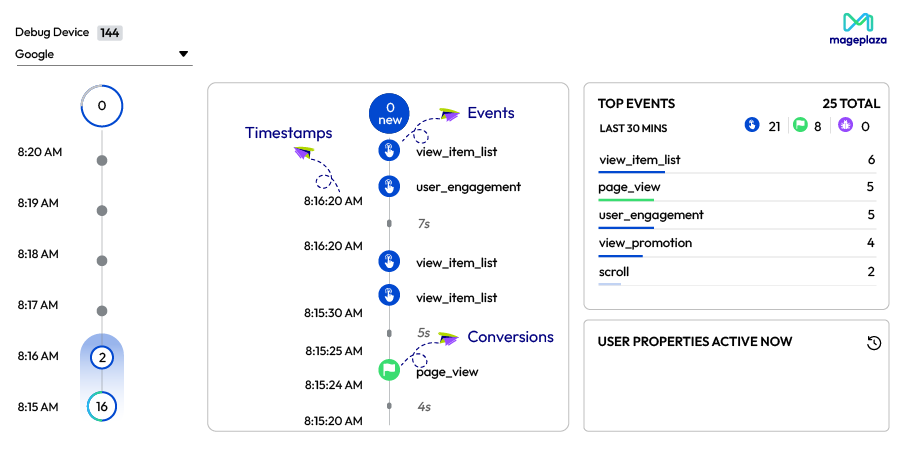
What to look for:
purchaseevent appears with the correcttransaction_idandvalue- No duplicate purchase events for the same order
add_to_cartandview_itemevents show correct product data- No unexpected
(not set)values in key parameters
Network Tab Check
For a deeper look, open DevTools → Network tab and filter by collect. Place a test order and click the collect request.
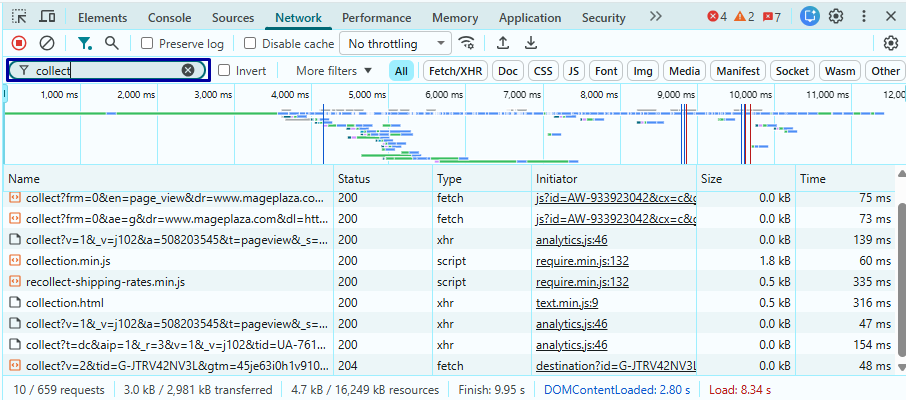
Check the payload for:
en = purchase(event name)ti =your order transaction IDtr =correct revenue valuecu =correct currency code
Transaction Deduplication
Double-counted revenue is one of the most damaging tracking errors on Magento. …
Quick Checklist Before Publishing
Before hitting Publish on any GTM change on Magento:
- Tested in Incognito mode with full-page cache cleared
- All 5 key events appear correctly in GTM Preview Mode
- GA4 DebugView confirms events with correct values
- No duplicate tags firing for the same event
- Container version named and noted (e.g. “Added purchase tag — v1.4”)
Learn more:
Conclusion
GTM tracking on Magento can break after an update, a new extension, or a payment gateway change. Keep it clean with three habits: test before you publish, check after every deployment, and version your containers.
Once you know where to look, most Magento GTM issues follow the same patterns.
Need a hand? Get in touch with us to work through it yourself.
Table of content

Summer is the CMO and Digital Commerce Solution Expert with 10+ years of experience. She specializes in Magento, Shopify, ERP, CRM, AI, and Blockchain, delivering strategic solutions that transform businesses. With a deep understanding of digital commerce, she helps brands scale and stay ahead in a competitive market.
Related Post

15 mins read
|
09-30-2026
16 mins read
|
08-30-2026
5 mins read
|
07-30-2026
7 mins read
|
06-30-2026
How to Enable DebugView in GA4 for your Magento 2 store - Mageplaza
Step-by-step guide to enabling GA4 DebugView for Magento 2 merchants — verify your GA4 events are firing correctly before trusting your data.
8 mins read
|
06-09-2026
13 mins read
|
10-30-2026
15 mins read
|
09-30-2026
16 mins read
|
08-30-2026
5 mins read
|
07-30-2026
7 mins read
|
06-30-2026
How to Enable DebugView in GA4 for your Magento 2 store - Mageplaza
Step-by-step guide to enabling GA4 DebugView for Magento 2 merchants — verify your GA4 events are firing correctly before trusting your data.
8 mins read
|
06-09-2026