



14 mins read
|
10-30-2026
Google Analytics Ecommerce Reports for Magento Merchants: What to track & Tips
Summer Nguyen
|
05-20-2026


Google moved from Universal Analytics to Google Analytics 4 in July 2023, so for Magento merchants, GA4 wasn’t just a new interface. It was a completely different way of thinking about ecommerce data. Stores that adapted quickly gained a real edge: GA4 consistently ranks among the best marketing analytics tools available, giving you purchase behavior, funnel visibility, and audience insight no other free tool matches.
From what to track to what the numbers actually mean, this guide has everything Magento merchants need to get real value from GA4 ecommerce reports.
Is Your Magento Store Actually Tracking Correctly?
This section comes first because if your events aren’t firing, none of the reports below will show accurate data.
The single most common mistake Magento merchants make is assuming GA4 is “set up” just because the tracking tag is installed. Installing the base GA4 tag gets you basic pageview and session data, but it does nothing for ecommerce tracking. Without the ecommerce event layer, reports like Purchase Journey, Checkout Journey, and Ecommerce Purchases will either show no data at all or give you numbers that don’t reflect what’s actually happening in your store.
Before going any further, run through this Magento-specific setup checklist:
- GA4 base tag confirmed via Google Tag Assistant
- Ecommerce events firing:
view_item,add_to_cart,begin_checkout,purchase - DebugView shows events with correct parameters (item_id, item_name, price, currency)
- Internal traffic filter active (excludes your admin/dev team IPs)
- GDPR cookie consent configured — events only fire after enabling Cookie Consent
- GA4 linked to Google Ads (if running paid campaigns)
Which GA4 Reports Actually Matter - Magento Merchant’s GA4 Cheat Sheet
This following table helps you quickly decide which Google Analytics e-commerce reports to use, based on most common business questions.
| Business Question | GA4 Report to Use | Priority |
|---|---|---|
| Which products are selling best? | Ecommerce Purchases | High |
| Where are customers dropping off? | Purchase Journey | High |
| Which checkout step loses customers? | Checkout Journey | High |
| Which promotions drive real sales? | Promotions Report | Medium |
| Which coupons generate the most revenue? | Order Coupon Report | Medium |
| Which traffic source brings the most buyers? | Traffic Acquisition | High |
| Are customers coming back? | Retention Report | Medium |
| Which product lists drive the most revenue? | Item List Report | Medium |
| Is my tracking working right now? | Real-Time Report | High (situational) |
💡 Tips:
- Reports you can deprioritize (and why): Demographics, Tech (unless you have a specific mobile problem)
- Reports most stores are ignoring that they shouldn't be: Item List, Promotions, Order Coupon
Real-Time Reports: View What’s Happening on Your Store Right Now
While most GA4 reports work on a delay and standard data takes 24 to 48 hours to fully process, real-time reports are the exception. They show you what’s happening on your store at this exact moment: how many users are active, which pages they’re on, which events are firing, and whether conversions are occurring right now.
Find it in the left-hand navigation under Reports → Real-Time, and unlike the rest of GA4’s report library, it refreshes continuously without needing a page reload.
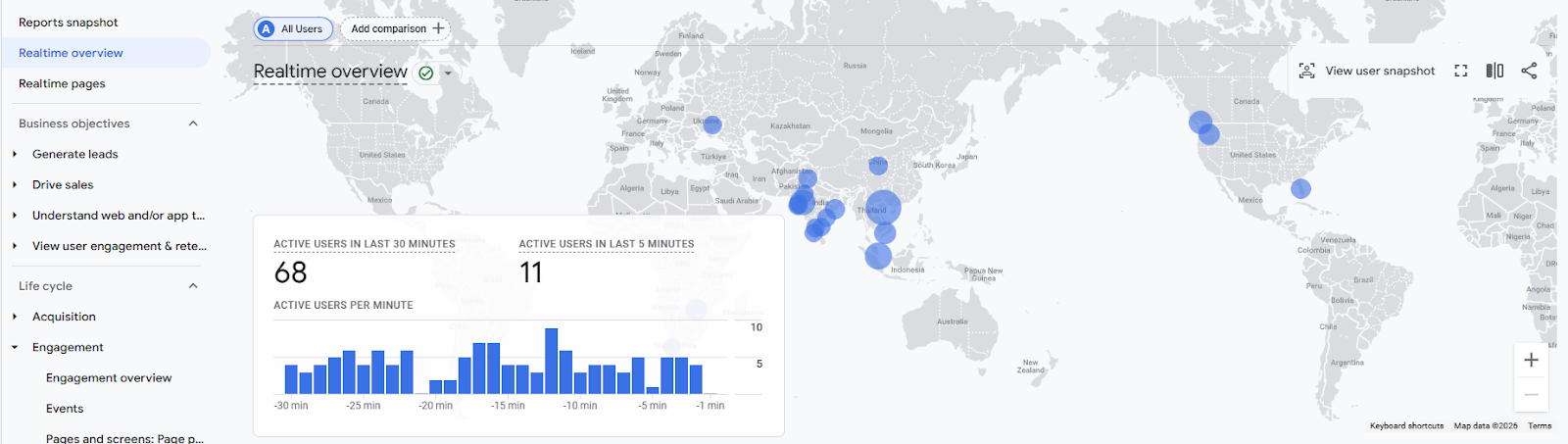
The 3 best use cases for Magento merchants include:
- Verifying tracking after a new Magento deployment or theme update
- Monitoring live traffic during a flash sale or product launch
- Confirming a promotion or coupon code is firing correctly
💡 Magento Tip: Use Real-Time reports immediately after enabling a new promotion or coupon to confirm the tracking is firing correctly
Acquisition Reports: Know where your customers are coming from
Understanding where your traffic comes from is the foundation of every marketing decision you make: which channels to invest in, which campaigns to scale, and where you’re wasting budget. The Traffic Acquisition report and the User Acquisition report answer related but distinct questions, and reading them together gives you a complete picture.
Traffic Acquisition Report (Session-based)
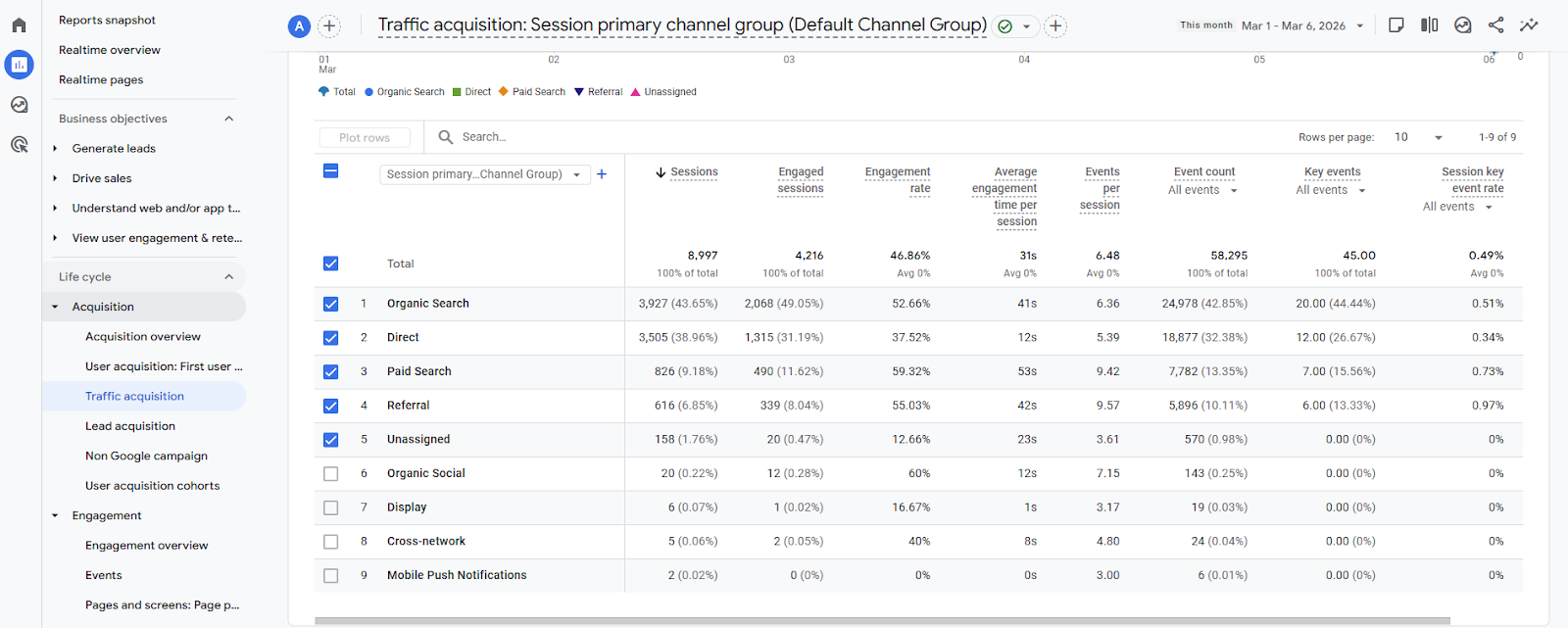
The Traffic Acquisition report breaks down your store’s sessions by:
- Source (where a visit originated): google, facebook, newsletter, etc.
- Medium (how it got to your store): organic, cpc, email.
For most Magento stores, this report will show a familiar mix: organic search, paid search, direct, email, and social. The value isn’t in recognizing these channels, but asking which of them are actually driving buyers, not just browsers. Sort by purchase revenue or conversion rate rather than session volume, and the channel priority order often looks completely different.
Learn more: Google Analytics Website Traffic
User Acquisition Report (User-based)
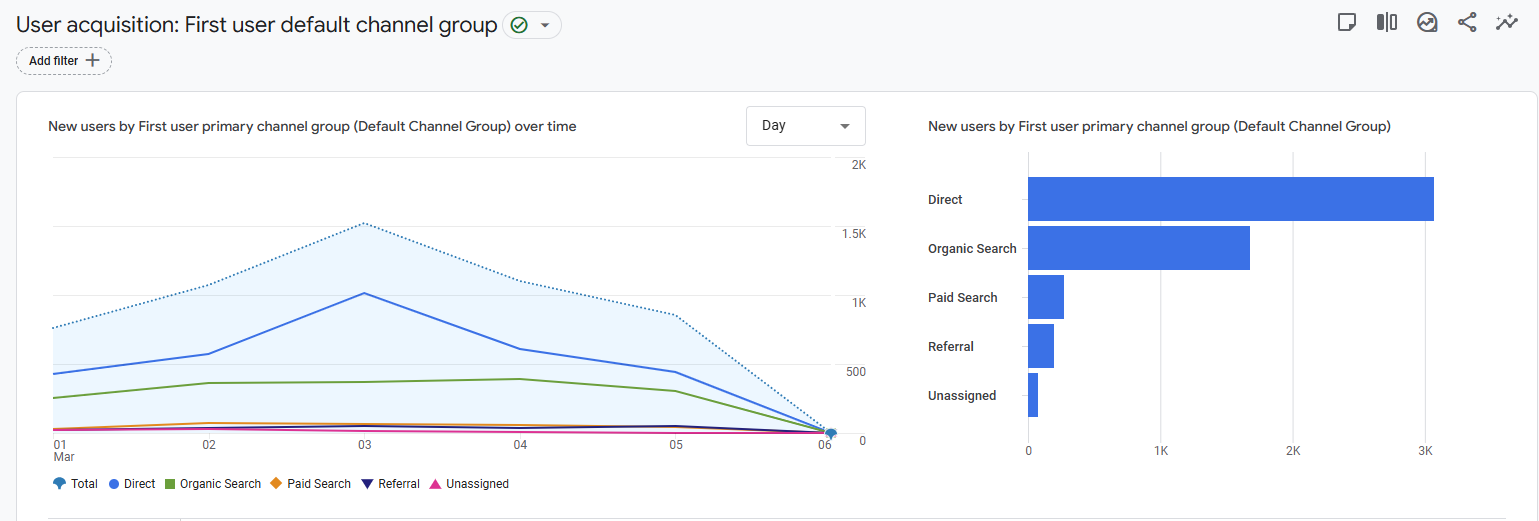
User Acquisition counts people, attributing each user to the channel that first brought them to your store. A customer who found you through organic search, returned via a retargeting ad, then converted through email gets credited to organic search here. This first-touch view is essential for understanding where your customers actually originate, not just what nudged them to finally buy.
The new vs. returning user breakdown in this report is one of the most useful health indicators for Magento stores. A heavy skew toward new users means you’re constantly paying to replace customers rather than building a returning base. If returning users account for less than 20% of your purchasing sessions, your post-purchase experience deserves attention before you increase acquisition spend.
💡 Magento Tip: Cross-reference your email campaign performance here if you use Magento’s built-in newsletter or a tool like Klaviyo (use UTM parameters)
Engagement Reports: Are visitors actually interested?
Pages and Screens Report
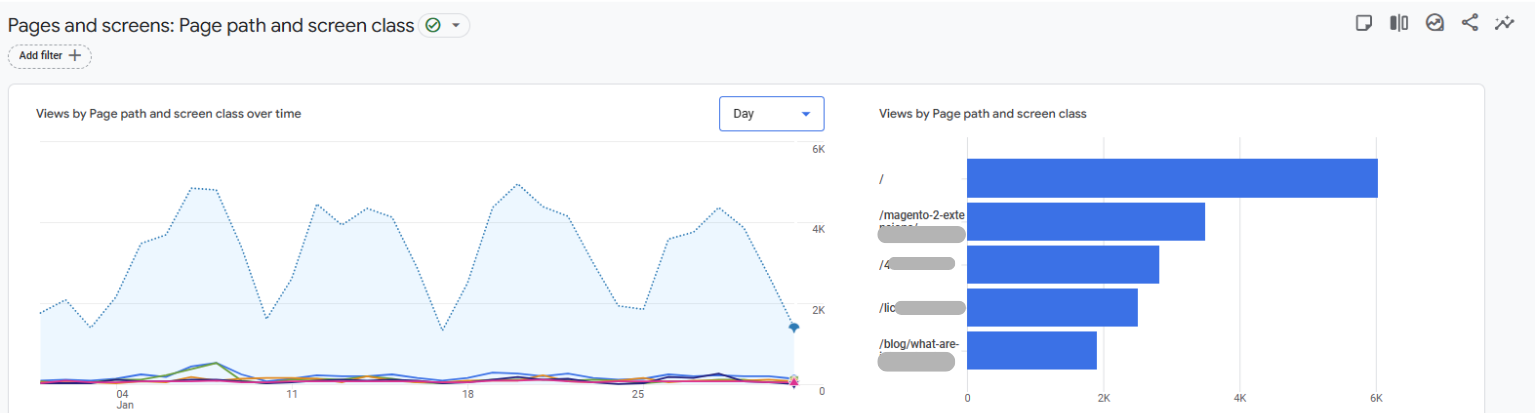
This report shows which pages on your store get the most traffic. Your top product pages, category pages, and landing pages are all ranked by volume. In GA4, engagement rate measures sessions where a user actively interacted with the page, while bounce rate just penalizes quick exits. A page with a high engagement rate but low add-to-cart rate tells you visitors are interested but something is stopping them from acting. Those high-traffic category pages with low add-to-cart rates are your highest-priority conversion optimization targets.
💡 Magento Tip: Look for high-traffic category pages with low add-to-cart rates, which are your conversion optimization priorities
Events Report
Every user interaction on your Magento store, such as a button click, a product image scroll, a video play, is recorded in GA4 as an event. Unlike Universal Analytics, which treated pageviews as the primary data unit, GA4 is built entirely around events. This means you get a far more detailed picture of what users actually do before they buy, bounce, or come back.
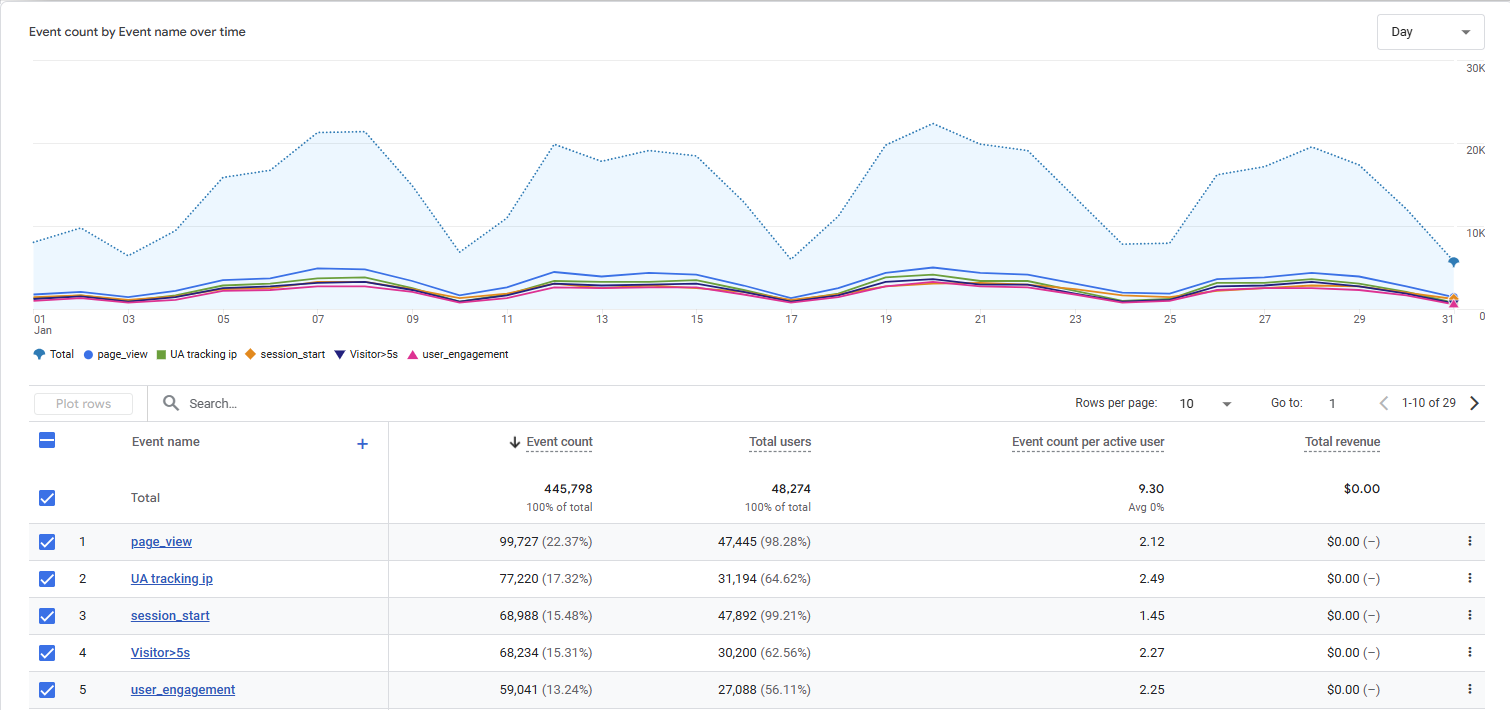
GA4 automatically collects a set of default events the moment it’s installed. For ecommerce merchants, the ones that matter most are:
view_item: when a user lands on a product pageadd_to_cart: when a product is added to the cartbegin_checkout: when a user starts the checkout flowpurchase: when an order is completedsearch: when a user runs an on-site search
Looking at these events helps you figure out where your store is losing revenue.
Monetization Reports: The Heart of GA4 for E-Commerce
The Monetization reports are where every effort finally shows up as revenue data. They tell you where it came from, which products drove it, where customers dropped off, and which promotions actually paid for themselves.
Monetization Overview Report
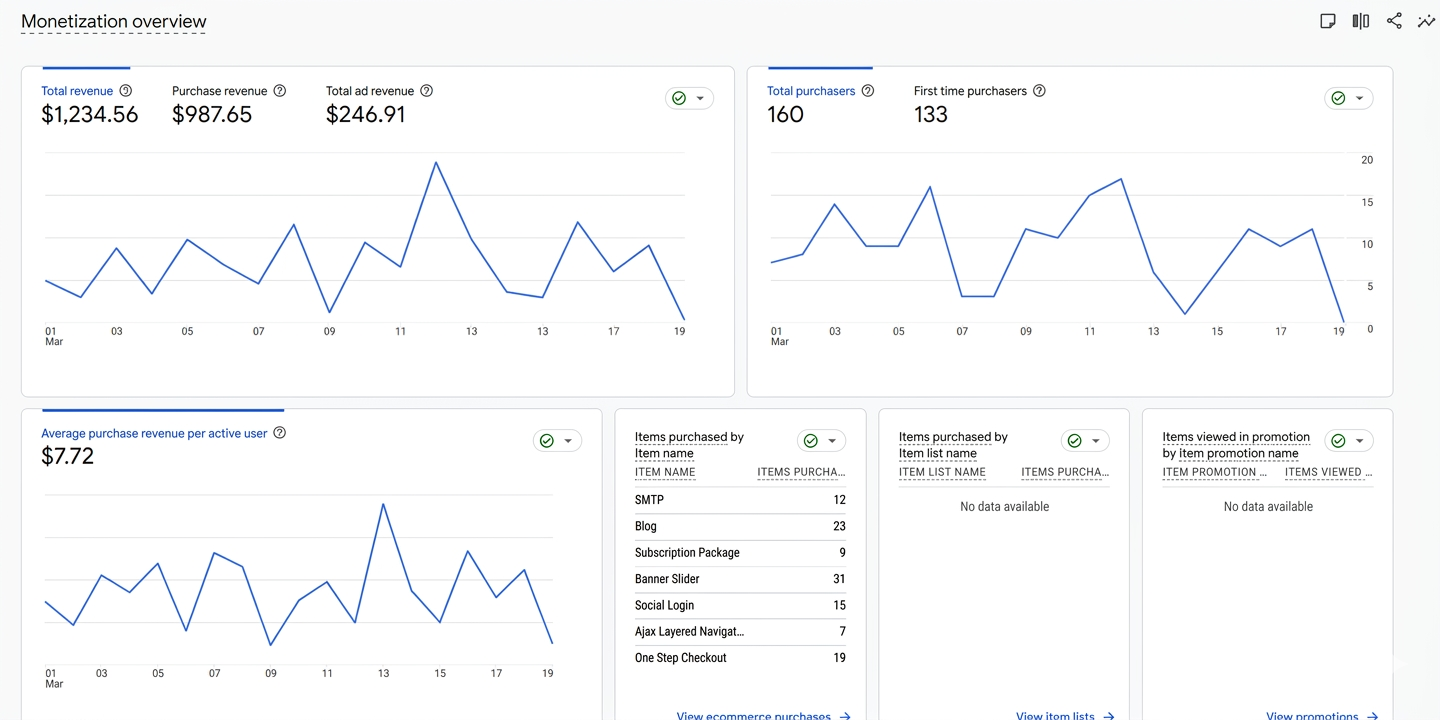
Think of this as your store’s financial dashboard. At a glance, it shows Total Revenue, Purchase Revenue, and First-Time Purchasers, giving you a quick read on both income and growth.
The revenue trend cards sit at the top of the report. Each card shows a mini trend graph alongside the current period total. Look at the direction. A flat revenue line with rising sessions is a conversion problem. A rising revenue line with flat sessions means your store is monetizing better.
Key metrics to know:
-
Total Revenue: all revenue including purchases, subscriptions, and ad revenue
-
Purchase Revenue: ecommerce sales only, excluding other revenue types
-
ARPPU (Average Revenue Per Paying User): how much each paying customer spends on average
💡 Magento Tip: Use the “First Time Purchasers” card to track the success of acquisition campaigns
Ecommerce Purchases Report
For each product, GA4 shows views, add-to-carts, purchases, and revenue, so you can see exactly where products gain or lose momentum in the buying journey.
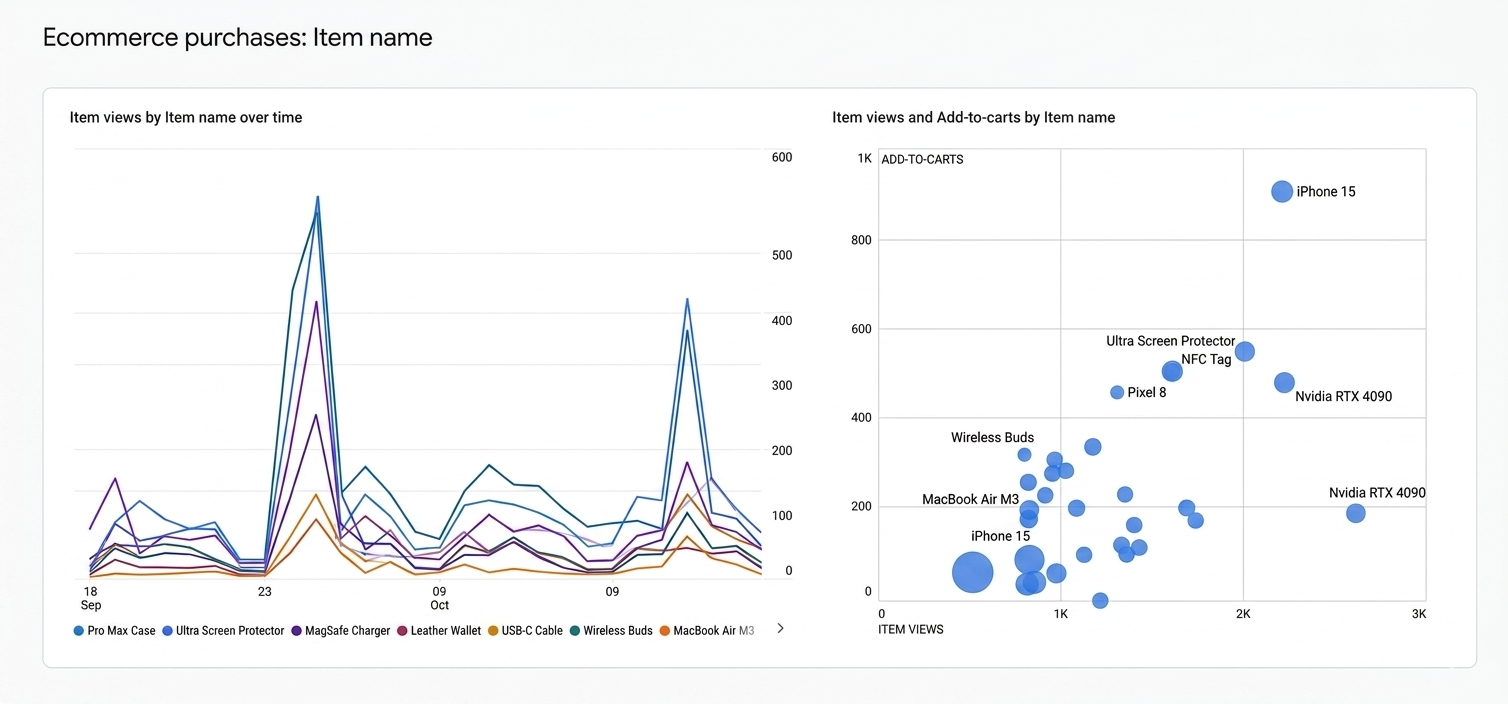
The bubble chart is one of GA4’s most underused features. Each bubble represents a product, size indicates revenue, position indicates view-to-purchase ratio. Products sitting in the bottom-left (low views, low purchases) are your problem items. Products with large bubbles but low ratios are getting traffic but not converting.
GA4 organizes product data using item dimensions:
-
Item Name: product title
-
Item ID: your Magento SKU
-
Item Category: your Magento category hierarchy
To go deeper, apply a secondary dimension, for example, adding Country reveals how products perform in specific markets.
Purchase Journey Report
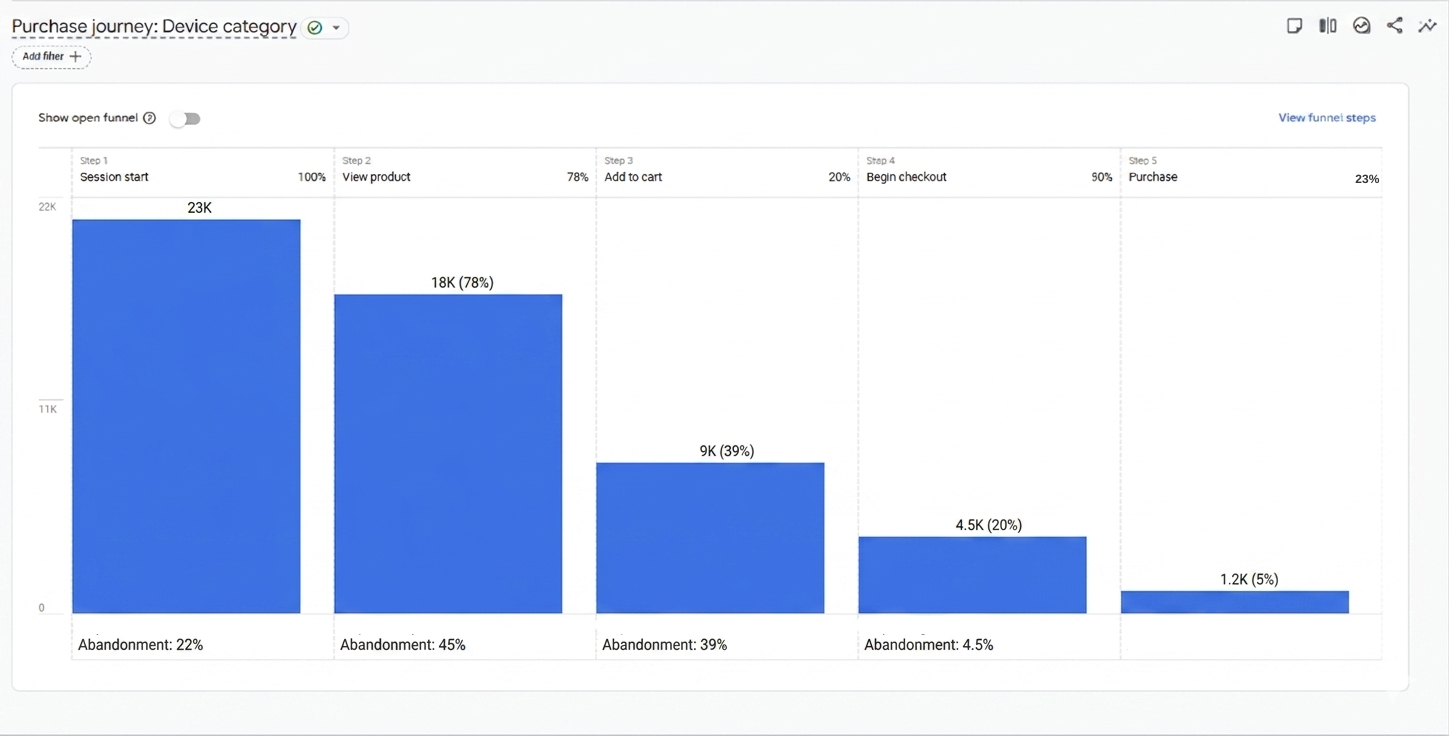
This report shows your 5-step purchase funnel: Session Start → View Product → Add to Cart → Begin Checkout → Purchase. Each step shows how many users continued and how many dropped off.
One setting to check immediately: Closed vs. Open funnel. GA4 defaults to open, which allows users to enter the funnel at any step. This can make drop-off rates look lower than they really are. Switch to a closed funnel for a more accurate read of sequential behavior.
Read each abandonment rate as a signal:
- High drop-off at View Product: product pages aren’t convincing
- High drop-off at Add to Cart: pricing, trust, or UX friction
- High drop-off at Begin Checkout: cart page is losing people before they even start
If the report shows no data, the most common cause is missing events. The view_item, add_to_cart, or begin_checkout aren’t firing correctly from your Magento store.
💡 Magento Tip: High drop-off between “Add to Cart” and “Begin Checkout” often points to a Magento cart page UX issue. You should test with session recordings (Hotjar, CrazyEgg)
Checkout Journey Report
Where the Purchase Journey ends, the Checkout Journey begins. This report tracks the 4-step checkout funnel: Begin Checkout → Add Shipping Info → Add Payment Info → Purchase.
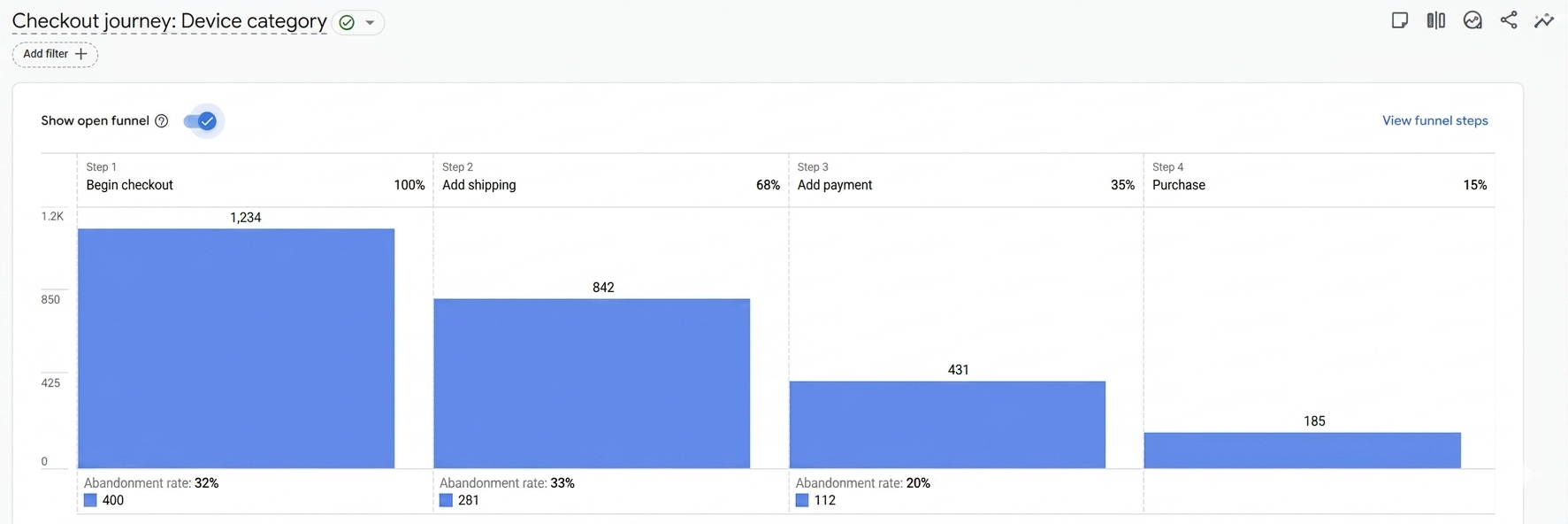
The global average cart abandonment rate sits around 70% (Baymard Institute), meaning roughly 3 in 4 shoppers who start checkout don’t complete it. Your job is to find where your store’s number spikes above that baseline.
To find root causes, segment by:
- Device: mobile checkout friction is often worse than desktop
- Traffic source: paid traffic may convert differently than organic
- User type: new vs. returning users behave differently at checkout
Once you identify the biggest drop-off step, investigate specifically: slow page load, confusing form fields, limited payment options, or surprise costs revealed too late.
💡 Magento Tip: High drop-off at “Add Shipping” is the #1 Magento-specific issue — often caused by unexpected shipping costs revealed too late in checkout.
- Consider enabling free shipping thresholds to encourage immediate purchase decisions
- Make your extra fees clearly shown at checkout
Promotions Report
Once you launch internal promotions (homepage banners, popups, and featured product placements), you need to track them. It answers the question most merchants can’t: which banners actually drive purchases, not just clicks.
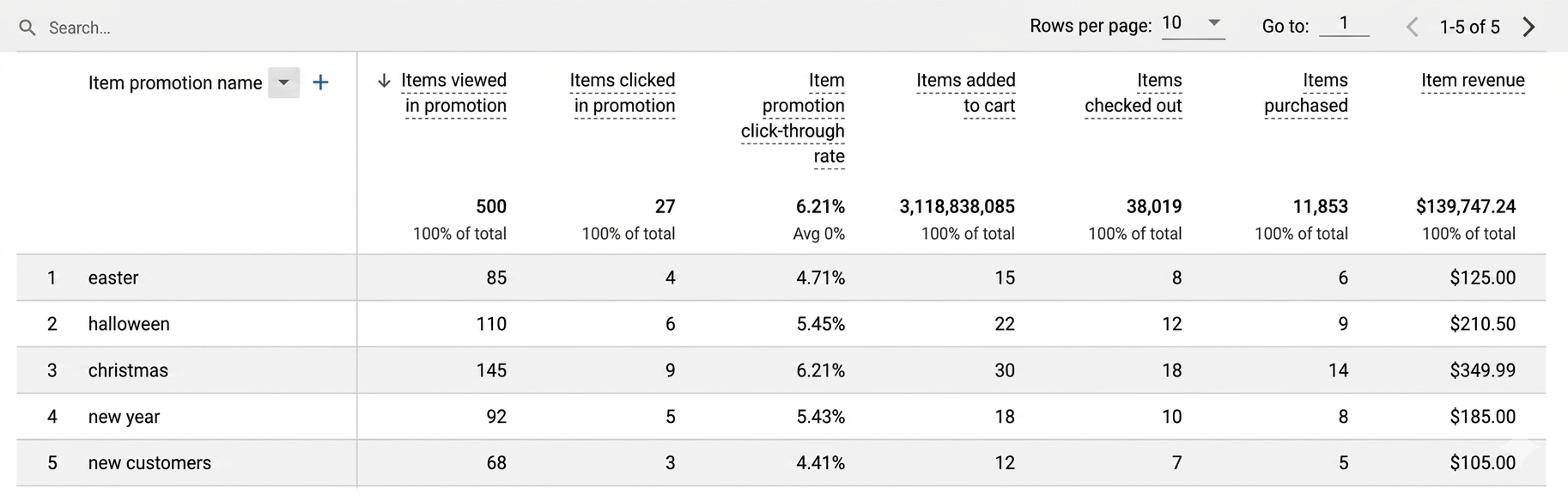
Key metrics:
- Items Viewed in Promotion: how many users saw the banner
- CTR: how many clicked through
- Items Purchased: how many of those clicks led to a sale
A high CTR with low purchases means your banner attracts attention but the landing experience doesn’t follow through.
Order Coupon Report
This report attributes revenue to each coupon or discount code used at checkout, in order to check which promotions actually paid off and which just cut margin.
To access it, go to Monetization Overview and scroll down. Admins can use it to measure true coupon ROI: compare the revenue generated by each code against the discount given. A coupon that drives high-volume, low-AOV orders may be less valuable than it appears.
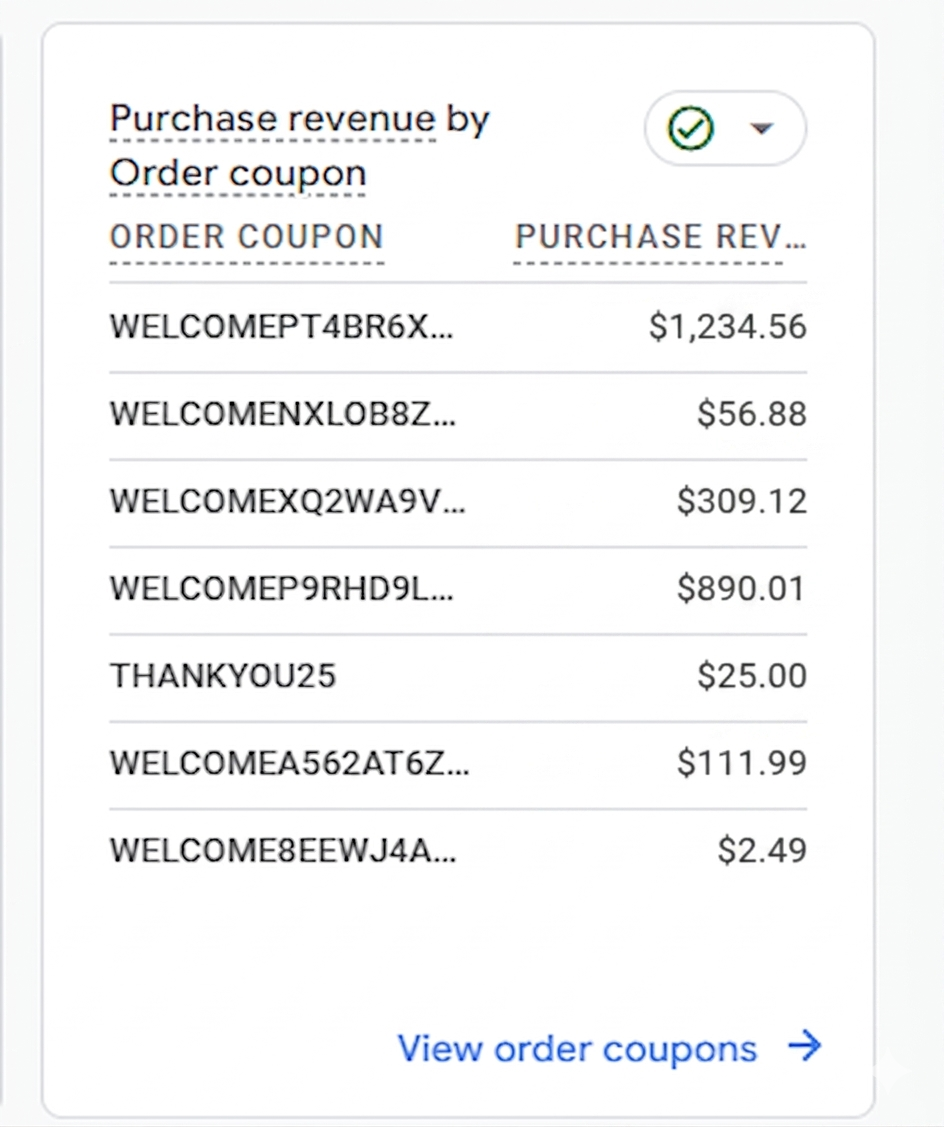
Passing Magento coupon codes to GA4 requires explicitly sending the coupon parameter at the event level. This is not enabled by default in most Magento-GA4 setups, so if you’re not seeing coupon data, this is why.
Item List Report
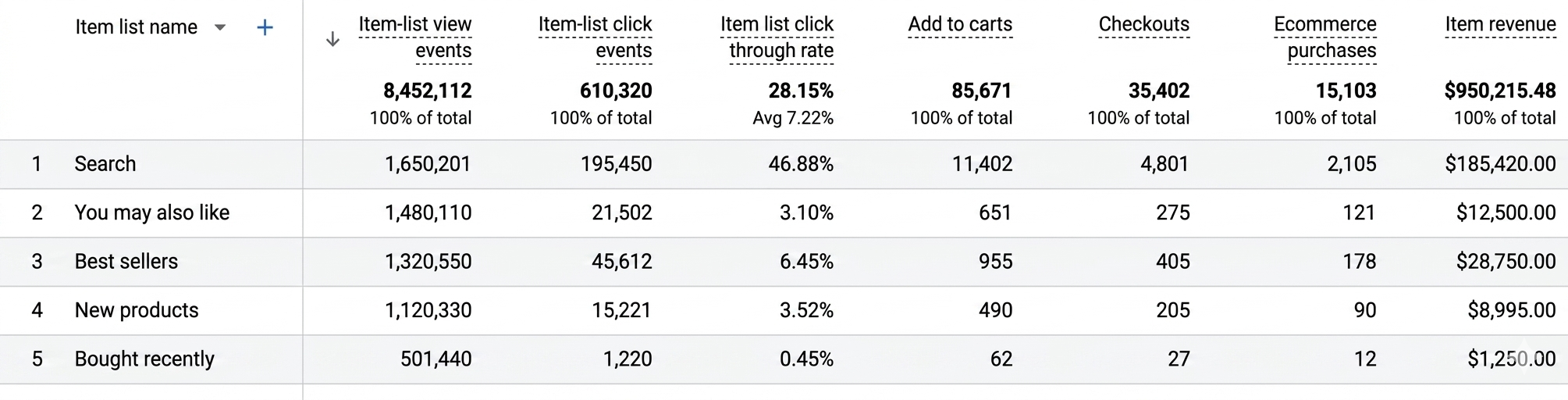
This report measures the performance of product listing pages, category pages, search results, and recommendation widgets, anywhere products appear as a list rather than a single product page.
For each list, GA4 shows views, clicks, and revenue — so you can see which category pages and search result pages are your strongest revenue drivers, and which are dead ends.
💡 Magento Tip: Tag your Magento “Related Products” and “Upsell” blocks as item lists in GA4 to see their actual revenue contribution
Retention Reports: Are customers coming back?
The Retention report answers one fundamental question: after a customer visits or buys, do they come back?
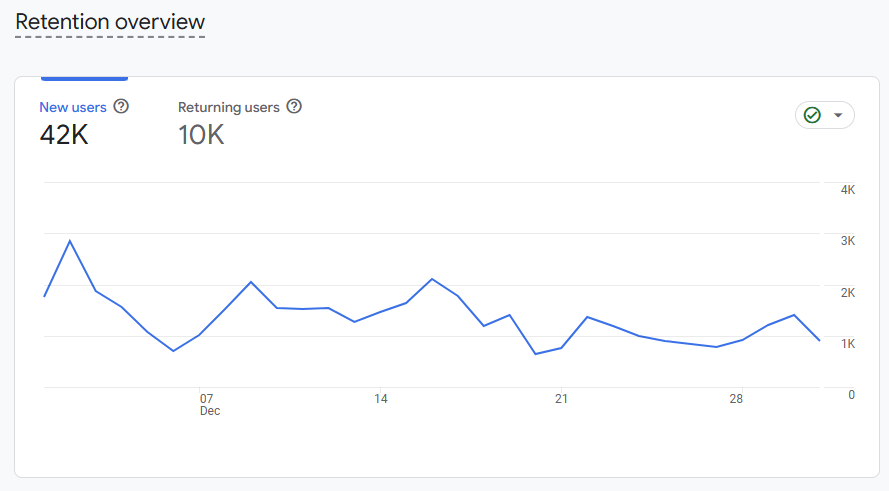
GA4 splits your audience into two groups at the most basic level. New users are visiting your store for the first time. They’re in discovery mode, less likely to purchase immediately, and more expensive to acquire. Returning users already know your store. They convert at higher rates, spend more per order, and cost nothing extra to bring back.
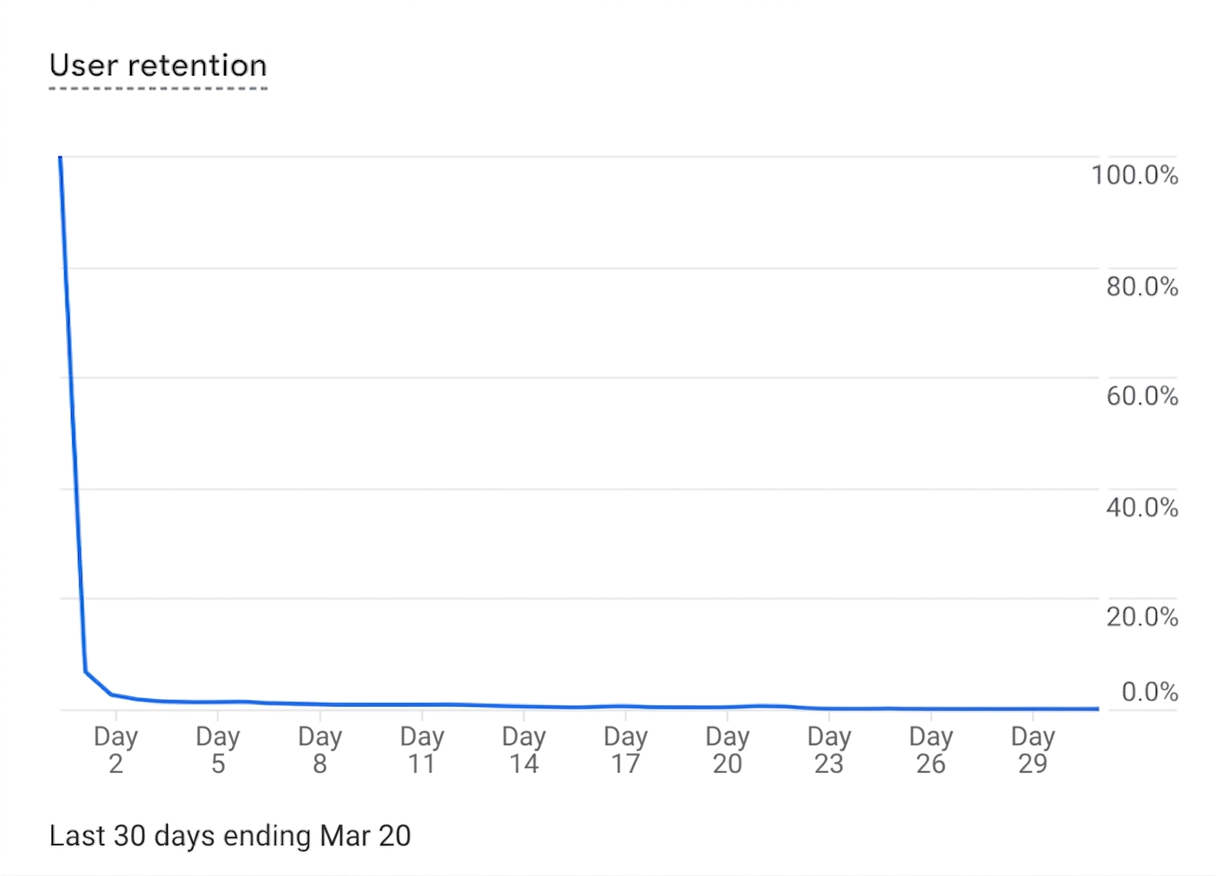
The User Retention chart tracks cohorts of users over time, starting from the day they first visited (Day 0). The two numbers to watch:
- Day 1 retention: how many users returned the very next day. Low Day 1 retention often signals a weak first impression or no follow-up trigger.
- Day 7 retention: how many returned within the first week. This is a stronger signal of genuine interest and the window where email sequences have the most impact.
For e-commerce, repeat purchase rate is a more honest health metric than conversion rate, but context matters. A fashion or beauty store should expect frequent return purchases; a furniture or appliance store naturally sees longer gaps between orders. What counts as a healthy repeat purchase rate depends entirely on your industry and how often customers realistically need what you sell.
User Reports: Who is shopping in your store?
Demographics Reports
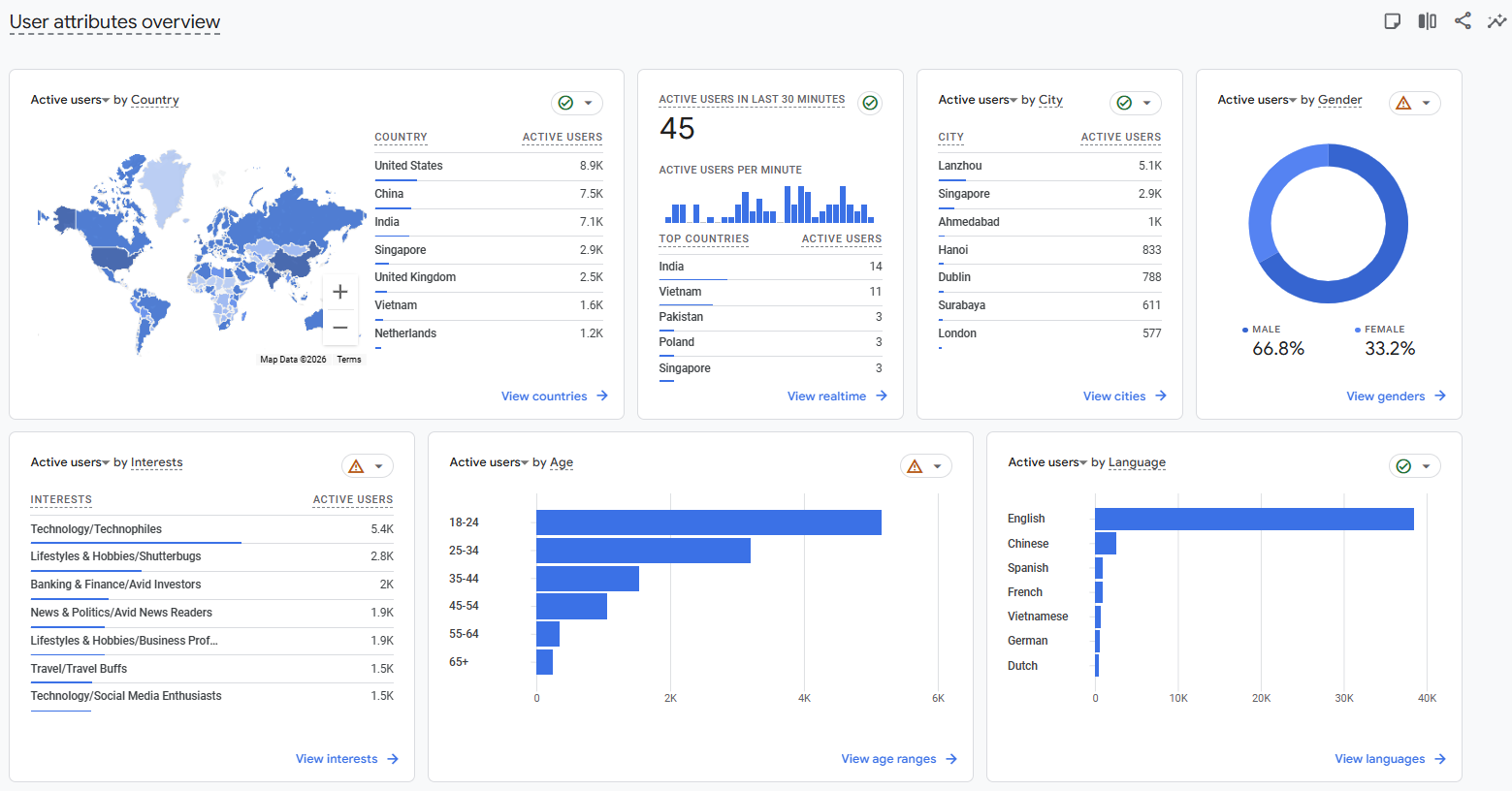
GA4’s Demographics report breaks down your shoppers by age, gender, and location, giving you a clearer picture of who is actually buying versus who you think you’re selling to.
Use this data practically:
-
Age and gender: Inform which products to feature, how to write copy, and which ad creatives to test
-
Location: Identify markets that are over- or underserved, and whether geo-specific campaigns are worth running
For Magento merchants expanding into international markets, a residential proxy can also be useful for checking how their store and product pages appear to users in different locations.
If your store’s top-selling products don’t match your dominant demographic, that’s either a product mix problem or a targeting one, both worth investigating.
Tech Reports
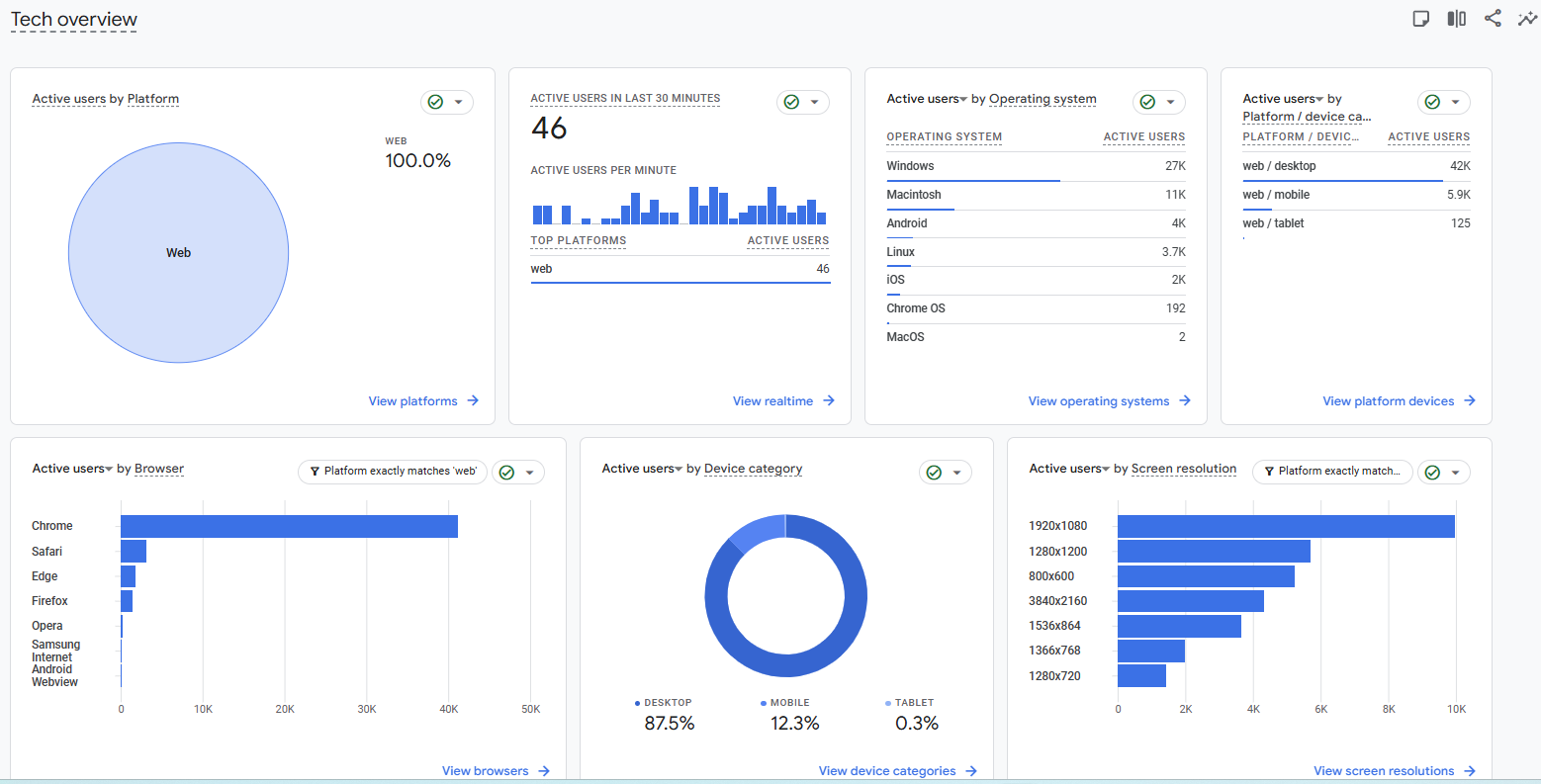
The Tech report shows how shoppers reach your store: device category, browser, and operating system. For most Magento stores, mobile traffic is significant, the question is whether it converts at anywhere near the same rate as desktop.
💡 Magento Tip: If mobile traffic is high but mobile conversion rate is low (check Checkout Journey by device), your Magento theme may need mobile checkout optimization
Custom Reports & Explorations: Going Beyond the Defaults
Standard GA4 reports answer standard questions. When you need to go deeper, or when your Magento store has a funnel that doesn’t fit GA4’s default assumptions, the Explore section is where you build your own analysis:
- Funnel Exploration: Build any custom funnel with the exact steps your store uses, with full control over open vs. closed settings and segment comparisons
- Path Exploration: Follow users forward or backward from any point in the journey; useful for understanding what happens after a product view or before a drop-off
- Free Form: A drag-and-drop report builder where you combine any dimensions and metrics into a custom table or chart
- User Lifetime Value: A built-in template showing total revenue a user generates over their full relationship with your store, grouped by acquisition channel. Helps reveal which channels bring loyal repeat customers vs. one-time bargain shoppers.
For Magento stores, the most valuable use of Explorations is building a purchase journey tailored to your actual store flow, so you can actually use it for more valuable insights.
💡 Magento Tip:
- Create a custom Exploration report combining "Add to Wishlist" → "Purchase" to measure wishlist conversion - a Magento-native feature often ignored in analytics
- Use the built-in User Lifetime Value report, broken down by acquisition channel, to see which sources bring the highest-value repeat customers to your Magento store.
Common GA4 Reporting Mistakes E-Commerce Stores Make
-
Trusting reports before verifying ecommerce event setup: If events are firing incorrectly, your reports will look complete while quietly undercounting revenue. Before trusting any number, use GA4’s DebugView (Admin → DebugView) to confirm events are firing correctly and passing the right parameters.
-
Using closed funnels without tracking all funnel steps: A closed funnel only counts users who pass through every step in order. If any middle step isn’t firing consistently, Google Analytics 4 will exclude those users entirely, making your funnel look emptier than it is. Either verify all events are tracked before switching to closed funnel, or use open funnel until your setup is confirmed clean.
-
Not filtering out internal traffic: Every time your team browses the store, tests checkout, or checks product pages, it adds noise to your data. Fix it by going to Admin → Data Streams → Configure Tag Settings → Define Internal Traffic, then add your office and developer IP addresses.
-
Ignoring the “(not set)” dimension: When GA4 can’t determine a dimension value, it labels it “(not set).” A small percentage is normal. A large one signals a tracking gap: missing UTM parameters, untagged events, or misconfigured data streams.
-
Comparing GA4 data directly to Universal Analytics data: GA4 and Universal Analytics measure fundamentally different things. Sessions, users, and conversions are all calculated differently, so a side-by-side comparison will almost always show discrepancies that aren’t real problems. Treat GA4 as a fresh baseline and benchmark forward from your GA4 start date, not backward against UA numbers.
💡 Magento Tip: Use GA4’s internal traffic filter to exclude Magento admin and developer IP addresses from your reports
Turn Your GA4 Reports Into Revenue Decisions
GA4 gives Magento merchants more ecommerce data than any previous version of Analytics, with noticeable reports such as the Monetization reports, the Purchase and Checkout Journey reports, or the Retention report.
If you’re not sure where to start, keep it simple: audit your GA4 ecommerce event setup first, confirm that key events are all firing correctly, then open the Checkout Journey report. One report, read carefully, will tell you more about your store’s biggest opportunity than a month of vanity metrics.
Read more: Setup GA4 quickly with this guide
Table of content

Summer is the CMO and Digital Commerce Solution Expert with 10+ years of experience. She specializes in Magento, Shopify, ERP, CRM, AI, and Blockchain, delivering strategic solutions that transform businesses. With a deep understanding of digital commerce, she helps brands scale and stay ahead in a competitive market.
Related Post

15 mins read
|
09-30-2026
16 mins read
|
08-30-2026
5 mins read
|
07-30-2026
7 mins read
|
06-30-2026

How to Enable DebugView in GA4 for your Magento 2 store - Mageplaza
Step-by-step guide to enabling GA4 DebugView for Magento 2 merchants — verify your GA4 events are firing correctly before trusting your data.
8 mins read
|
06-09-2026
14 mins read
|
10-30-2026
15 mins read
|
09-30-2026
16 mins read
|
08-30-2026
5 mins read
|
07-30-2026
7 mins read
|
06-30-2026
How to Enable DebugView in GA4 for your Magento 2 store - Mageplaza
Step-by-step guide to enabling GA4 DebugView for Magento 2 merchants — verify your GA4 events are firing correctly before trusting your data.
8 mins read
|
06-09-2026