
Change Store Email Addresses - Mageplaza
3 mins read
|
04-02-2016

Vinh Jacker | 08-12-2016
It is important to ensure and upgrade the security of your administration. Hence, you should manage the setting to Secure Your Admin to protect your system as well as to suit the characteristics of your store. To help you understand about the security function that Magento 2 supplies, let me instruct you how to find and configure admin security effectively.
Make sure your store is not only in good shape but also thriving with a professional team yet at an affordable price.
Get Started
Now, let’s check 3 steps out to secure your admin better:
Related topics
Stores > Settings > Configuration.Advanced > Admin > Security.Add Secret Key to URLs field, leave Yes as in default to enable a secret key to Admin URLs or choose No to disable it. Because Secret Key is useful for preventing CSRF (Cross-site request forgery) Attack, it is recommended to be activated.Login is Case Sensitive field, select Yes to recognize the difference between upper and lowercase characters then demand the user to login with the exact account name and password.Admin Session Lifetime (seconds) field, enter a number which is required to be greater than 60 to determine the time that a user is allowed not to have any action in a session before the system auto-logout the account. To skip this setting, leave the field blank.Maximum Login Failures to Lockout Account field, set a number to decide how many times a user can type the wrong password before their accounts are locked.Lockout Time (minutes) field, enter the number of minutes to lock an account before the user can log in again. This option can Tackle brute force attacks.Password Lifetime (days) field, set the number of days a password can be used before it expires. Leave the field blank if you do not want to activate this feature.Password Change field, select Forced to require the users to change their password before it expires or choose Recommended to give advice about password resetting.
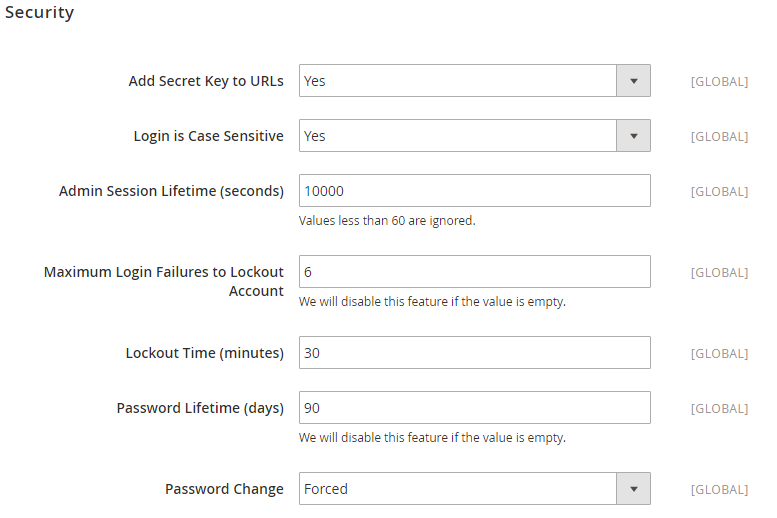
Save config button in the upper-right corner when you are done.Securing your Admin in Magento 2 is an essential step to protect your site from online fraud and risks. With the above 3 easy steps, you can easily conduct necessary activities to ensure your backend is safe.
If you want to maintain high security and oustanding performance on your website, you should get help from experts. Starting off as a Magento-specialized company, Mageplaza can provide you with experienced developers who can protect your site well. So, how can Mageplaza help you?
Contact maintenance experts for free consultations now!

Jacker is the Chief Technology Officer (CTO) at Mageplaza, bringing over 10 years of experience in Magento, Shopify, and other eCommerce platforms. With deep technical expertise, he has led numerous successful projects, optimizing and scaling online stores for global brands. Beyond his work in eCommerce development, he is passionate about running and swimming.
Related Post
Change Store Email Addresses - Mageplaza

Change Welcome Message - Mageplaza
Customize the welcome message on your store's homepage to provide a personalized touch for your customers. Improve the user experience with our step-by-step guide.
Configure Magento 2 Contact Form & Email: Detailed Guides - Mageplaza
Configure the email address for your Magento 2 store's contact form and ensure that your customers can easily get in touch with you with this informative guide
How to Install Magento 2 with Sample Data - Mageplaza
How to install Magento 2 with Sample Data. In this topic we will discuss about How to Install Magento 2 Step by Step in Manage Store topic
6 Steps To Stop Brute Force Attacks - Mageplaza
How To Stop Brute Force Attacks in Magento 1, 2. In this topic we will discuss about How To Stop Brute Force Attacks in Manage Store topic
How to set Locale, Language, and Country in Magento 2 - Mageplaza
Setup Locale State Country in Magento 2 provides setup your store information on Locale Options that determines the timezone, language, country and the days.
Change Store Email Addresses - Mageplaza
Change Welcome Message - Mageplaza
Customize the welcome message on your store's homepage to provide a personalized touch for your customers. Improve the user experience with our step-by-step guide.
Configure Magento 2 Contact Form & Email: Detailed Guides - Mageplaza
Configure the email address for your Magento 2 store's contact form and ensure that your customers can easily get in touch with you with this informative guide
How to Install Magento 2 with Sample Data - Mageplaza
How to install Magento 2 with Sample Data. In this topic we will discuss about How to Install Magento 2 Step by Step in Manage Store topic
6 Steps To Stop Brute Force Attacks - Mageplaza
How To Stop Brute Force Attacks in Magento 1, 2. In this topic we will discuss about How To Stop Brute Force Attacks in Manage Store topic
How to set Locale, Language, and Country in Magento 2 - Mageplaza
Setup Locale State Country in Magento 2 provides setup your store information on Locale Options that determines the timezone, language, country and the days.