

5 mins read
|
11-30-2026
ChatGPT Product Feed for Magento 2: Field Mapping, Variants, Setup and Fixes
Vinh Jacker
|
12 hours ago

💡 The short answer ChatGPT shopping reads a structured product feed in OpenAI’s format. Shopify stores get one for free. Magento 2 stores don’t. You build the feed from your catalog, apply at chatgpt.com/merchants, validate a small sample, then push a full snapshot every day. Being in the feed makes you eligible. It does not guarantee a recommendation.
If you’ve been comparing where to sell online, you’ve seen AI shopping agents creep onto the list. A year ago, the story was “buy inside ChatGPT”. In March 2026, OpenAI changed course: ChatGPT now helps shoppers find products, and they buy on your site (CNBC). That’s good news for Magento stores. You don’t need a checkout integration to start. You need a product feed in OpenAI’s format, with clean data in every row.
This guide walks you through it: mapping OpenAI’s nine required fields to your Magento attributes, handling configurable products the right way, generating and validating the feed with Mageplaza Product Feed’s ChatGPT template (beta), and fixing the mistakes that get rows rejected.
Three routes into ChatGPT, and which one a Magento store takes
So where does the feed go? OpenAI gives merchants three routes, and your platform decides which one you take:
| Route | Who it's for | What you do | What you get | Magento 2? |
|---|---|---|---|---|
| Shopify Agentic Storefronts | US Shopify merchants | Turn on the channel, fill in policies | Organic results, no feed to build | No |
| Direct product feed | Magento, WooCommerce, BigCommerce, custom | Apply at chatgpt.com/merchants, push your catalog by SFTP | Organic results, full control of your data | Yes — this guide |
| ChatGPT Ads product feed | Brands buying ads in ChatGPT | Separate feed in Ads Manager | Paid placements | Yes, once you have a feed |
Before any of that, ChatGPT has to be able to read your site. Its crawler is OAI-SearchBot. Check two places: your robots.txt, and your CDN’s bot rules. Adobe Commerce Cloud runs on Fastly. Many Magento stores sit behind Cloudflare. Both can block AI bots by default while robots.txt looks wide open. While you’re there, make sure your structured product data is in place.
The rest of this guide is about using direct product feeds for Magento 2.
The OpenAI spec, mapped to your Magento catalog
The nine required fields, and where they live in Magento
OpenAI’s feed has nine required fields. The docs explain what each one means. They don’t tell you where to find it in Magento, we do:
| OpenAI field | Magento source | Watch out |
|---|---|---|
item_id |
sku of the simple product |
Keep it a string. Never change a SKU after it's been sent. |
title |
name, plus variant attributes |
150 characters max. Configurable children often lack color and size in their name. |
description |
short_description, fall back to description |
5,000 characters max. Strip HTML. No Page Builder or widget markup. |
url |
URL rewrite of the simple if it's visible; otherwise the parent URL | US store view only. Never a staging domain. |
brand |
manufacturer or your brand attribute |
No "N/A". If you don't have a brand attribute, create one first. |
seller_name |
Store name (Stores > Configuration > General > Store Information) | The name shoppers recognize. Not your legal entity. |
image_url |
Base image of the simple | Must be public. Signed CDN URLs that expire mean dead images. |
availability |
Stock status + MSI salable quantity + backorders setting | Salable > 0 → in_stock. Zero with backorders on → backorder. Zero with backorders off → out_of_stock. Pre-order attribute → pre_order. Never blank. A blank or invented value rejects the row. |
price |
final_price for the US store view, with USD |
Match the price shown on the page, tax included or not. special_price becomes sale_price and must be lower than price. |
💡 Tip
Don’t send placeholders like null, n/a or unknown (except for availability, where unknown is a real value). And if an optional field is empty, leave it out rather than sending an empty string.
Four product types, four different answers
However, not every Magento product type belongs in the feed, and the ones that do go in differently. Let’s check the table below:
| Type | What to send |
|---|---|
| Simple | One row. |
| Configurable | The parent is not a row. Each child is a row with group_id = parent SKU, listing_has_variations = true, and variant_dict built from the super attributes, e.g. {"color":"Black","size":"M"}. |
| Bundle / Grouped | No single fixed price, so they usually don't belong in the feed. Send the simple children instead, if they sell on their own. |
| Virtual / Downloadable | Need is_digital = true, and OpenAI has to enable digital goods for your integration. Leave them out by default. |
Eligibility flags
Three flags control where a product can appear:
is_eligible_search— defaults totrue. Setfalseto pull a product from search at the next processing run.is_eligible_checkout— only works when search istrueand OpenAI has enabled checkout for your integration. It also needsseller_privacy_policyandseller_tosURLs.is_ads_eligible— separate from search. Off unless your feed has an Ads default.
Setting a flag doesn’t complete any onboarding. It just says what you’d like.
Optional fields worth sending
gtin— 8, 12, 13 or 14 digits with a valid check digit. Don’t have one? Leave it out. Don’t invent an MPN to fill the gap. OpenAI says so explicitly.product_category,color,size,material— these answer filter-style questions like “in navy” or “under 2 kg”.shipping_price— blank means unknown, not free.accepts_returns,return_deadline_in_days,return_policy— these answer the “can I send it back?” question.review_countandstar_rating— both must describe the same set of reviews.
What one row looks like
Here’s a configurable child from a standard Magento sample catalog, as one JSONL row:
{"item_id":"MH01-M-Black","title":"Chaz Kangeroo Hoodie - Black, M","description":"Cotton-blend hoodie with a kangaroo pocket and drawstring hood. Machine washable.","url":"https://www.example.com/chaz-kangeroo-hoodie.html","brand":"Luma","seller_name":"Luma Store","image_url":"https://www.example.com/media/catalog/product/m/h/mh01-black_main.jpg","availability":"in_stock","price":"52.00 USD","group_id":"MH01","listing_has_variations":true,"variant_dict":{"color":"Black","size":"M"},"gtin":"00012345678905","product_category":"Apparel & Accessories > Clothing > Shirts & Tops","is_eligible_search":true}
Nine required fields, grouping, a real GTIN, and one flag. That’s a complete row. Everything else is optional. The full field list is in OpenAI’s feed reference.
Generate and validate the feed with Product Feed
You could build this by hand with a custom export. Or you could use a template that already knows the spec. Mageplaza Magento 2 Product Feed extension added an AI Product Feed with a ChatGPT template that exports in OpenAI’s format and checks the result before you send it. Here’s the quick walkthrough:
Step 1: Create the feed
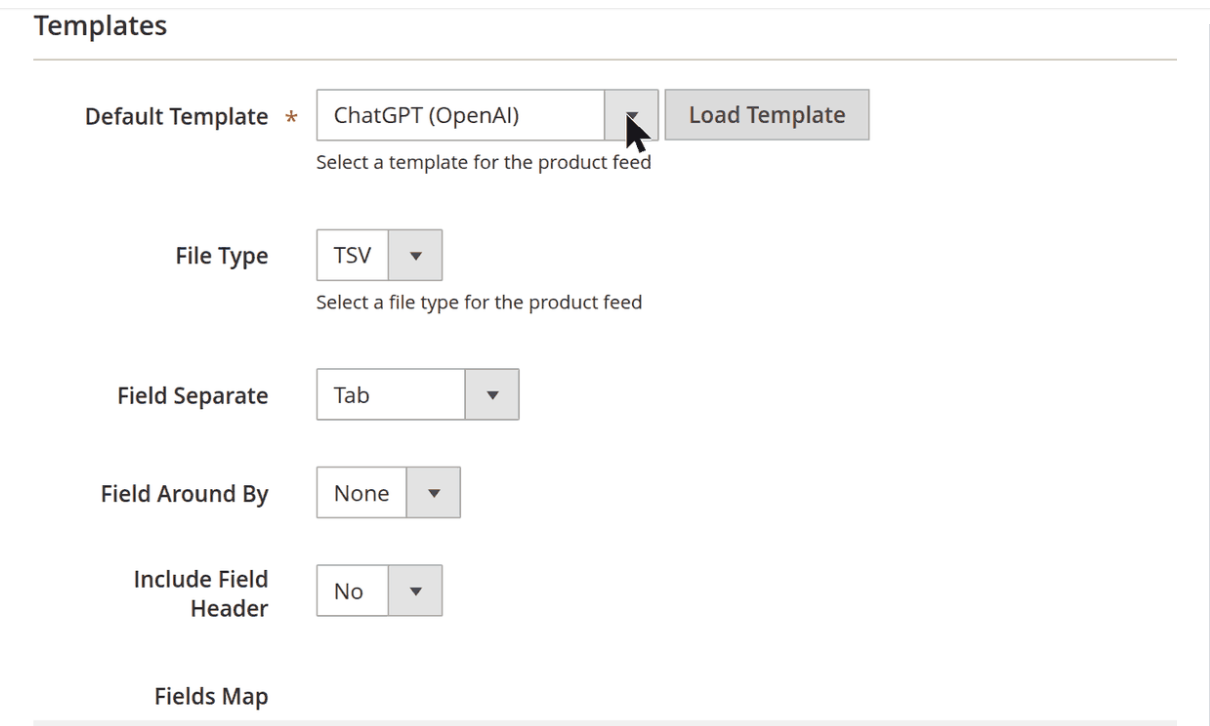
Go to Catalog > Product Feeds > Manage Feeds > Add New Feed.
Give it a name. Under template, pick ChatGPT (OpenAI).
Step 2: Check the attribute mapping
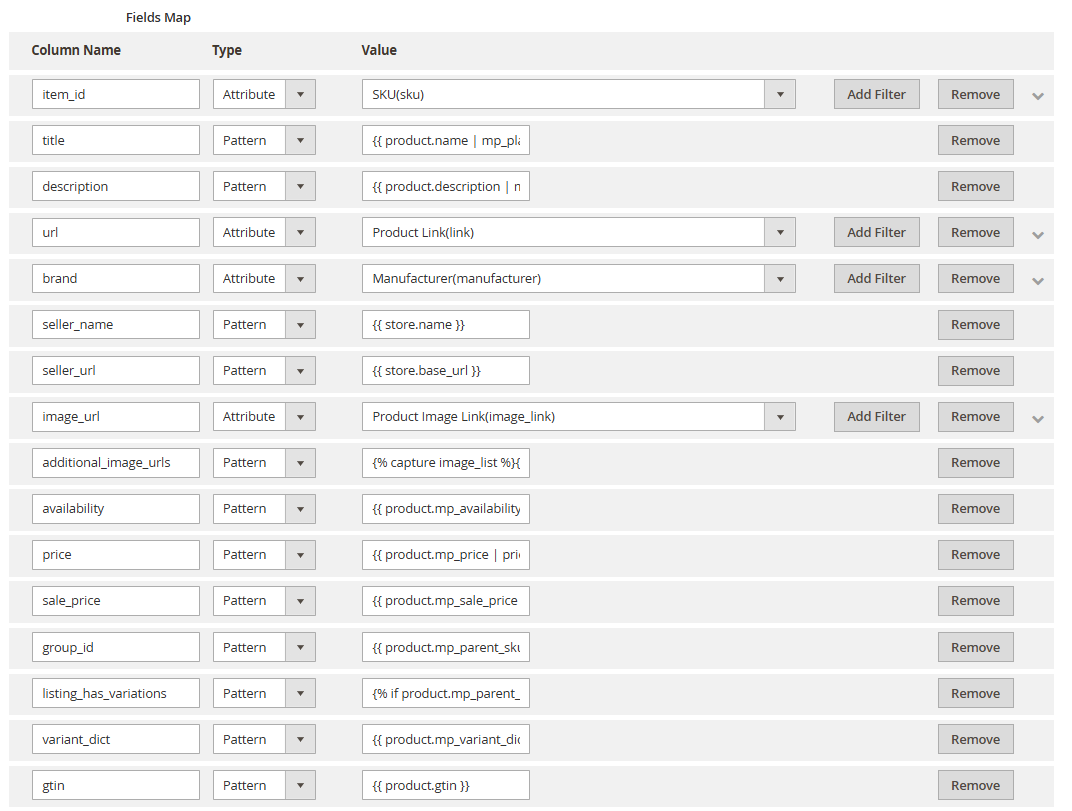
The nine required fields are mapped to standard Magento attributes out of the box. Three usually need your attention:
brand— point it at your brand attribute if it isn’tmanufacturer.gtin— point it at wherever you store barcodes. Leave unmapped if you don’t.description— pickshort_descriptionif your long descriptions are full of Page Builder markup.
Step 3: Fill in the checkout fields
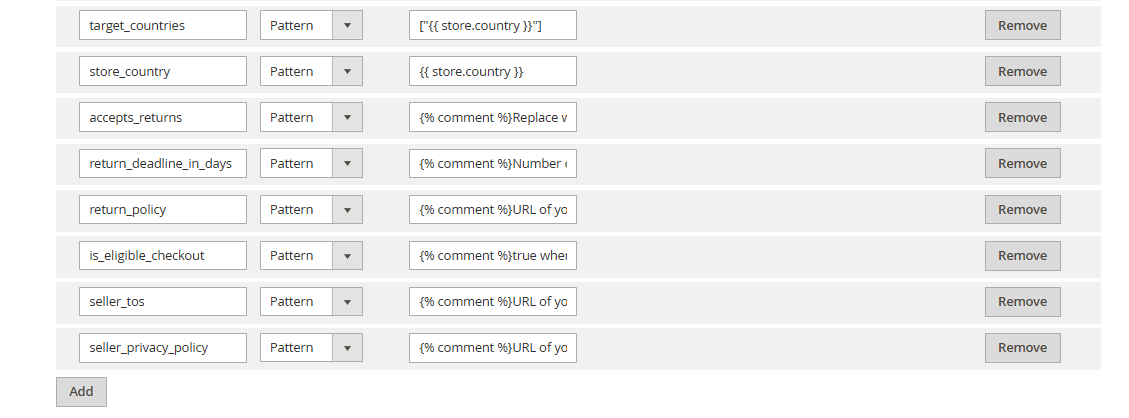
The template includes the checkout block: privacy policy URL, terms of service URL, return policy URL, return window in days, and the is_eligible_checkout flag. Fill in the URLs now. They’re useful even without checkout, because they answer shopper questions. Leave is_eligible_checkout blank until OpenAI has enabled checkout for you. Setting it early does nothing.
Step 4: Filter the products
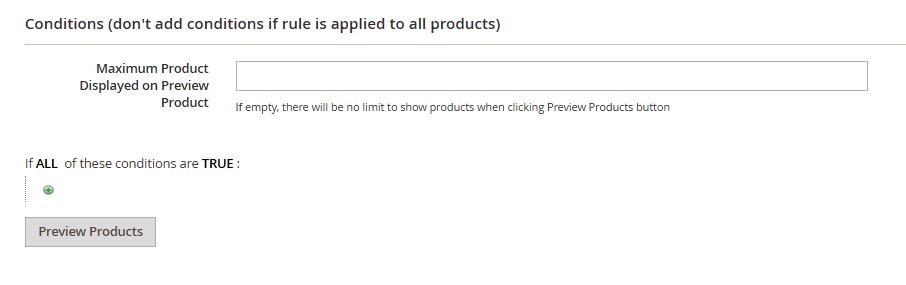
Set the store view to your US store. Then use the product filter to exclude:
- Disabled products
- Products with no image
- Products with no brand
- Bundle and grouped products
Do not exclude out-of-stock products. availability is required, and out_of_stock is a valid value. Dropping a product from the feed is not the same as marking it out of stock.
Step 5: Schedule and deliver
Set generation to daily. OpenAI asks for a full snapshot at least once a day, under a stable file name that you overwrite each run. Hourly is there if your prices move during the day, but daily is the baseline.
Then scroll to Delivery Config and set Delivery to Enable. This is where the feed goes straight to OpenAI without you touching a file:
- Protocol: SFTP. OpenAI’s upload path is SFTP, so ignore FTP, HTTP Server, API and GraphQL here.
- Host Name: the SFTP host OpenAI gave you when your application was approved. Add the port at the end if it isn’t 22, e.g.
sftp.example.com:2222. - User Name and Password, or Private Key File if OpenAI issued you a key. When you use a key, the Password field holds the key passphrase, if there is one.
- Directory Path: the folder OpenAI assigned. Full path, trailing slash.
Click Test Connection before you save. A green result here saves you a day of wondering why nothing arrived.
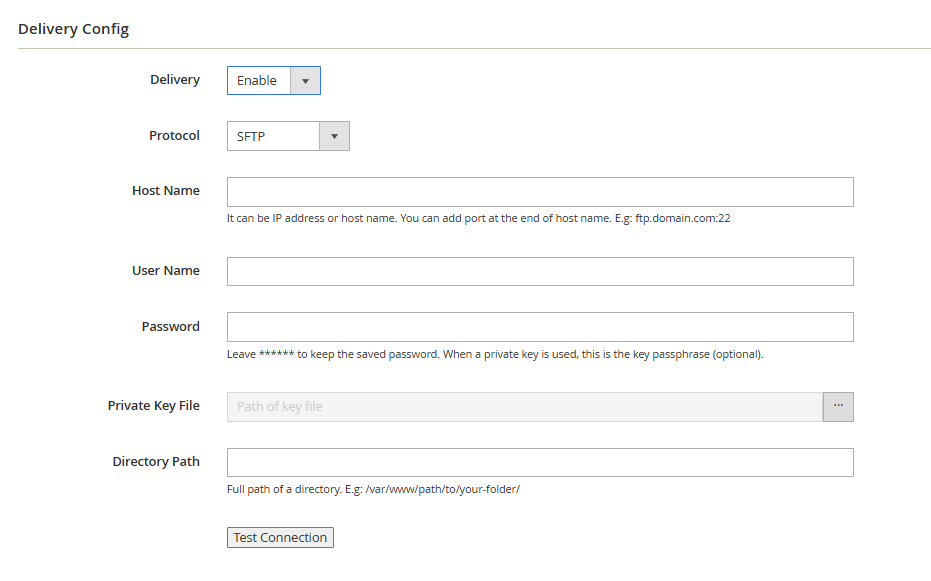
From now on, every generation uploads the snapshot to that folder under the same file name. OpenAI picks it up once the folder stops changing.
Step 6: Read the validation report
This is the step the other guides skip. Every time the feed generates, Product Feed produces a validation report covering four things: prices, variants, GTINs and checkout requirements, so you can see a list of warnings, before anything leaves your server.
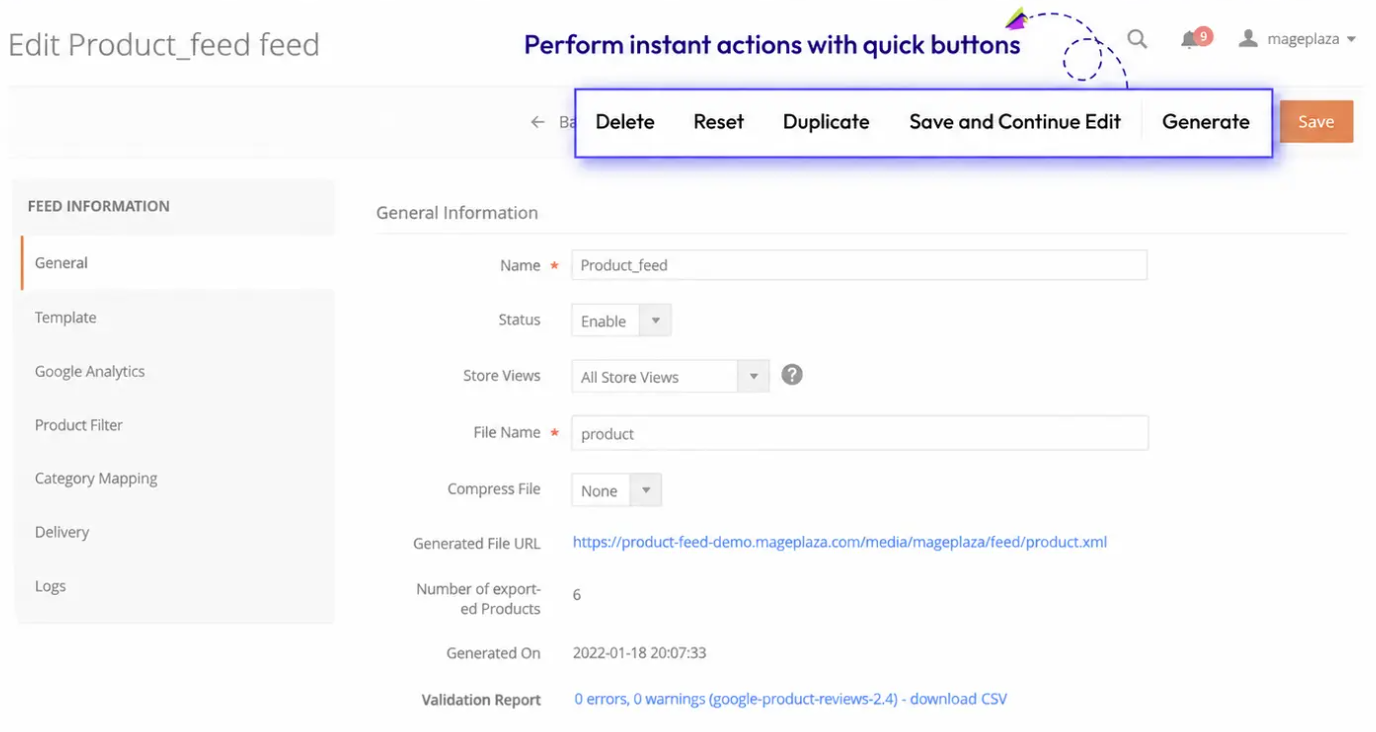
For general setup of the extension, see how to configure Product Feed, or try yourself at Mageplaza Product Feed demo.
💡 Tip Don’t push 40,000 SKUs on day one. You should start with around 100 items & check how they go.
Why your products aren’t showing up: Magento-specific checks
When ChatGPT doesn’t show your products, it’s almost always one of these reasons. Check the table below to see how to fix it:
| Check | Where in Magento | Fix |
|---|---|---|
| OAI-SearchBot allowed | robots.txt + CDN bot rules | Allow the bot in both |
| Images public and permanent | Base image URLs, CDN settings | No signed URLs in the feed |
| No staging URLs | Feed file, search for your staging domain | Set the feed's store view to production |
availability never blank |
Stock status, MSI, backorders | Map every state to one of the five values |
| Price matches page | Tax display setting, cache | Match tax display, flush cache after changes |
sale_price < price |
Special price, catalog price rules | Validation report flags it |
| Child titles include variant | Product names, title mapping | Append color/size in the template |
| Descriptions are plain text | Short description vs description | Map short_description, strip HTML |
| GTIN valid or absent | Barcode attribute | Leave blank if unknown, don't invent MPN |
| Brand on every row | Brand attribute | Filter out products with no brand |
| Discontinued SKUs flagged | Products disabled but still in feed | is_eligible_search = false |
ChatGPT adds utm_source=chatgpt.com to many outbound links. In GA4, create a channel group for AI assistants: chatgpt.com, perplexity.ai, gemini.google.com, copilot.microsoft.com. If you run GA4 through our Google Tag Manager extension, the referral data is already flowing.
FAQ
Does Mageplaza Product Feed guarantee my products appear in ChatGPT?
No. The extension exports your catalog in OpenAI’s format and validates it against the spec. Whether a product appears, and for which prompts, is OpenAI’s decision.
Do I need OpenAI’s approval?
Yes, for a direct feed. Apply at chatgpt.com/merchants. OpenAI describes onboarding as available to approved partners and publishes no review timeline.
Is it free?
OpenAI’s docs list no fee for sharing a feed for organic discovery. ChatGPT Ads product feeds are paid and separate.
My store sells outside the US. Can I use this?
The standard upload targets US shoppers. Canada and Mexico need market setup with OpenAI. Other markets aren’t covered yet.
Should I include out-of-stock products?
Yes, with availability = out_of_stock. Removing a product from the feed doesn’t remove it from ChatGPT right away. It can stay visible for up to 14 days.
How do I handle configurable products?
Send each child as its own row with group_id set to the parent SKU, listing_has_variations = true, and variant_dict with the color, size or other super attributes. Don’t send the parent as a row.
Can I reuse my Google Shopping feed?
OpenAI accepts Google-format files from confirmed merchants, with several differences in values and required columns. We recommend the dedicated OpenAI template instead.
Can shoppers still check out inside ChatGPT?
Only in limited cases, since March 2026. In-chat checkout needs a separately enabled integration. Setting is_eligible_checkout in your feed doesn’t turn it on.
Wrapping up
AI shopping assistants don’t read your brand story. They read availability, price and gtin. If those are right, you’re in the running. If they’re wrong, you’re invisible, no matter how good the page looks.
A feed in OpenAI’s format is the entry ticket. One clean snapshot a day keeps it valid. Product Feed’s ChatGPT template (beta) builds the file and checks it before it leaves your server. The rest is up to OpenAI, and to how good your product data was to begin with.
Table of content

Jacker is the Chief Technology Officer (CTO) at Mageplaza, bringing over 10 years of experience in Magento, Shopify, and other eCommerce platforms. With deep technical expertise, he has led numerous successful projects, optimizing and scaling online stores for global brands. Beyond his work in eCommerce development, he is passionate about running and swimming.
Related Post
ChatGPT Product Feed for Magento 2: Field Mapping, Variants, Setup and Fixes
Magento 2 has no built-in ChatGPT channel. Map OpenAI's nine required fields to your Magento attributes, handle configurable variants, generate and validate the feed with Mageplaza Product Feed, and fix the errors that get rows rejected.
15 mins read
|
12 hours ago
19 mins read
|
10-30-2026
PHP Security Update 2026: What Magento store must do now
PHP security update Oct 2026: CVE-2026-109618 and CVE-2026-109619 explained for Magento. Affected versions, fixes, and a 7-step checklist.
6 mins read
|
10-23-2026
15 mins read
|
09-30-2026
16 mins read
|
08-30-2026
5 mins read
|
11-30-2026
ChatGPT Product Feed for Magento 2: Field Mapping, Variants, Setup and Fixes
Magento 2 has no built-in ChatGPT channel. Map OpenAI's nine required fields to your Magento attributes, handle configurable variants, generate and validate the feed with Mageplaza Product Feed, and fix the errors that get rows rejected.
15 mins read
|
12 hours ago
19 mins read
|
10-30-2026
PHP Security Update 2026: What Magento store must do now
PHP security update Oct 2026: CVE-2026-109618 and CVE-2026-109619 explained for Magento. Affected versions, fixes, and a 7-step checklist.
6 mins read
|
10-23-2026
15 mins read
|
09-30-2026
16 mins read
|
08-30-2026